Workspace
Sign up, create and switch workspaces, and find your way around the screen.
A workspace is one organisation's private area. Employees, customers, attendance and settings all belong to one workspace and are never visible from another. A person can belong to several workspaces and switch between them.
Sign up as the first admin
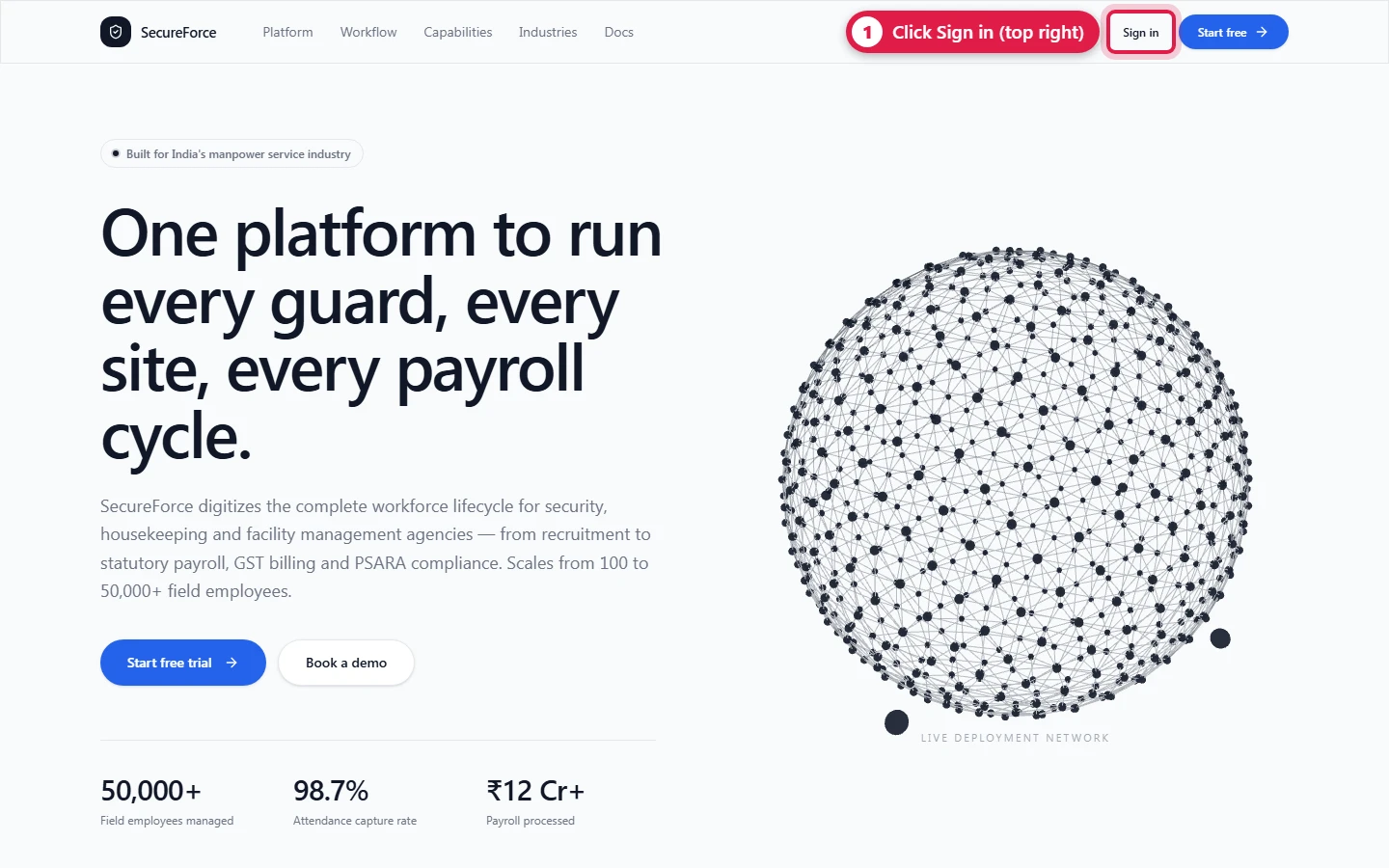
Open SecureForce and click Sign in at the top right of the home page.
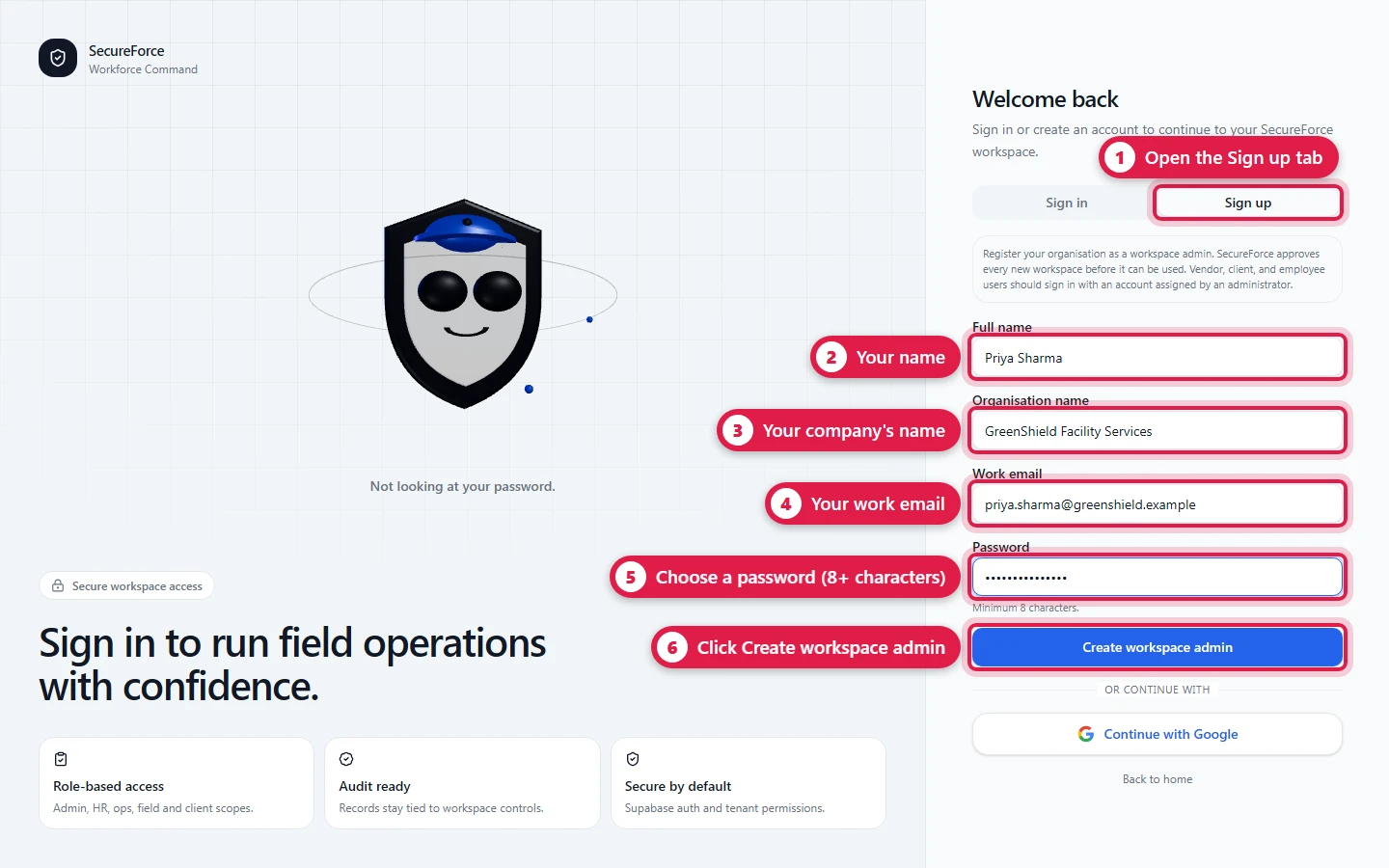
- Go to the Sign up tab (route
/auth). - Enter Full name,
- Organisation name,
- Work email,
- and a Password (at least 8 characters).
- Press Create workspace admin.
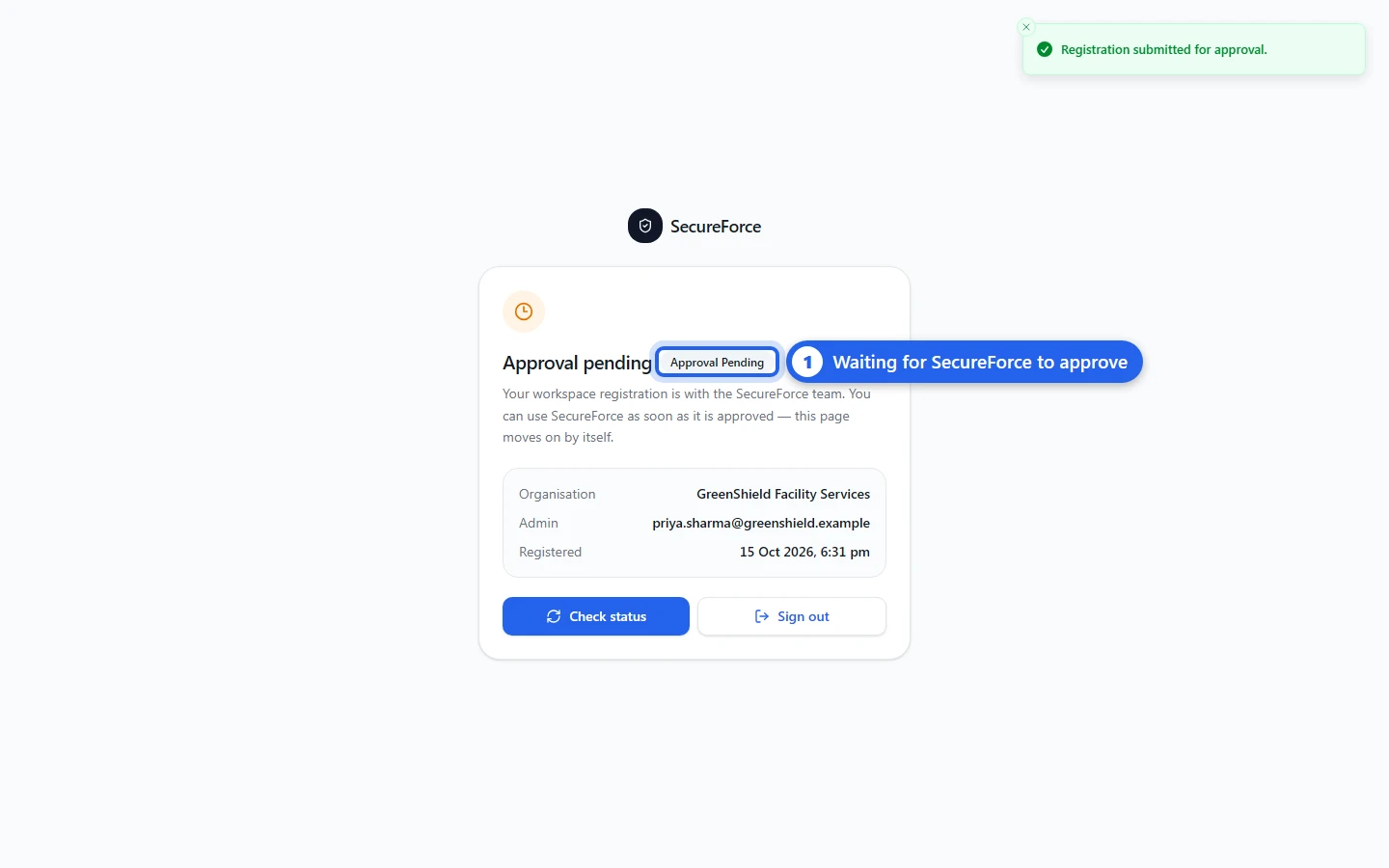
Your workspace is created, named after your organisation, with the status Approval Pending. Until the SecureForce team (IVT) approves it you see an Approval pending page with your organisation, email and when you registered; every other page sends you back there. The page checks again by itself every 30 seconds, or press Check status.
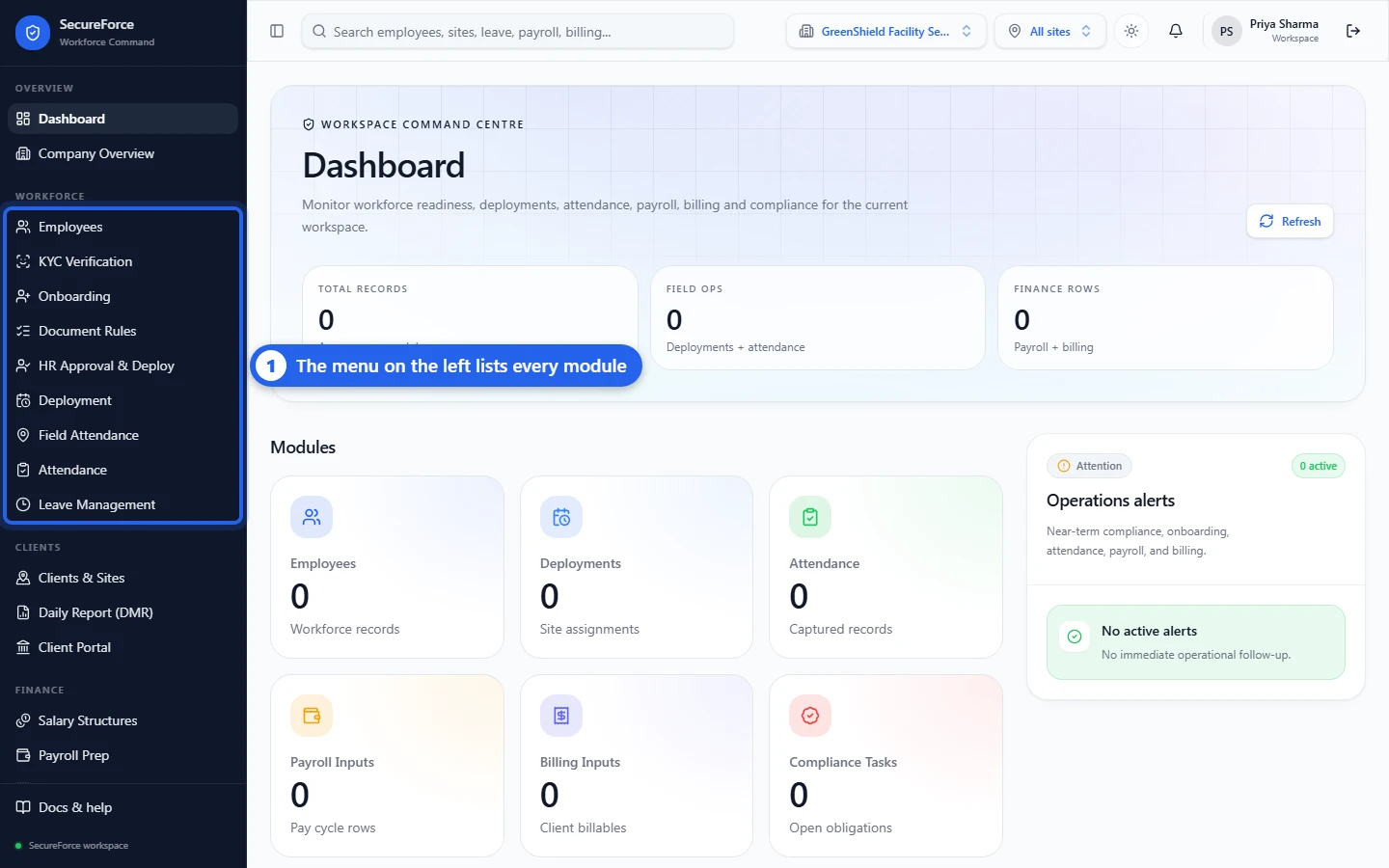
Once approved you land on the Dashboard as the Admin. If the registration is Rejected, the page shows the reason SecureForce gave; contact SecureForce support to have it reviewed again.
Nobody else needs to sign up: you add every other person from Administration, and they are not held for approval.
Approval by SecureForce (Super Admin Console)
SecureForce staff with super admin access sign in at the same address and land on the Super Admin Console (/super-admin). It lists every registration with the organisation, the org admin's name, email and phone, and when they registered, under Pending, Approved and Rejected tabs.
- Approve: the org admin can use SecureForce straight away.
- Reject: a reason is required; the org admin sees it. A rejected registration can still be approved later from the Rejected tab.
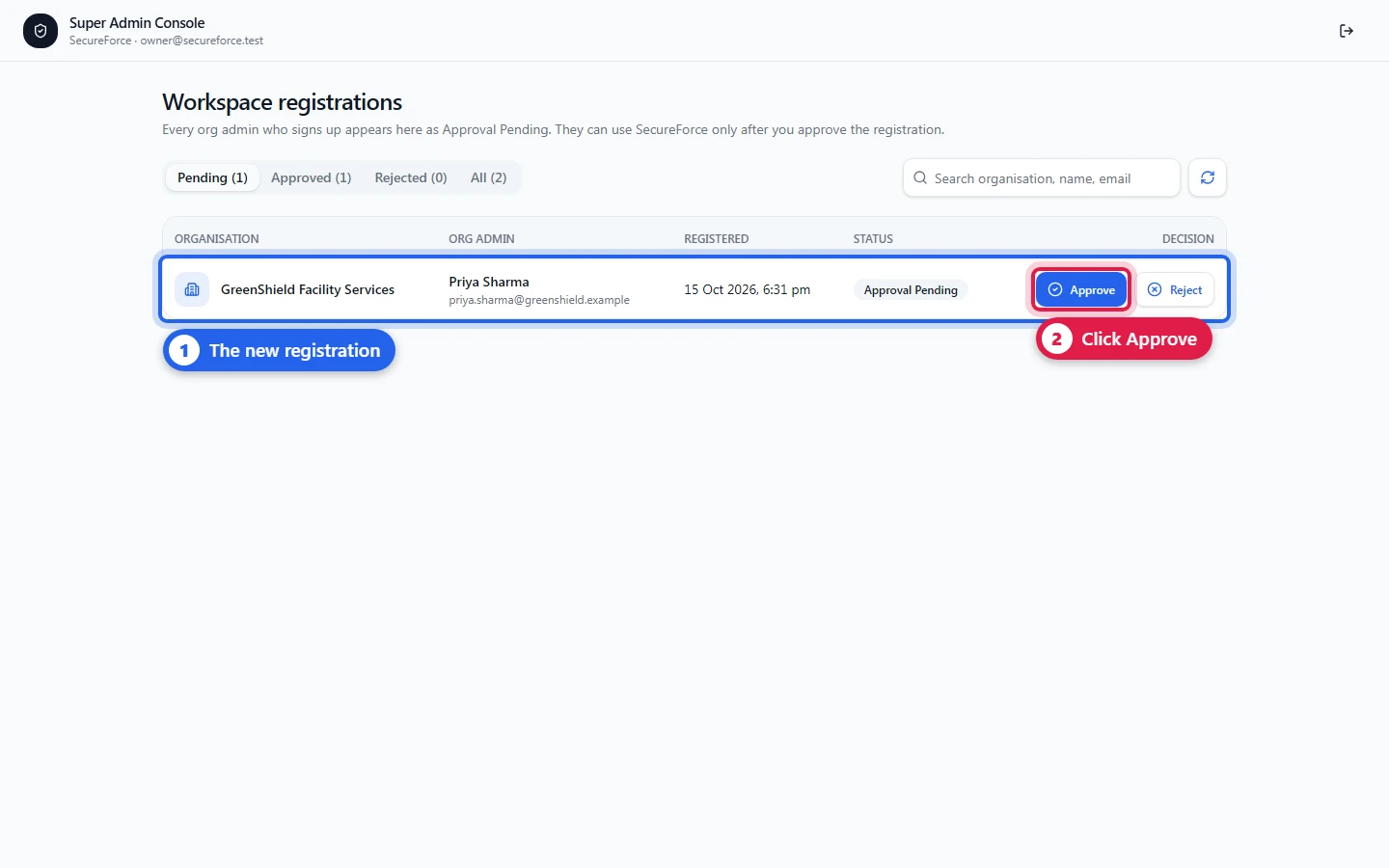
Super admin access is granted by SecureForce engineering in the database (public.platform_admins); it can't be granted from inside the app. A super admin who also belongs to a workspace sees a Super Admin button in the top bar.
Sign in
The first box takes either an email or a mobile number: guards an admin added by mobile number type their number there, with their password. You can also use Continue with Google. Someone added by email can also type the mobile number on their employee record instead, with the same password: it is the same account.
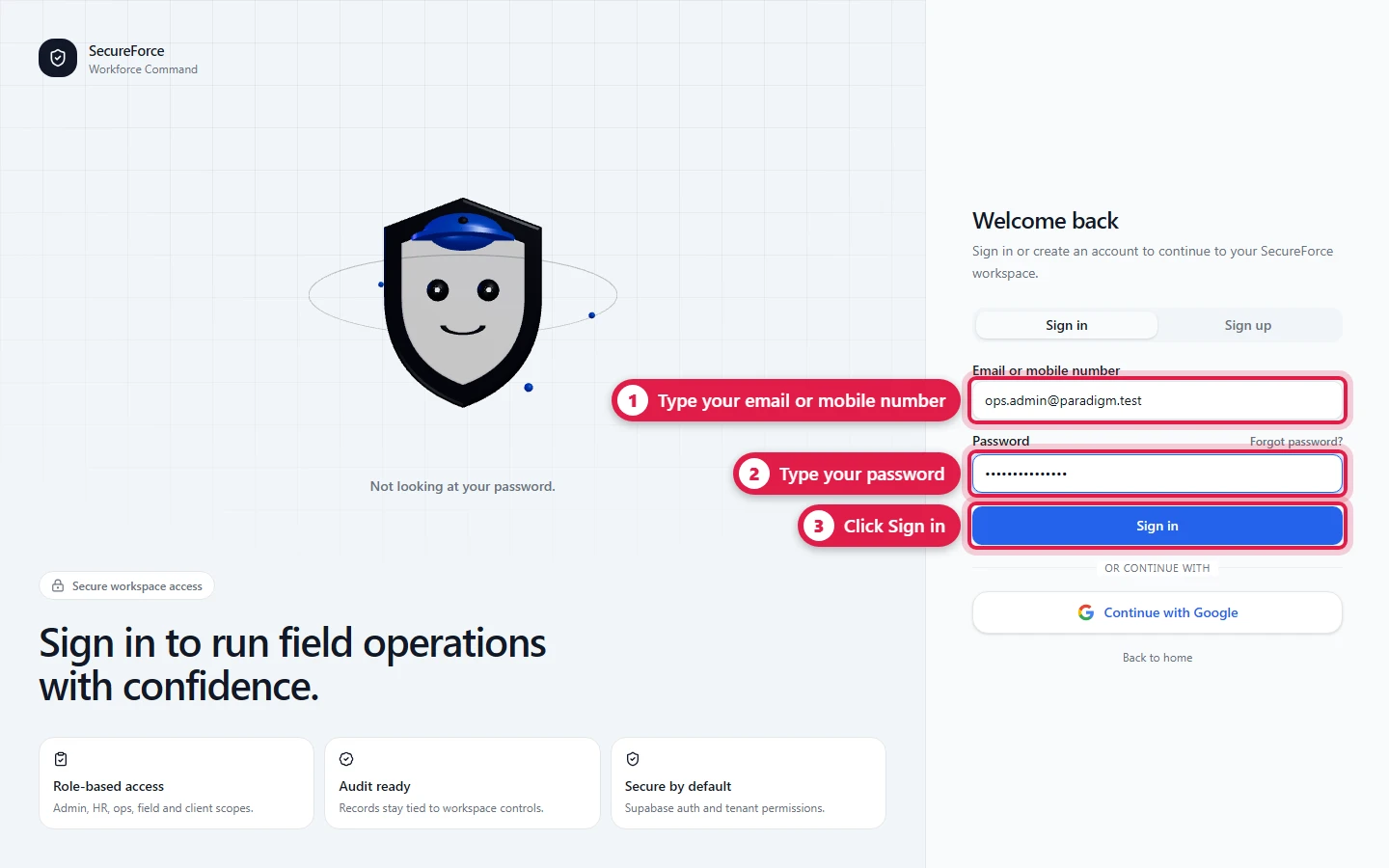
Forgot password? No reset emails are sent yet, so this explains how to get a new password from your workspace admin, who resets it from Administration → Workspace Members → Reset password and shares it with you. Change it afterwards from your Profile.
Create a properly named workspace
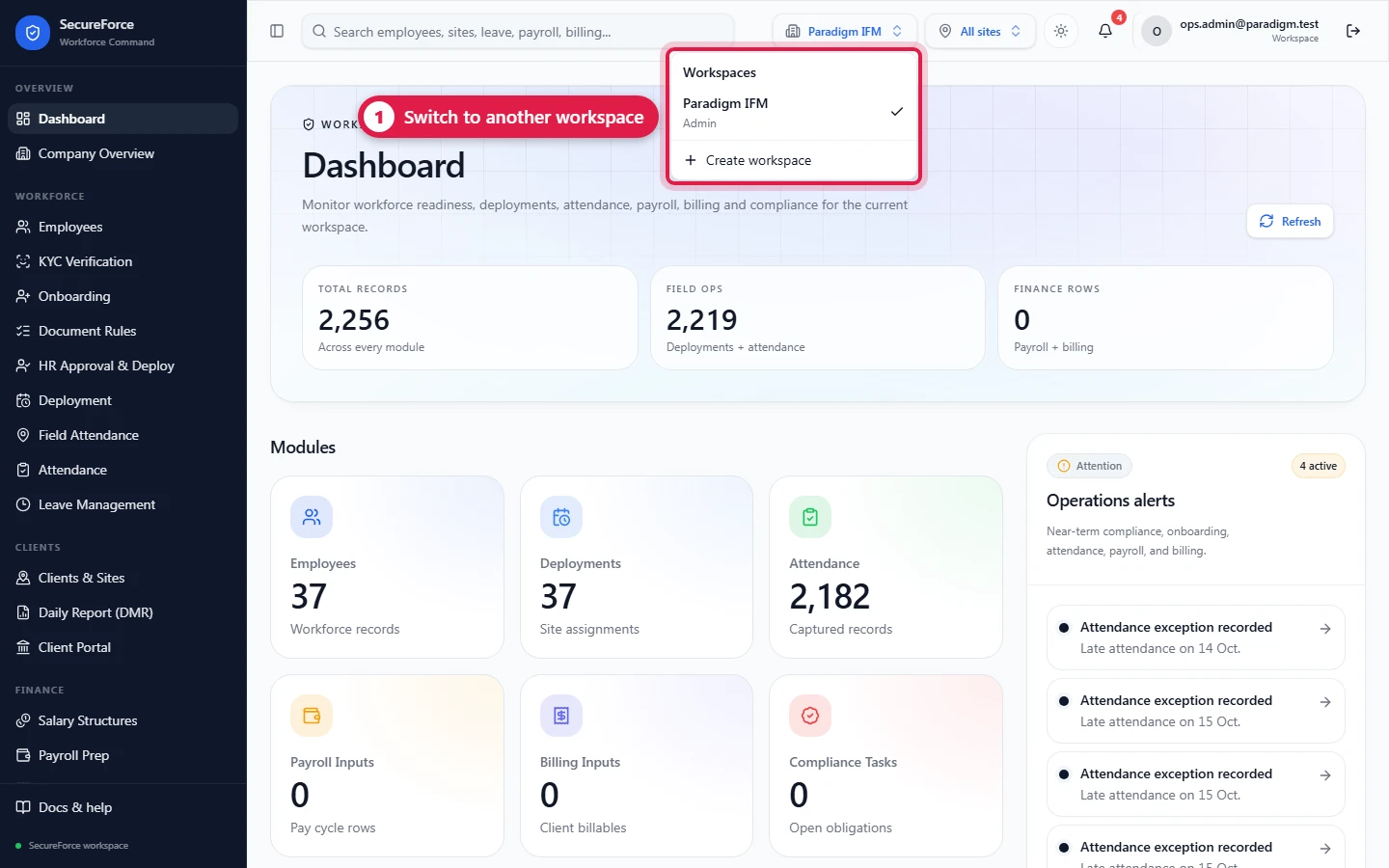
- Click the workspace switcher in the top bar (it shows the current workspace's name).
- Choose Create workspace.
- Enter the Workspace name (e.g. Paradigm IFM) and the Country code (default IN).
- Press Create workspace. You are switched into it and taken to the Dashboard.
Only admins can create further workspaces.
Switch workspace
Click the workspace switcher and pick another workspace. The page reloads with that workspace's data; your choice is remembered next time you sign in.
Find your way around
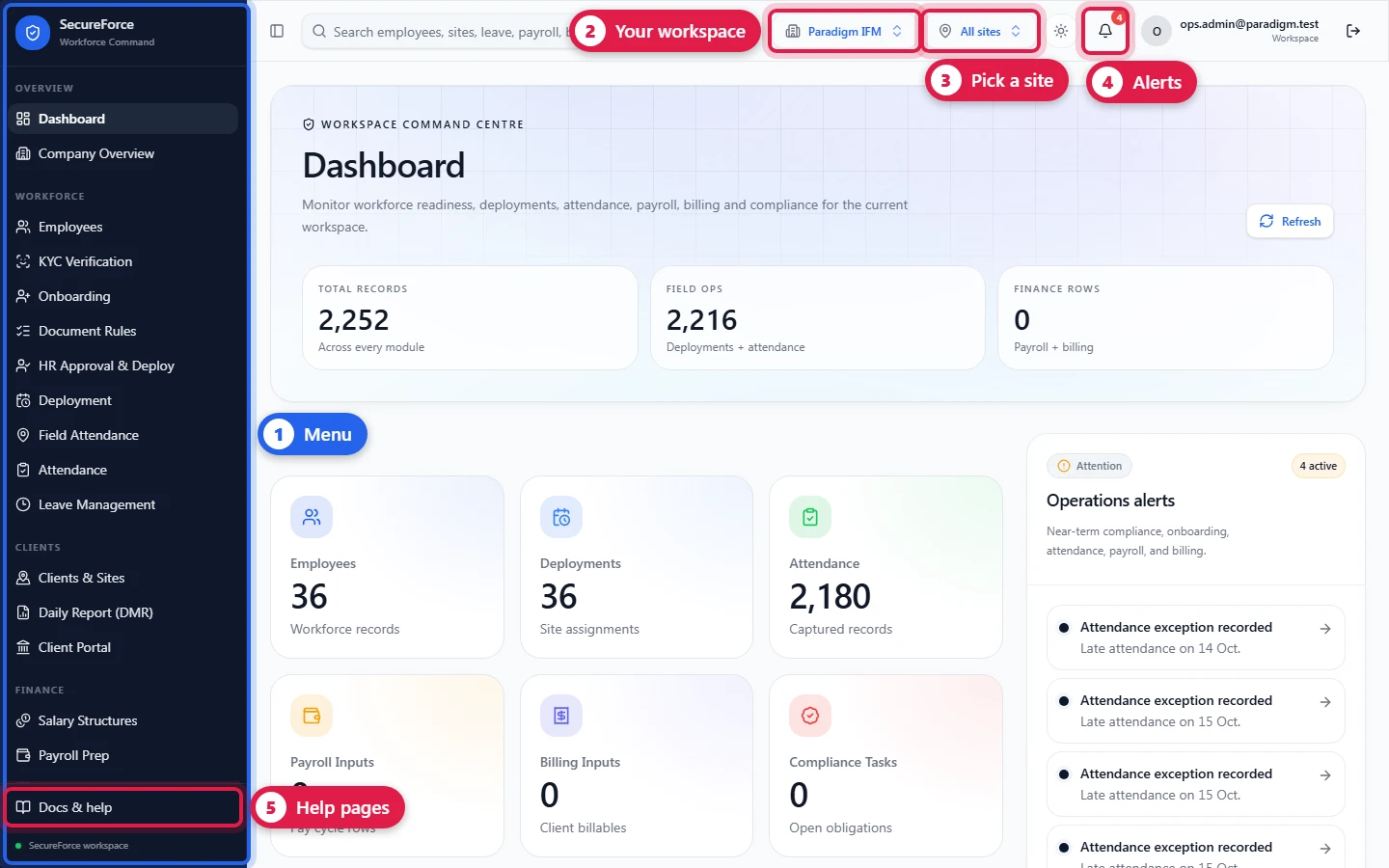
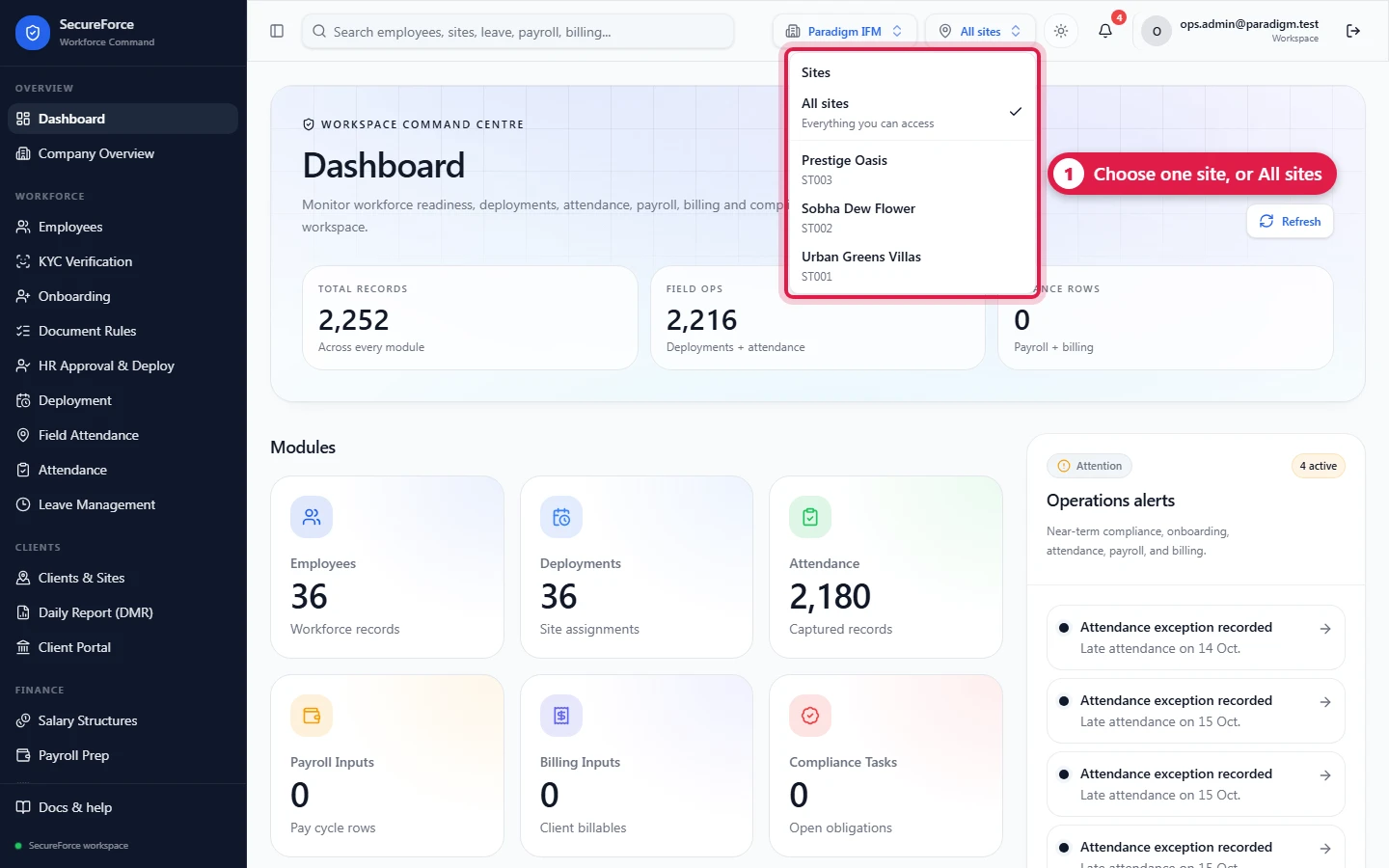
- Left sidebar: every module you have access to, grouped as Overview, Workforce, Clients, Finance, Insight and Governance. Items you can't use are hidden. The button at the top left collapses it to icons.
- Workspace switcher: the workspace you're in.
- Site picker (All sites): limit every page to one site. You only see the sites your login covers; see Data scopes.
- Notifications (the bell): items that need attention.
- Docs & help: these pages.
The top bar also has search (employees, sites, leave, payroll, billing…), light/dark mode and your name. Click your name for Profile, or use the arrow to sign out.
Install as an app: on a phone, Chrome menu → Install app / Add to Home screen (iPhone Safari: Share → Add to Home Screen). SecureForce then opens full-screen like a normal app. This is recommended for guards.
Next
Organization: describe your own company.