Clients and sites
Add the customers you supply staff to and the sites where your staff work, including the GPS point and geofence radius used for the attendance location check.
Sidebar → Clients & Sites (route /clients-sites). A client is a company you bill, such as a residents' association or one company of a corporate group. A site is a place where your staff work for that client: a building, a gate or a campus. One client can have many sites.
Above clients sit customer groups (a customer with several sister companies), and between clients and sites sit contracts (one contract can cover several sites):
Customer group › Client (company) › Contract › Site
Both are optional: a single residents' association needs neither.
Who can do this: Admin, Ops Manager (permission master_data.manage).
New customer? Use Set up a customer at the top of the page. It creates the group, companies, contracts, sites and approved headcount in one go — see Customer setup. The lists below are for adding to or editing a customer afterwards.
Customer groups
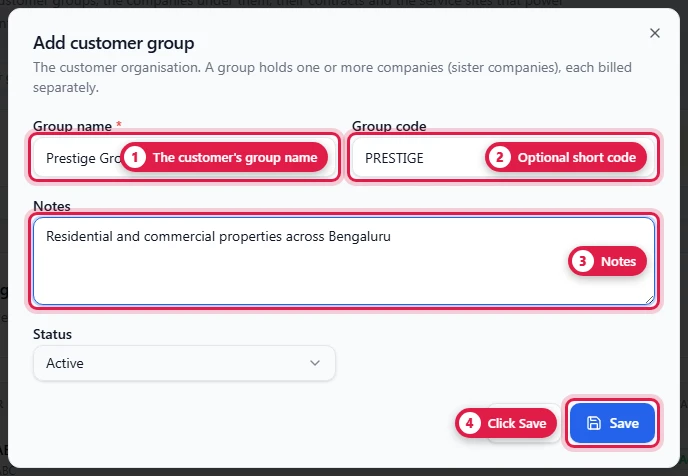
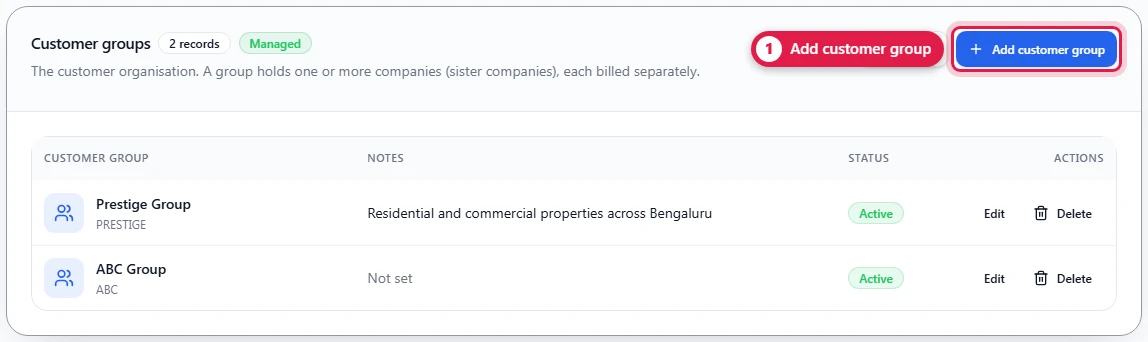
Customer groups → Add customer group: a Group name (unique in the workspace), an optional Group code and Notes. A group that still has clients can't be deleted; move its clients to another group, or none, first.
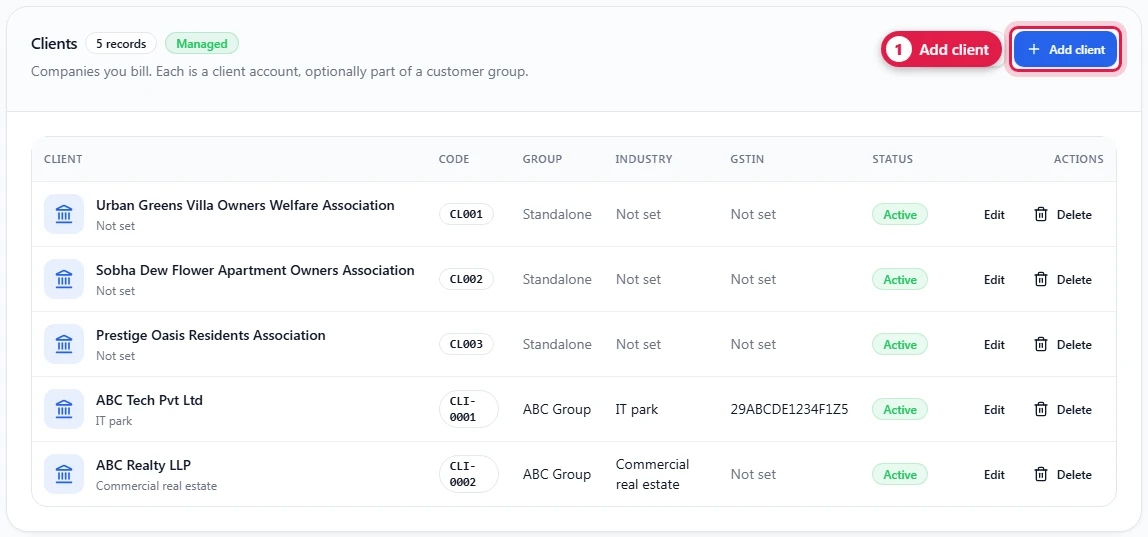
Use a group when one customer has several sister companies that you bill separately, e.g. ABC Group with ABC Tech Pvt Ltd and ABC Realty LLP. You then pick the group on each of those clients.
Contracts
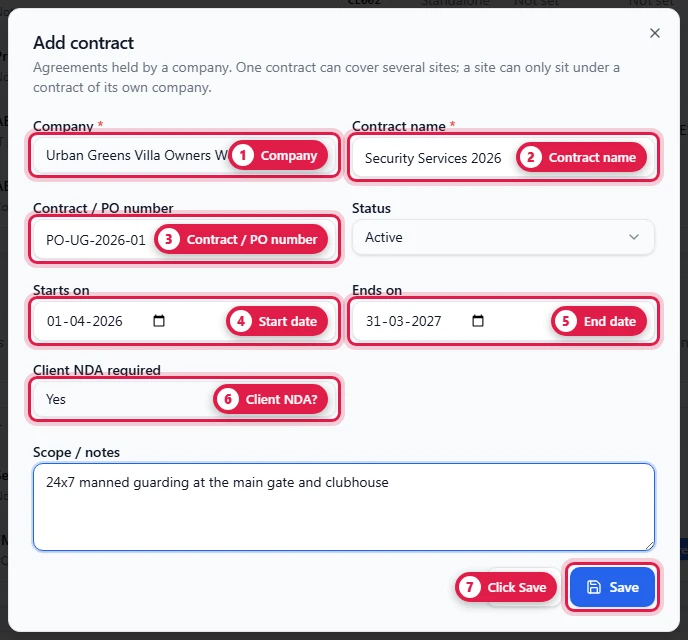
Contracts → Add contract:
| Field | Required | Notes |
|---|---|---|
| Company | Yes | The client that holds the contract |
| Contract name | Yes | e.g. FM Contract 2026. Unique per client |
| Contract / PO number | Unique in the workspace | |
| Status | draft / active / expired / terminated | |
| Starts on / Ends on | The end can't be before the start | |
| Client NDA required | Whether workers at these sites sign the client's NDA | |
| Scope / notes |
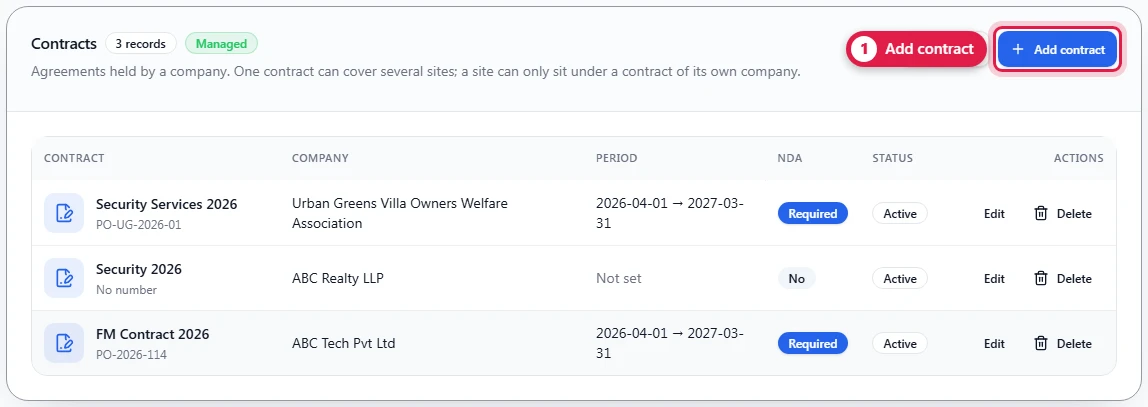
The list shows each contract's company, period, whether the client NDA is required, and status:
On a site, pick the contract under Contract (of the same client). A contract that sites are still under can't be deleted, and can't move to another company. Take the sites off it first (edit each site).
Add a client
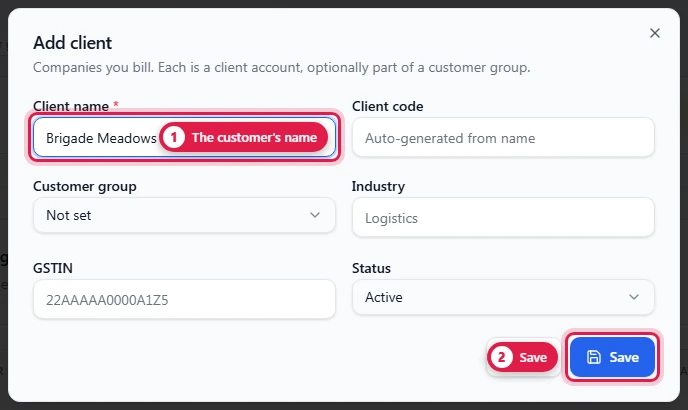
Clients → Add client:
The Clients list shows each client's code, its customer group (or Standalone), industry and GSTIN:
| Field | Required | Notes |
|---|---|---|
| Client name | Yes | e.g. Urban Greens Villa Owners Welfare Association |
| Client code | Generated (CLI-0001) when created; editing the client keeps it | |
| Customer group | The group this company belongs to. Empty for a standalone customer | |
| Industry | e.g. Residential community | |
| GST registration | registered / unregistered. Registered clients need a GSTIN. | |
| GSTIN | Registered | 15-character GSTIN; validated before saving |
| Default GST treatment | intra-state, inter-state, exempt, nil or not configured | |
| Place of supply state code | Taxable | Two-digit GST state code, e.g. 27 |
| Status | active / inactive / archived |
Client GST data is used with the supplier Billing Profile. The client's explicit treatment wins over the tenant default, so an exempt or nil client can be billed without GSTIN, place-of-supply or supplier-state details. Taxable invoices are blocked until the client and supplier records are complete.
Add a site
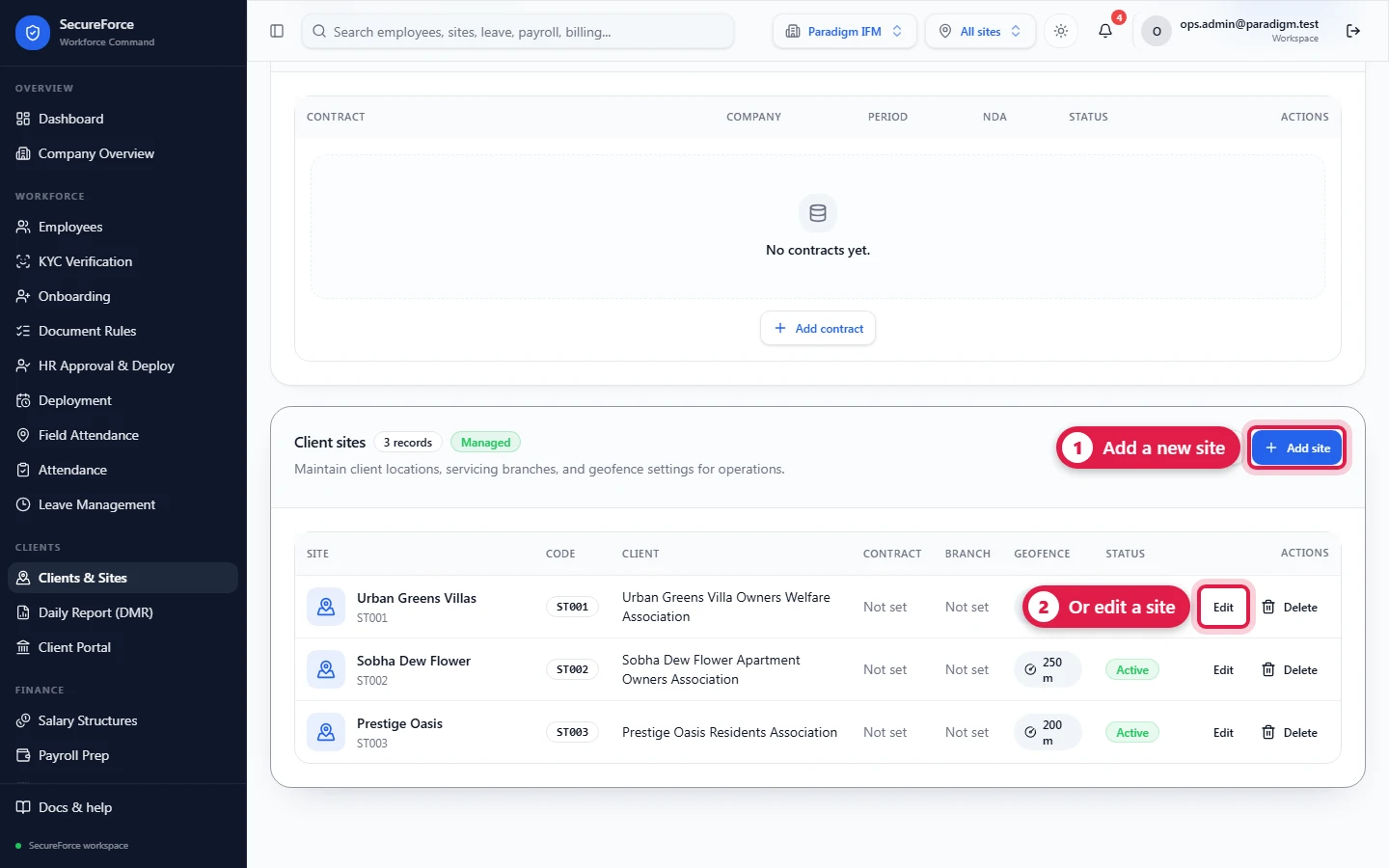
Client sites → Add site, or Edit on a site's row to change it:
| Field | Required | Notes |
|---|---|---|
| Client | Yes | The customer this site belongs to |
| Contract | A contract of the same client. Choosing another client's contract is refused | |
| Servicing branch | The branch that runs it (Organization) | |
| Site name | Yes | e.g. Urban Greens Villas |
| Site code | Generated (CLS-0001) when created; editing the site keeps it | |
| Site location | Search / current location / map, which fills Latitude and Longitude (below) | |
| Latitude | For attendance | The main gate, decimal degrees, e.g. 12.9716 |
| Longitude | For attendance | e.g. 77.5946 |
| Geofence radius (metres) | e.g. 200. Drawn as a ring on the map. Without one, the workspace default from Field Attendance → Setup applies. | |
| Status | active / inactive / archived | |
| Field | Required | Notes |
| ---------------- | -------------- | ---------------------------------------------------------------------------------------------- |
| Client | Yes | The customer this site belongs to |
| Servicing branch | The branch that runs it (Organization) | |
| Site name | Yes | e.g. Urban Greens Villas |
| Site code | Generated (CLS-0001) | |
| Latitude | For attendance | The main gate, decimal degrees, e.g. 12.9716 |
| Longitude | For attendance | e.g. 77.5946 |
| Geofence radius | In metres, e.g. 200. Without one, the workspace default from Field Attendance → Setup applies. | |
| Status | active / inactive / archived |
Getting latitude and longitude — the Site location box works like sharing a location on WhatsApp. Any of these fills Latitude and Longitude for you:
- Search: type a place, landmark or address and pick it from the list. You can also paste a
lat, lngpair (e.g. from Google Maps) and press Enter. - Use current location: while standing at the gate, press it and allow location when the browser asks. It shows how accurate the reading was.
- Map: tap the map or drag the green pin onto the exact gate. The address under the map shows where the pin is.
You can still type the numbers into Latitude and Longitude by hand; the pin follows what you type. Place search and the map use OpenStreetMap.
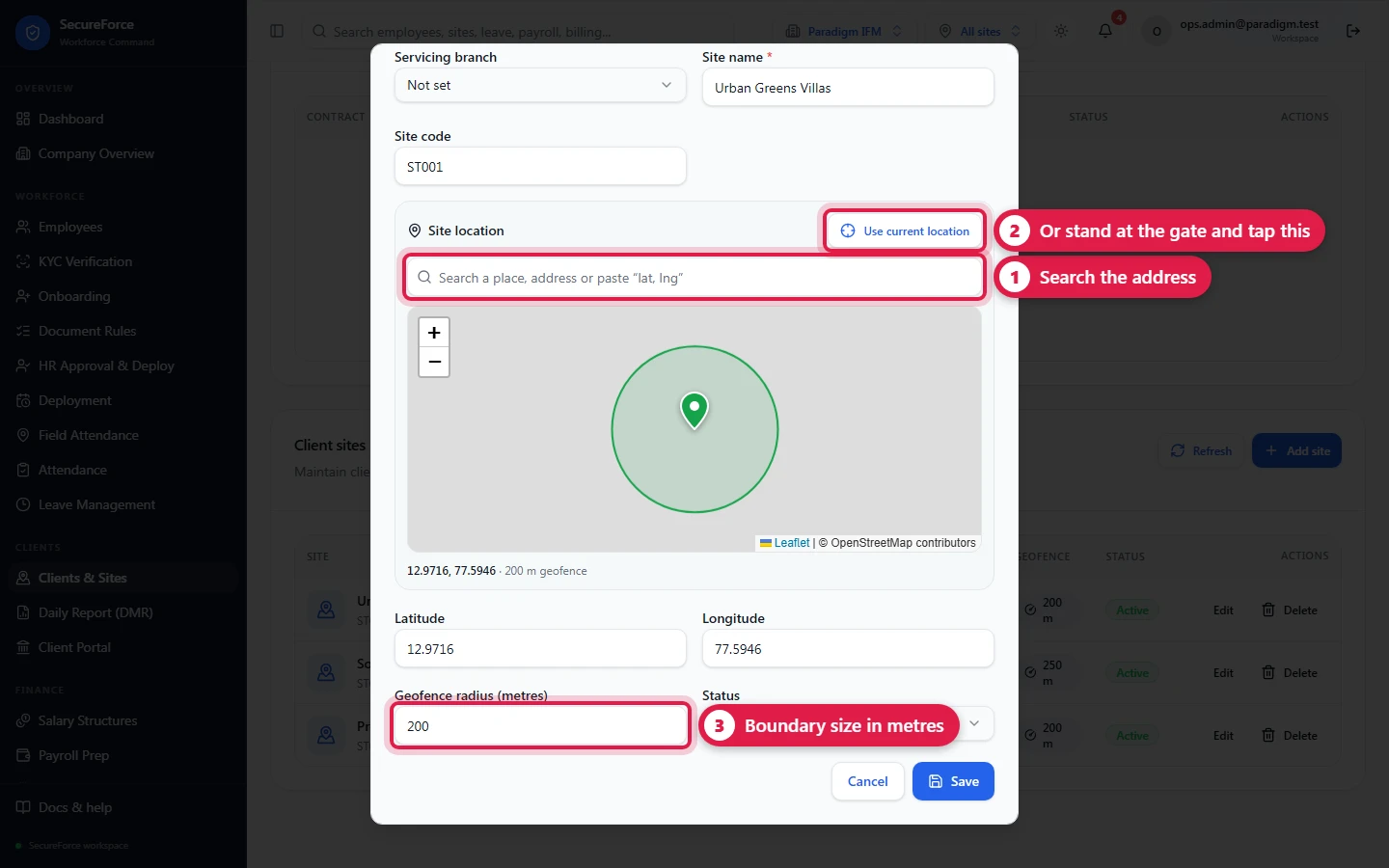
The location check depends on this. A guard's phone measures its distance from this point. Within the radius the guard can check in; outside it, the check-in is flagged or refused, depending on the rule in Field Attendance. A site without latitude and longitude can't be checked.
Good to know
- If a client you just added isn't in the Client dropdown of Add site, reload the page. Dropdown lists load when the page opens.
- Set the approved headcount for each new site in Field Attendance → Setup, or the daily report has nothing to measure shortage against.
- Give the customer a login scoped to this client so they can see their own daily report (Administration). That login also sees the client's own group and contracts, and nothing of other customers.
- The Customer groups and Contracts lists appear once the database has been updated for them; until then the page shows Clients and Client sites as before.
How it connects
- Deployments and roster assignments name a client and site.
- Field Attendance checks location against the site.
- The daily report and billing are per client and site.
- The client portal shows a customer their sites.