HR approval
Approve a new worker on a pre-approved salary structure with an e-signed employment contract, optionally with a second HR approver (maker-checker), and issue the employee ID and ID card.
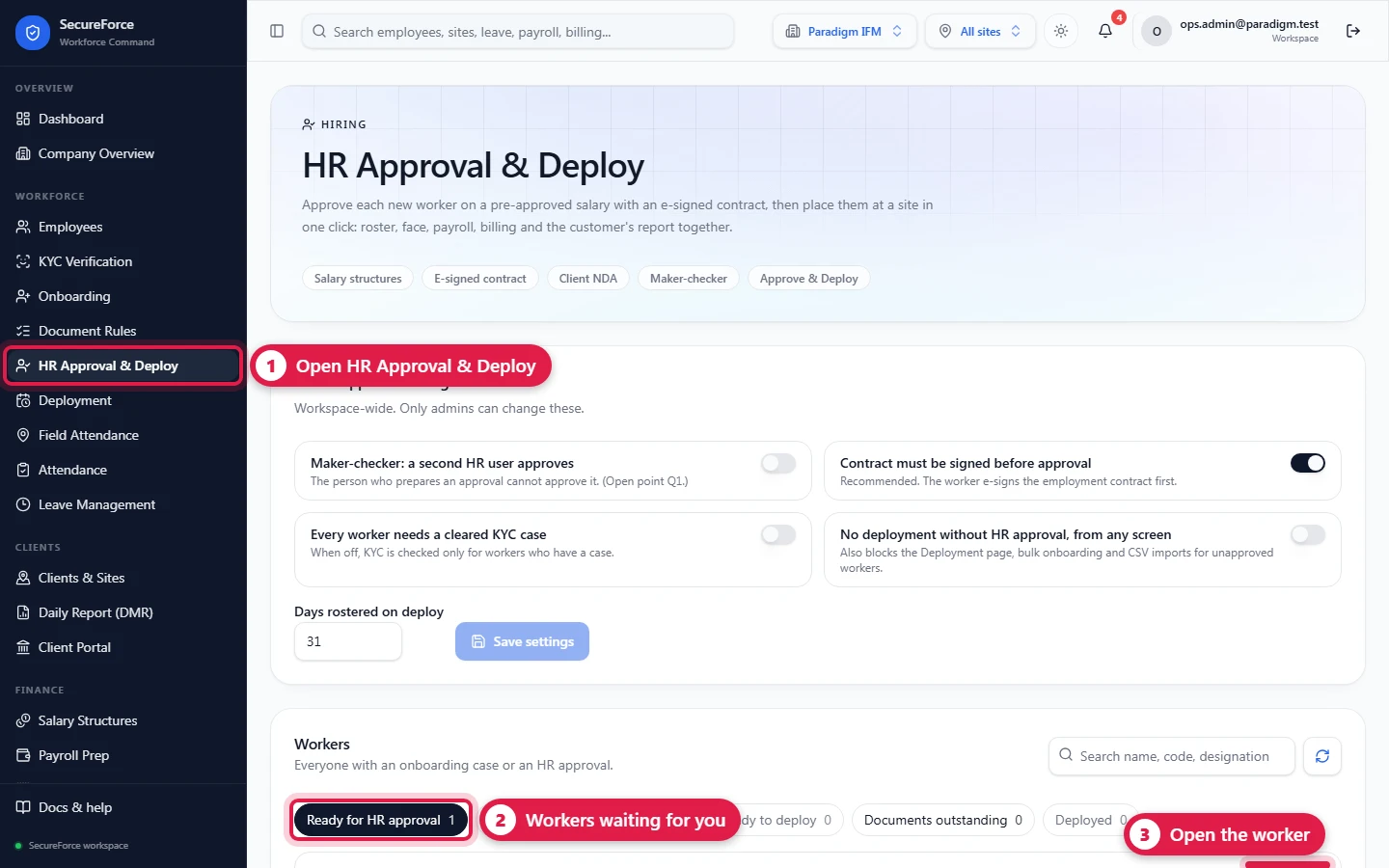
Sidebar → HR Approval & Deploy (route /hr-approval). Onboarding is complete when HR signs off. That sign-off has four parts:
- Checks — the profile, the mandatory documents and KYC are in.
- Salary — HR picks a structure from the pre-approved salary table.
- Contract — SecureForce writes the employment contract from the salary, and the worker e-signs it.
- Approval — HR approves; the employee ID is issued and the ID card can be printed.
After approval, the worker is allocated and deployed.
Who can do this: HR Manager and Admin (onboarding.manage). The salary table is maintained by payroll.manage holders (HR Manager, Admin). Operations Managers can see whether a worker is approved — to deploy them — but never the salary breakdown.
The salary table
Sidebar → Salary Structures (route /salary-structures) → Add salary structure:
| Field | Notes |
|---|---|
| Name, Code | e.g. Security Guard — Bengaluru 2026, SG-BLR-26 |
| Only for category / designation | Optional. When set, the structure can only be used for those workers |
| Basic, HRA, Conveyance, Special allowance, Other allowances | Monthly amounts. Basic must be above zero |
| Working days per month | 20–31, default 26 |
| PF applicable, ESI applicable | Printed in the contract |
| Effective from | The structure can't be used for a salary starting earlier |
| Status | Active structures appear at approval. Archive old ones; a structure workers were approved on can't be deleted |
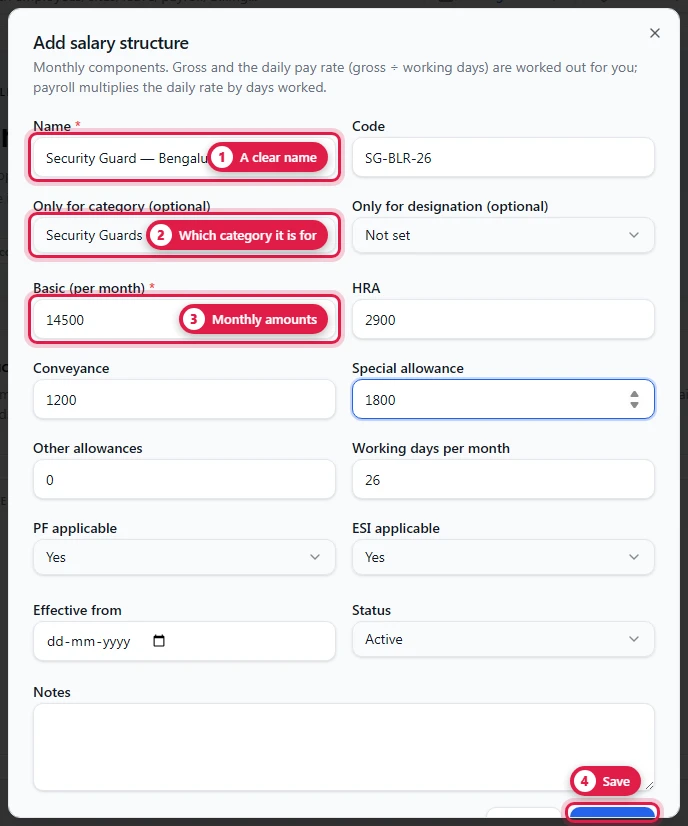
SecureForce works out Gross per month and the Daily rate (gross ÷ working days). The daily rate is the deployment's pay rate, which Payroll Prep multiplies by days worked.
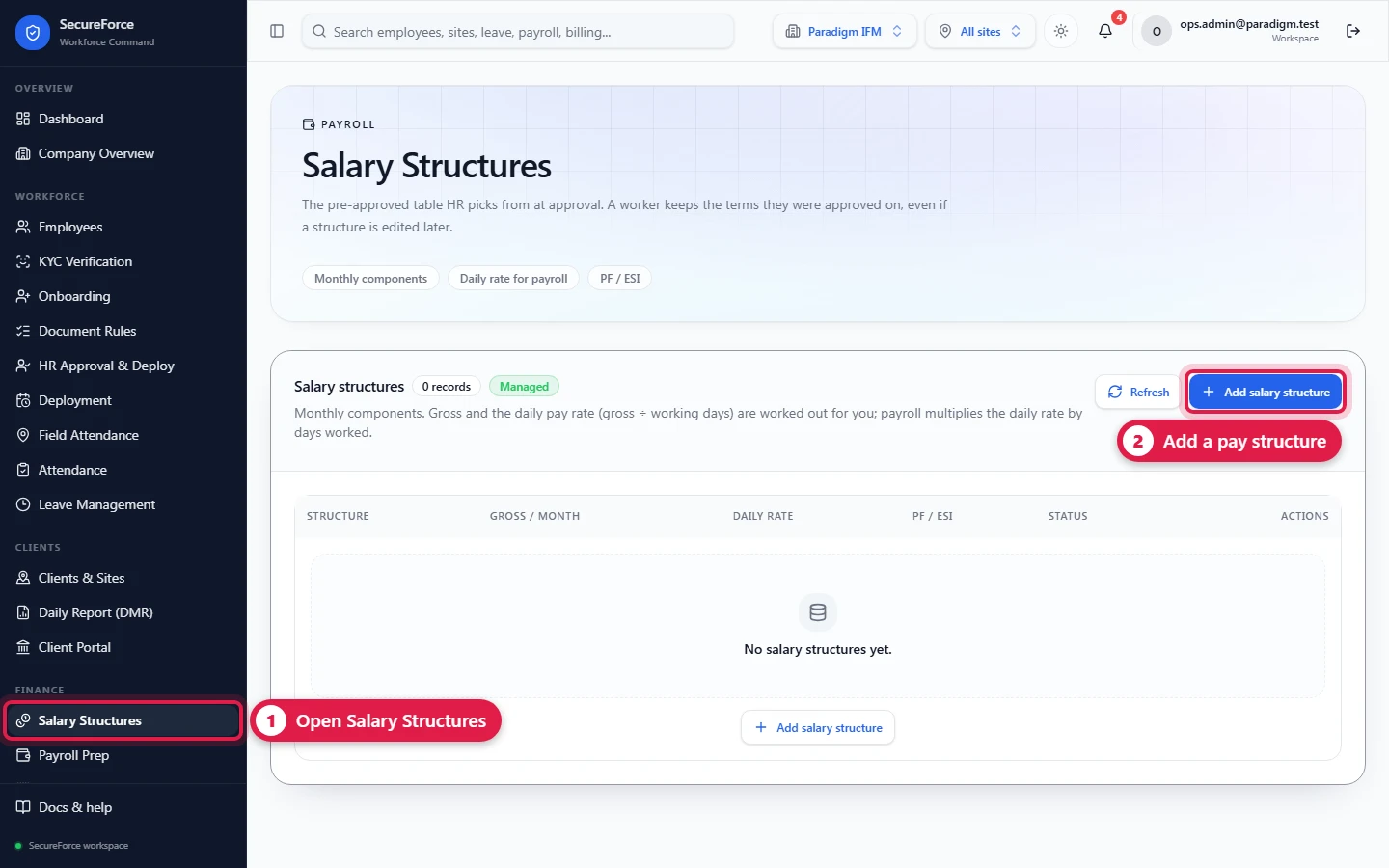
A worker keeps the terms they were approved on: editing a structure later never changes an approved worker's salary.
Settings (admins, once)
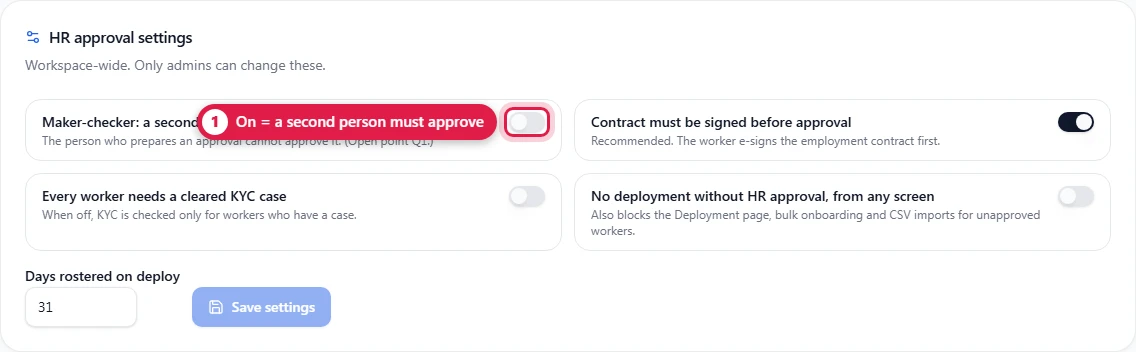
At the top of HR Approval & Deploy, admins see HR approval settings:
| Setting | Default | What it does |
|---|---|---|
| Maker-checker: a second HR user approves | Off | The person who prepares an approval can't approve it |
| Contract must be signed before approval | On | Approval waits for the worker's signature |
| Every worker needs a cleared KYC case | Off | When off, KYC is checked only for workers who have a case |
| No deployment without HR approval, from any screen | Off | Also blocks the Deployment page, bulk onboarding and CSV imports for unapproved workers |
| Days rostered on deploy | 31 | 7–62 days of roster created by Approve & Deploy |
Approve a worker
1. Open the worker
The board groups everyone in onboarding: Ready for HR approval, Awaiting approval, Approved — ready to deploy, Documents outstanding, Deployed. Click Open.
The worker's page shows five steps across the top — Checks, Salary & contract, Worker signs, HR approves, Approve & Deploy — turning green as each is done.
2. Checks
Checks before approval lists Profile (mobile number, date of birth), Mandatory documents and KYC. A red line says what is missing, with a button to fix it.
3. Choose the salary and prepare
Choose the Salary structure and the date the Salary starts, check the breakdown, and click Prepare approval and contract.
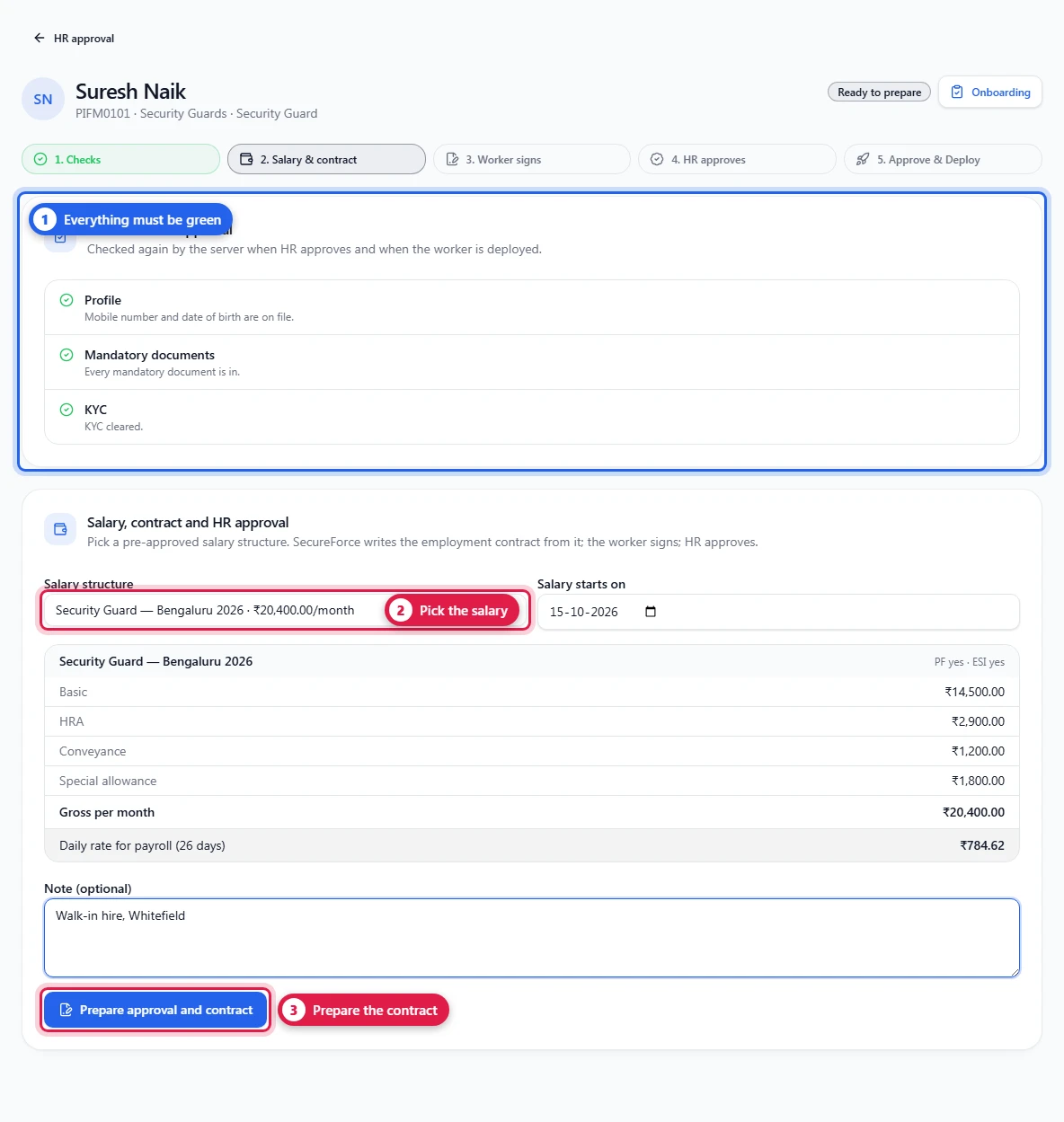
Change salary prepares it again later; the unsigned contract is cancelled and a new one written.
4. The worker signs the contract
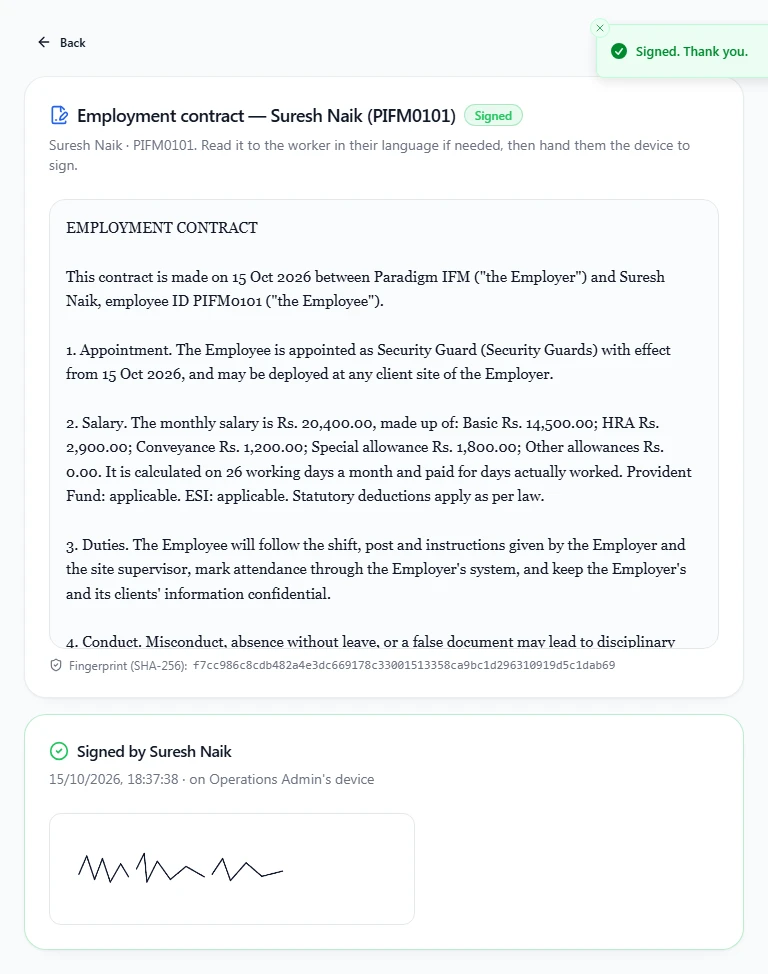
Click Sign with the worker (route /sign/<id>). The contract is written from the salary structure — name, employee ID, designation, each salary component, PF and ESI — and shows its SHA-256 fingerprint. Read it to the worker if needed and hand them the device. The worker types their full name (it must include their first name), signs in the box with a finger, ticks I have read and agree, and presses Sign agreement.
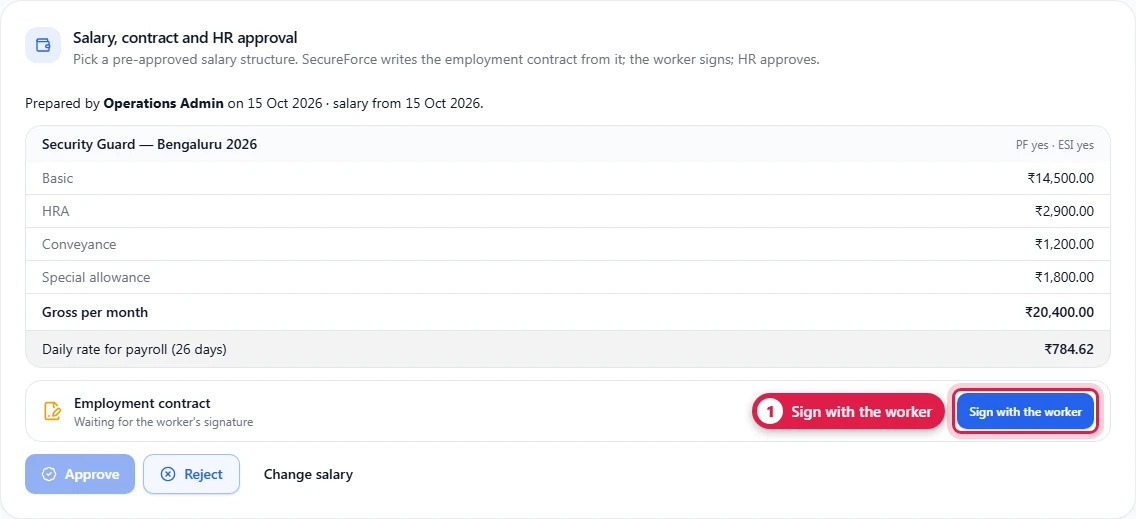
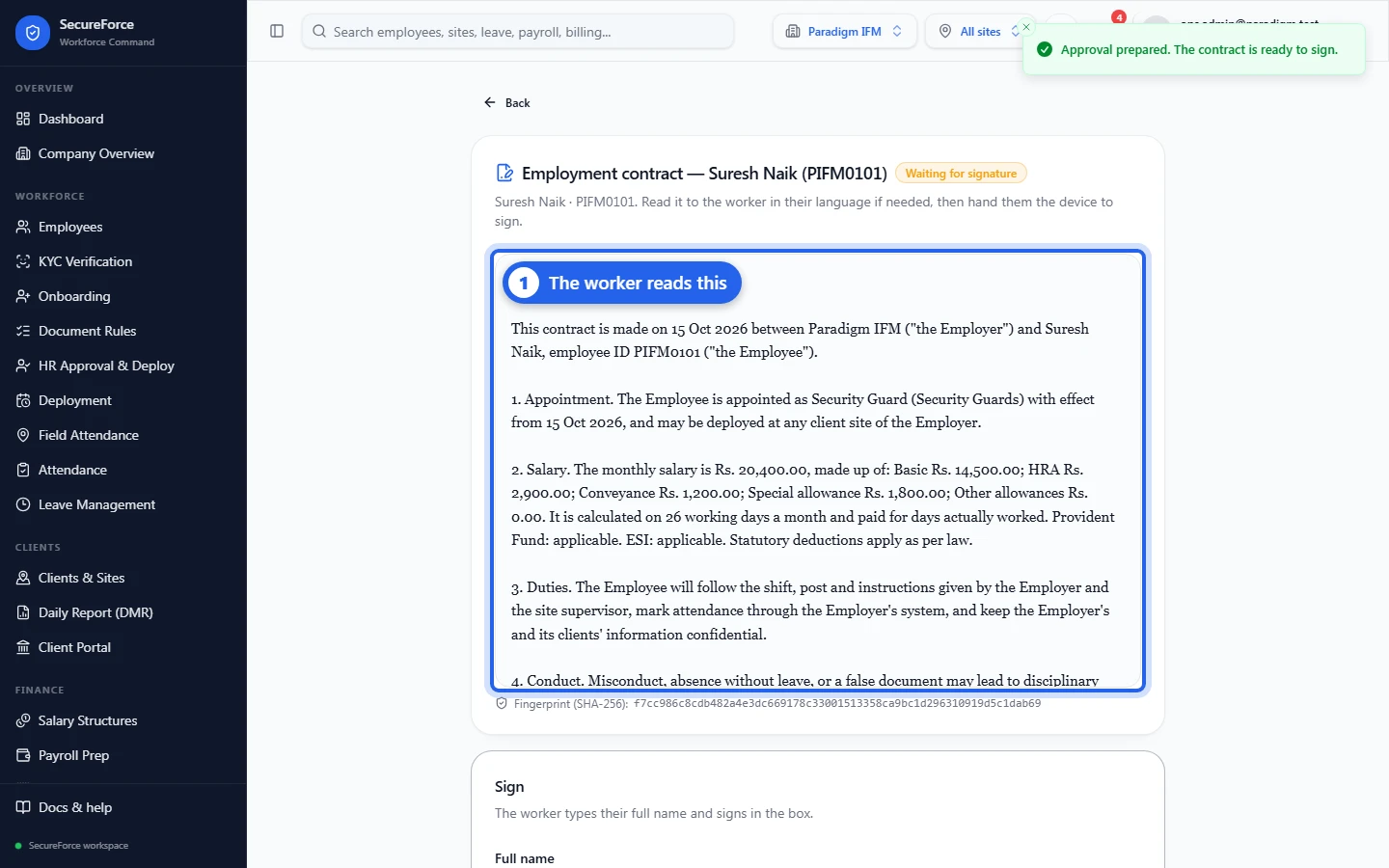
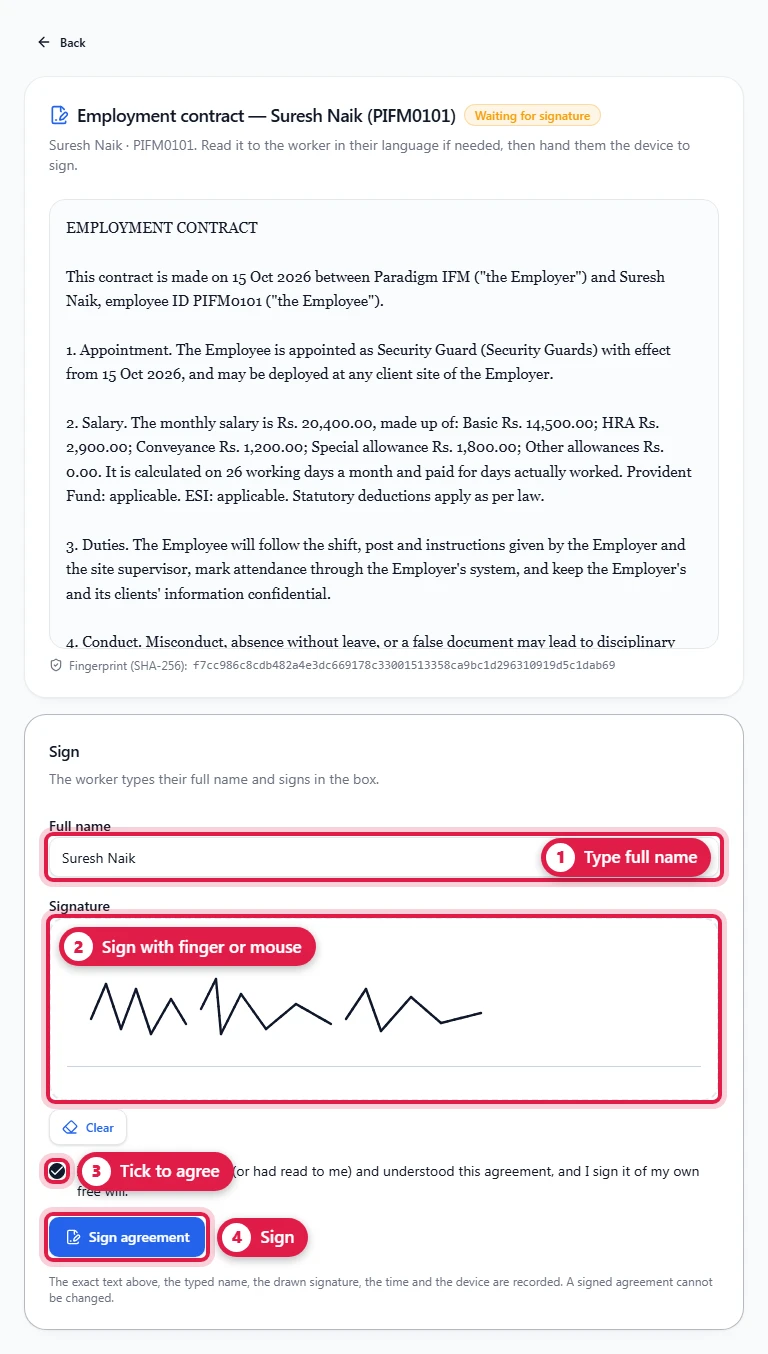
The typed name, drawn signature, time and device are recorded. A signed agreement can never be edited or deleted — only voided by HR with a reason. A worker with their own login can open the same link and sign themselves.
5. Approve
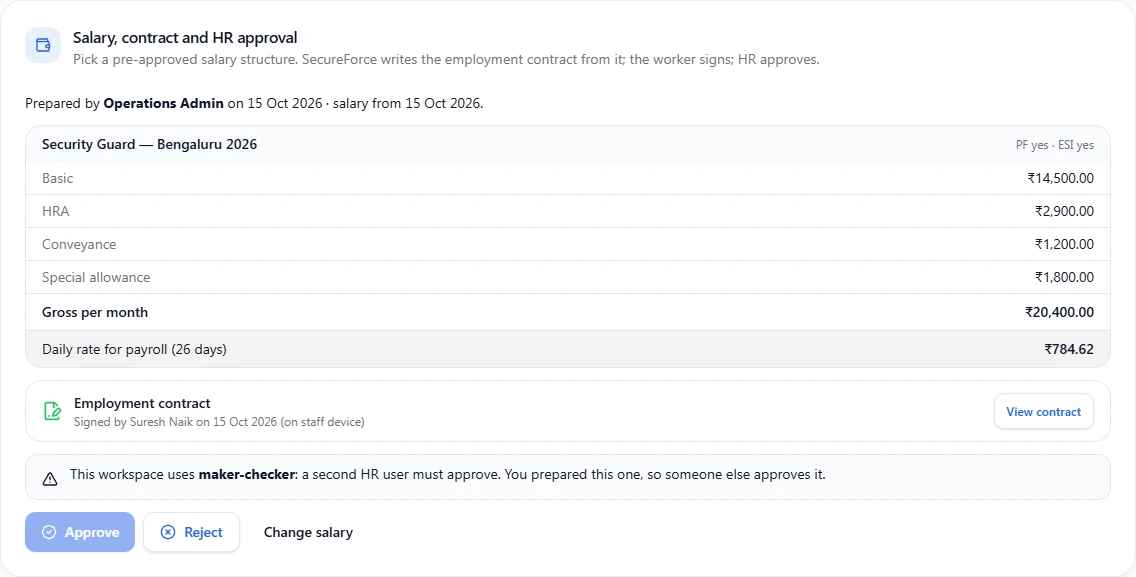
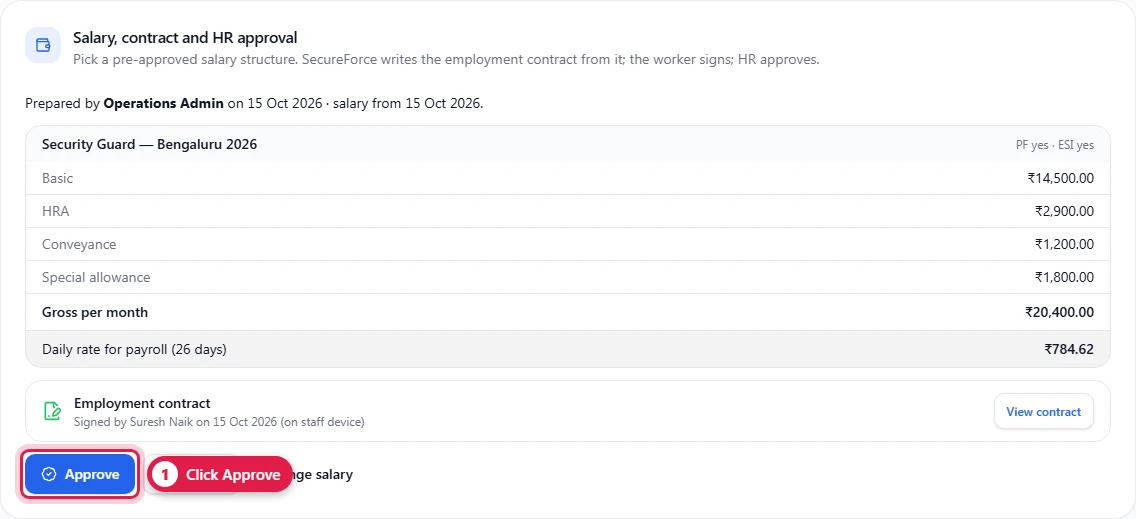
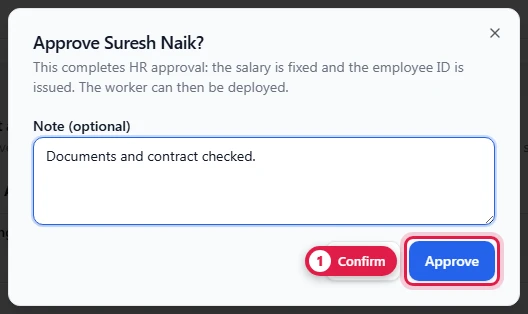
Click Approve (and add a note if you like). With maker-checker on, the person who prepared it sees this instead, and a second HR user approves:
Once approved, the salary is fixed, the employee ID is issued, and the worker moves to Approved — ready to deploy.
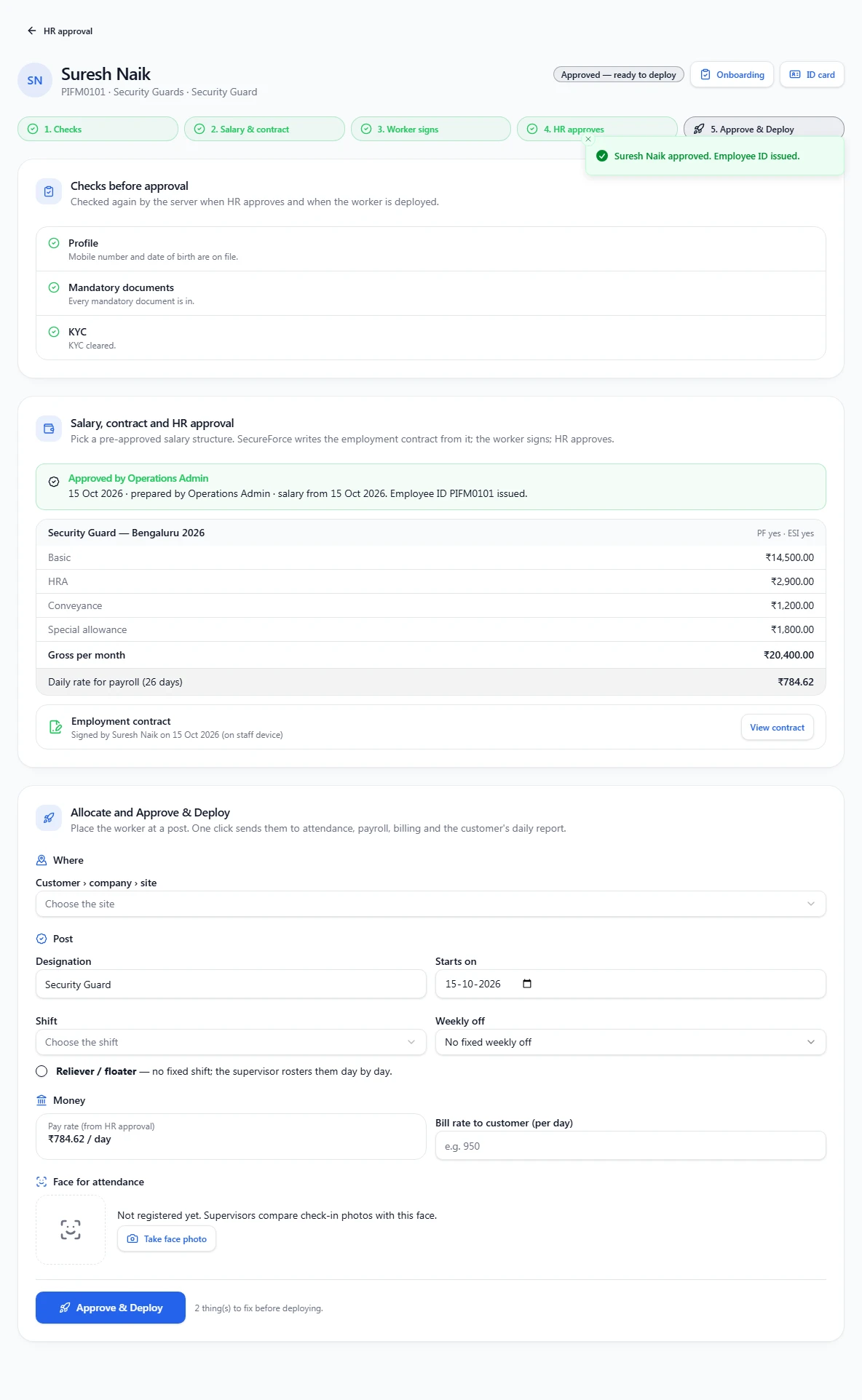
Reject needs a reason; the unsigned contract is cancelled and HR can prepare again later.
The employee ID and ID card
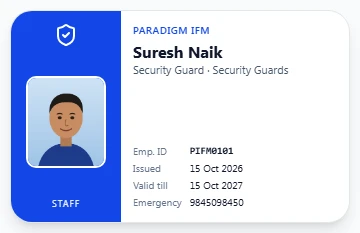
The worker's employee code (e.g. PIFM0101) is their employee ID; approval issues it. ID card (top right of the worker's page, route /employees/<id>/id-card) shows a credit-card-size card with the face registered at deployment, designation, issue and validity dates (one year) and the emergency number. Print ID card prints just the card.
What the server checks
Approval is refused — whatever screen it comes from — when a check is red, when the contract isn't signed (if required), or, with maker-checker on, when the approver prepared it themselves. The message says exactly why, e.g. "Not ready for approval. Mandatory documents: Outstanding: PAN card."
Good to know
- The e-signature is an electronic record (typed name, drawn signature, time, device, and the fingerprint of the exact text). An Aadhaar-based eSign would need an eSign provider to be connected.
- You can change the contract and NDA wording for your workspace; until you do, SecureForce's standard wording is used.
How it connects
- Needs the mandatory documents and, where there is one, a cleared KYC case.
- Followed by Approve & Deploy.
- The approved daily rate flows into payroll.