Approve & Deploy
Allocate an HR-approved worker to a customer site — designation, shift and weekly off or reliever, client NDA, face — and send them to attendance, payroll, billing and the customer's report in one click.
On an HR-approved worker's page (Sidebar → HR Approval & Deploy → the worker), the Allocate and Approve & Deploy card places the worker at a post. One click then hands them to every system that needs them:
| System | What happens |
|---|---|
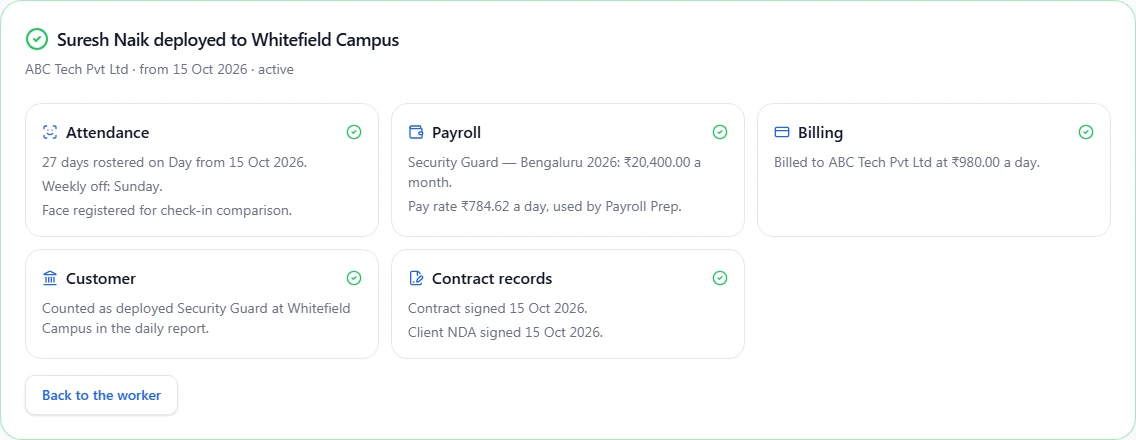
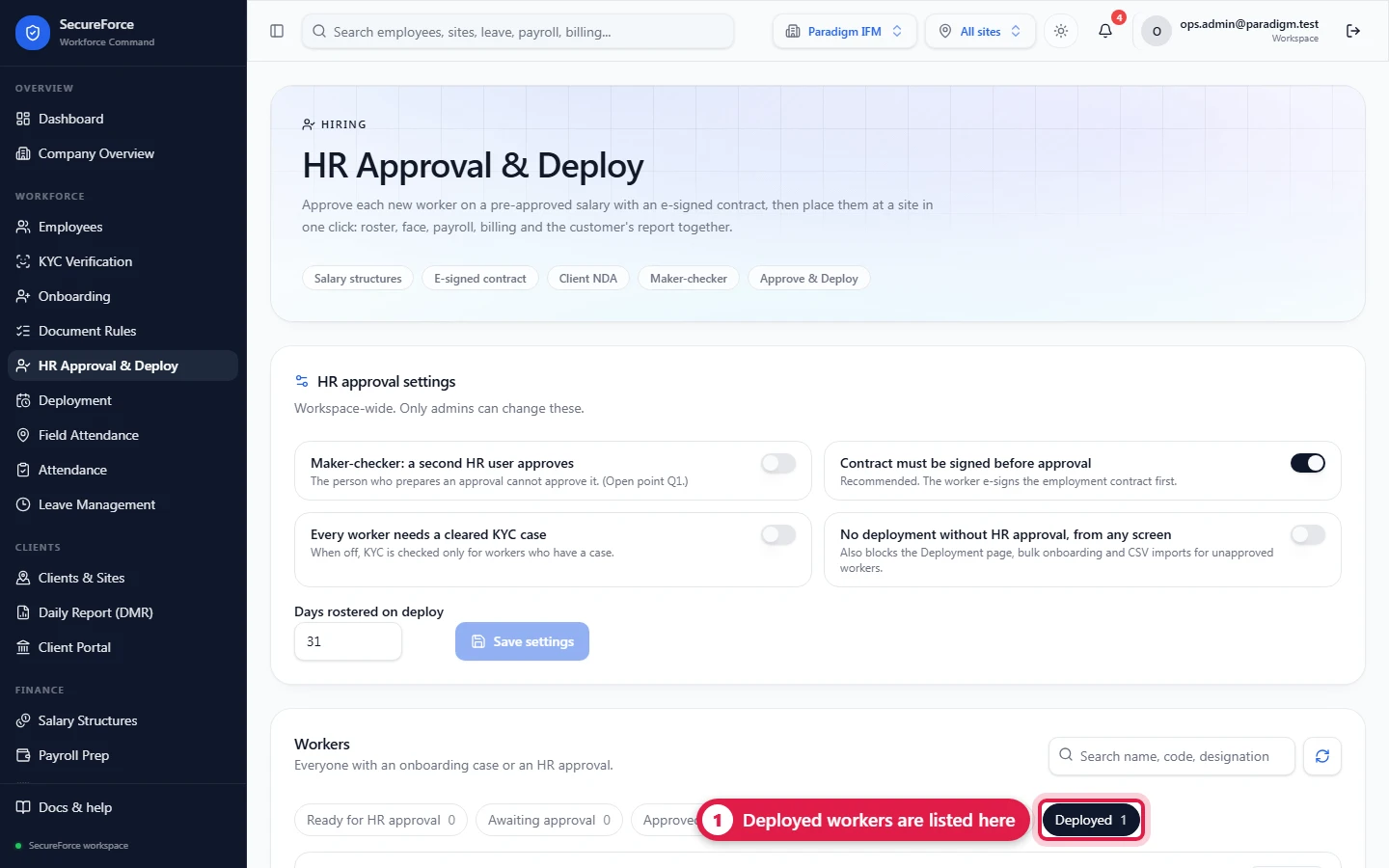
| Attendance | Rostered on the shift for the coming days (31 by default, set in HR approval settings), skipping the weekly off; their face is registered for supervisors to compare with check-in photos |
| Payroll | The deployment's pay rate is the approved salary's daily rate |
| Billing | The deployment's bill rate to the customer |
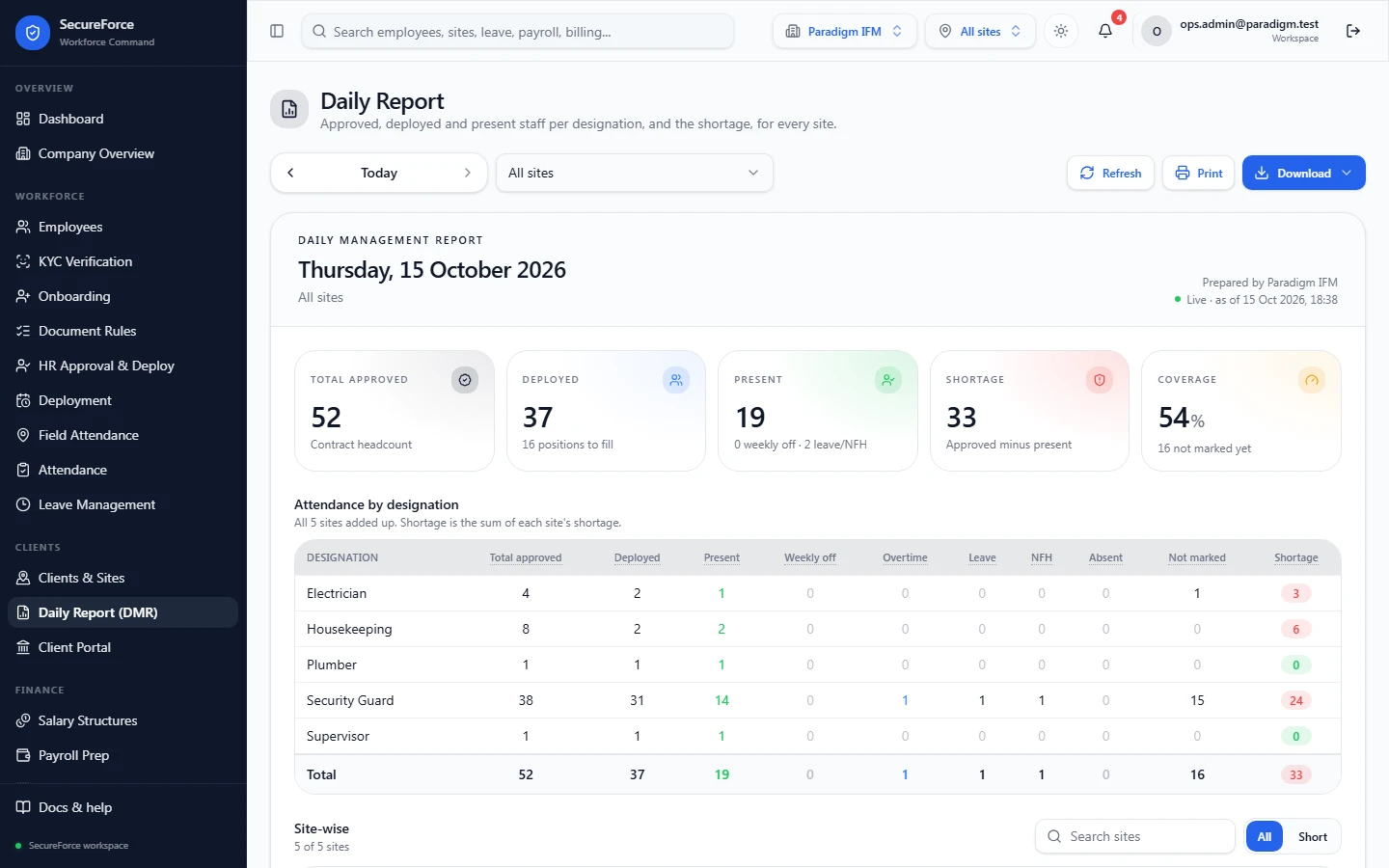
| Customer | Counted as Deployed in the customer's daily report |
| Contract records | The signed contract and, where needed, the signed client NDA are kept with the worker |
It is all-or-nothing, and a double click or retry never deploys the worker twice.
Who can do this: Operations Manager, HR Manager, Admin (deployments.manage). The worker must be HR-approved first.
1. Where
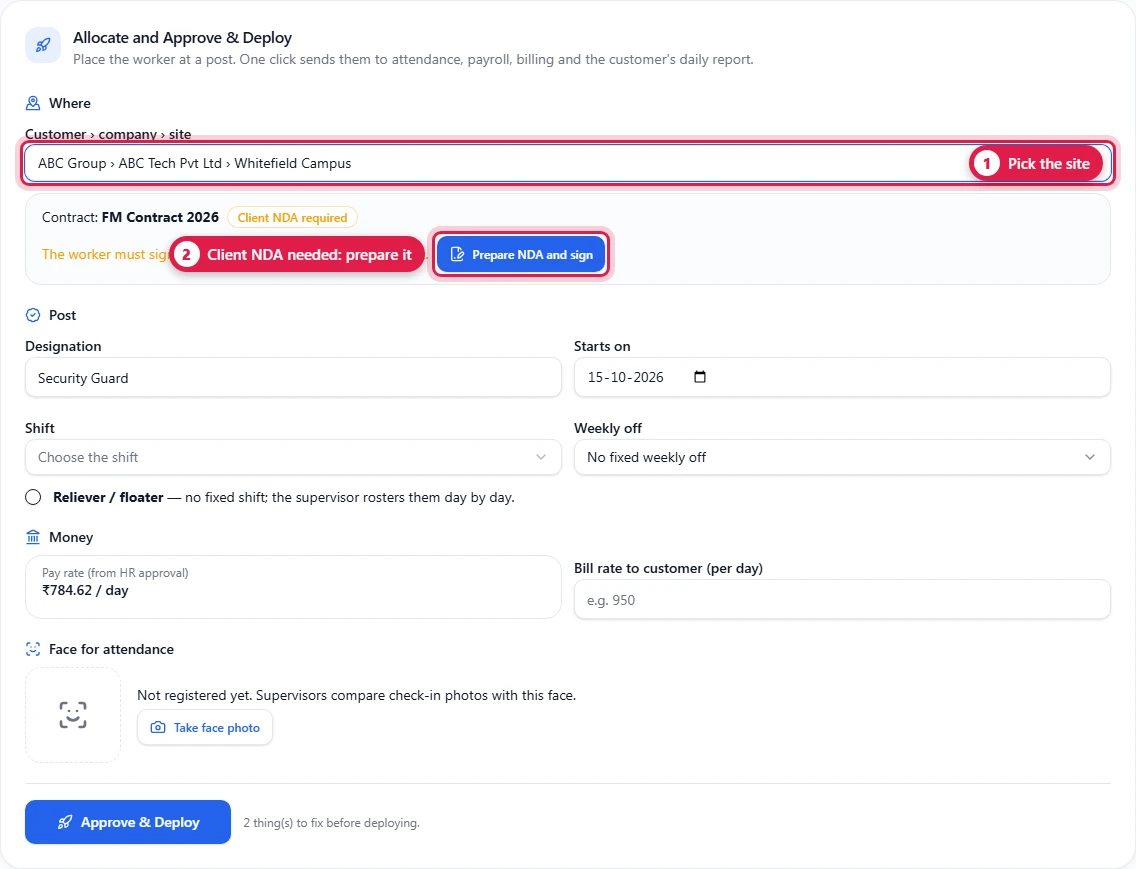
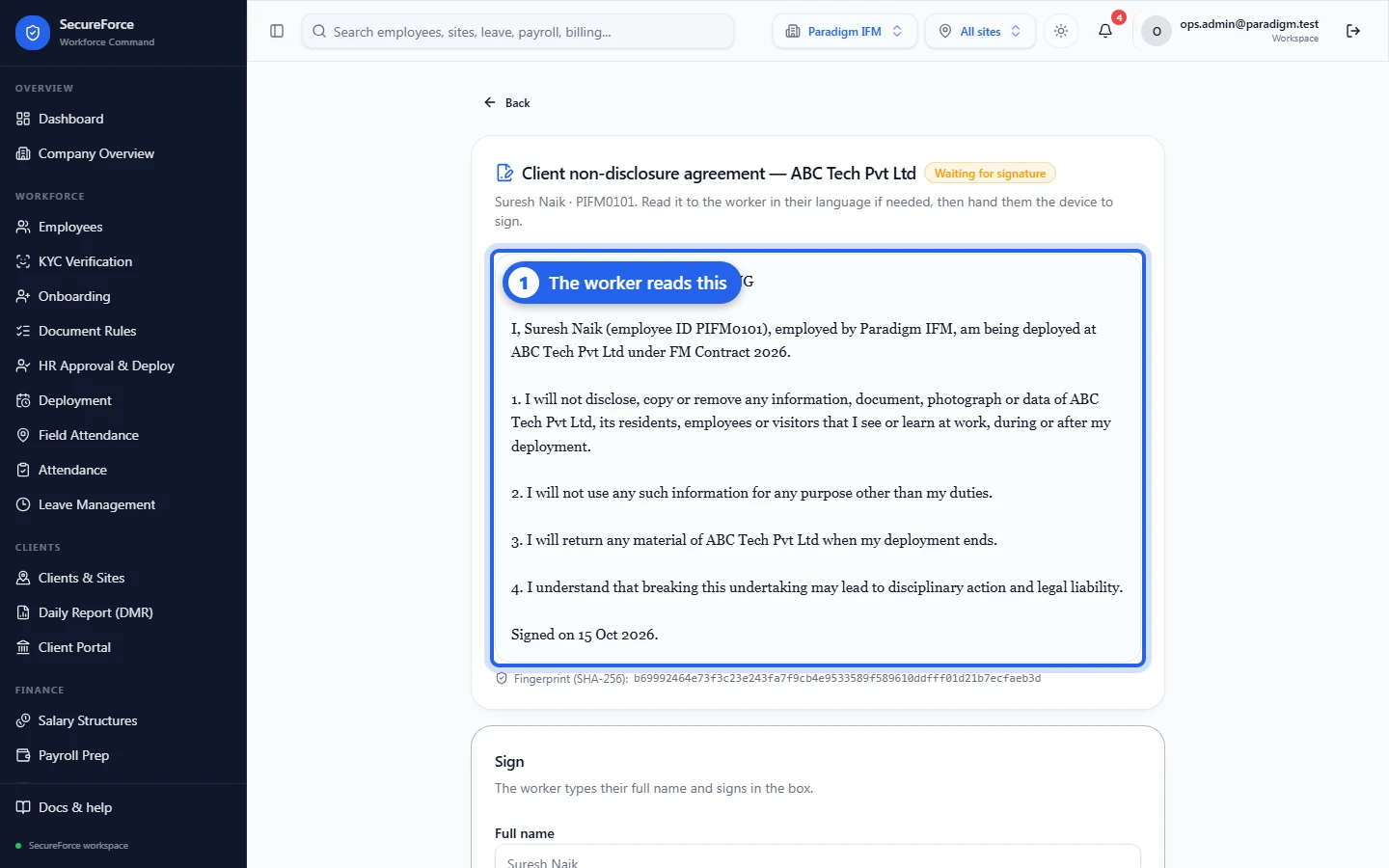
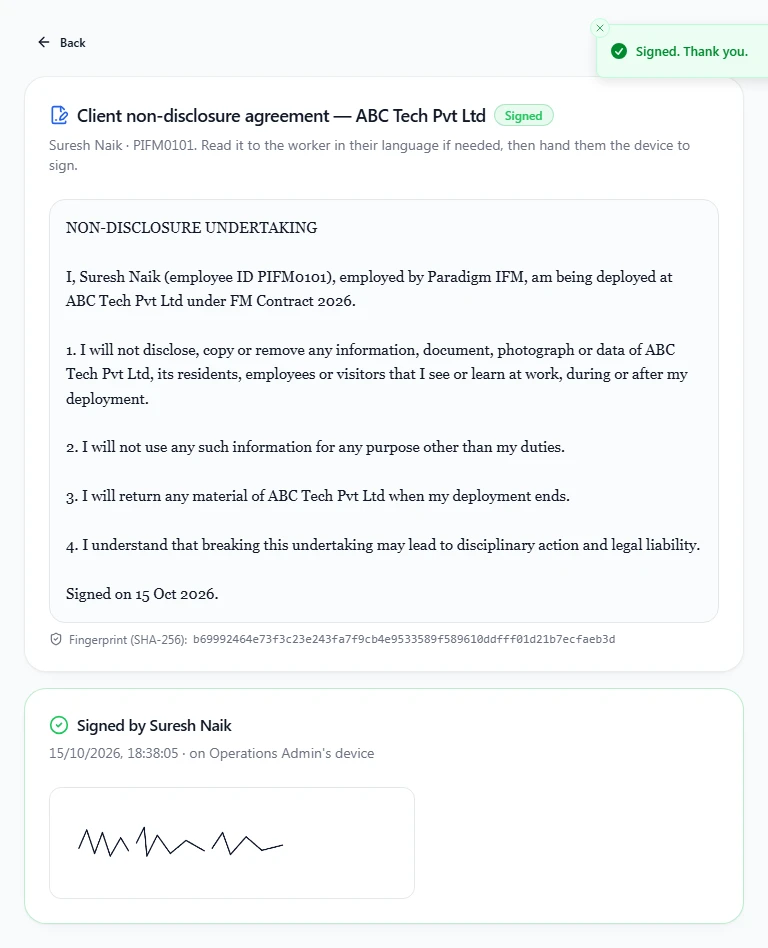
Choose the site; the list reads customer group › company › site. The site's contract is shown below it. If the contract needs a client NDA, press Prepare NDA and sign; the worker signs it the same way as the contract.
2. Post, money and face
| Field | Notes |
|---|---|
| Designation | e.g. Security Guard. Spell it as in the approved headcount; suggestions appear |
| Starts on | Not before the approved salary starts; within 30 days back and 180 days ahead |
| Shift | Shifts for this site, or for all sites |
| Weekly off | The day the worker is not rostered |
| Reliever / floater | No fixed shift. Their days are paid at the deployment's pay rate and billed at its bill rate, with or without a roster (how). A reliever can't have a shift |
| Pay rate | Shown from the HR approval |
| Bill rate to customer (per day) | Filled in from the last deployment of this designation at the site, if any |
| Face for attendance | Take face photo: the worker faces the camera (or choose a photo file) |
When everything is right the button says Ready to deploy; otherwise it lists exactly what to fix.
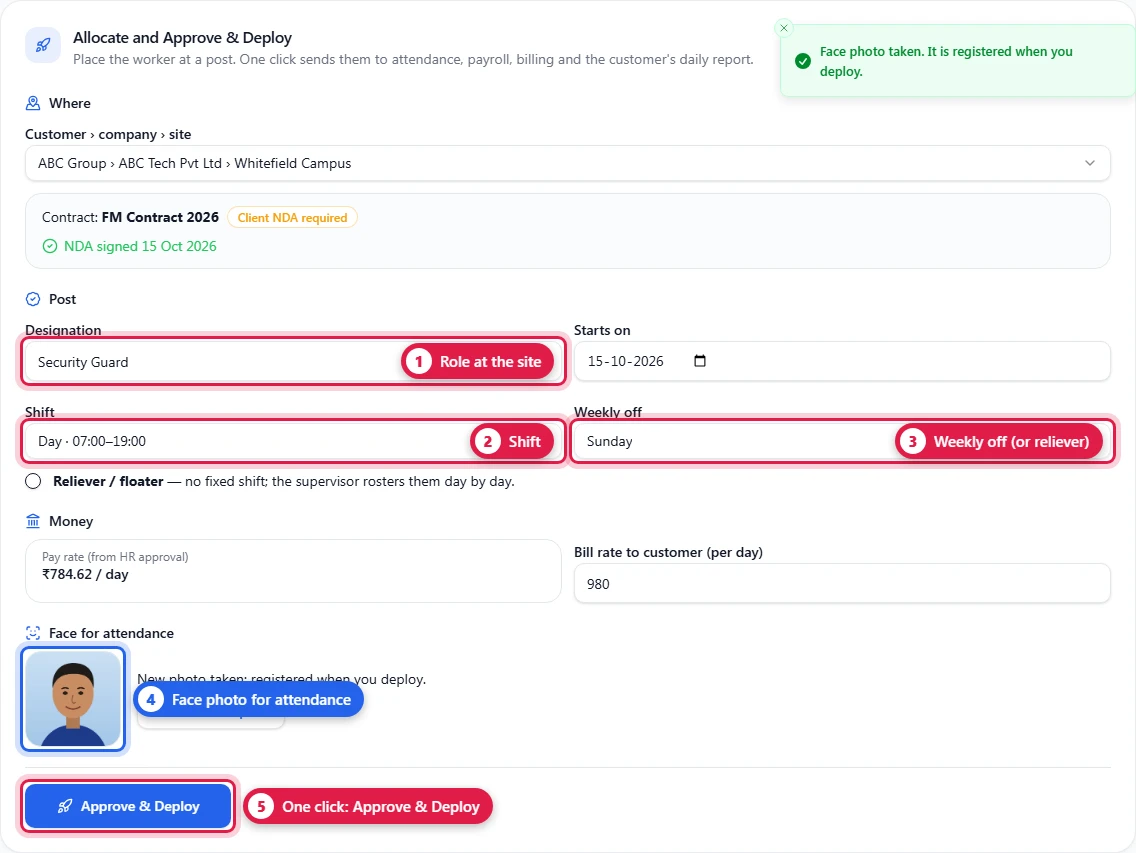
3. Approve & Deploy
Press Approve & Deploy. The result shows each system the worker was sent to.
Moving a worker to another site
Choose the new site and tick End the current deployment. The current deployment ends the day before the new start, its future roster days are cancelled (days already worked are kept), and the new deployment starts — in the same click.
The registered face in the muster
In Field Attendance → Muster, opening a worker shows the registered face next to the day's check-in photo, so a supervisor can spot a colleague punching in for an absent guard.
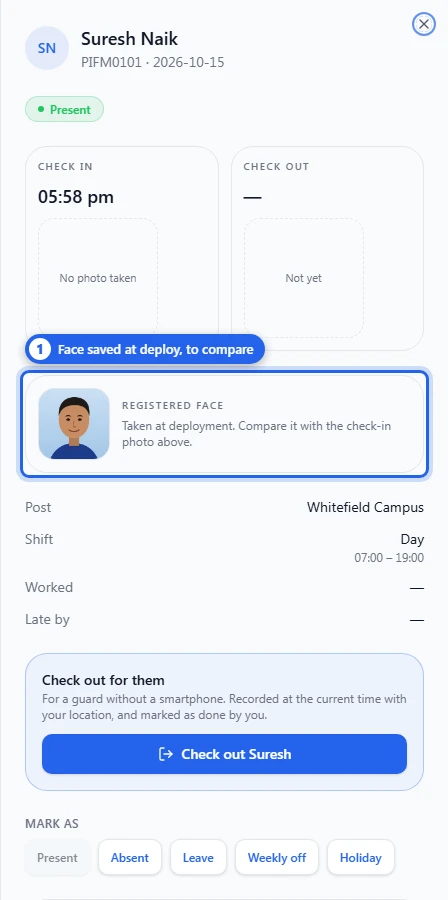
The comparison is by eye: SecureForce does not do automatic face recognition.
What the server checks
Deployment is refused when the worker isn't HR-approved, when a check has gone red since approval (for example a document expired), when the site's contract needs an NDA that isn't signed, when the site or contract is inactive, when the shift belongs to another site, or when the worker is already deployed and End the current deployment isn't ticked. The message says which.
How it connects
- Comes after HR approval.
- The deployment appears on the Deployment page like any other, and drives shifts and roster, field attendance, payroll and billing and the daily report.