Finance, from attendance to cash
The monthly finance cycle step by step: payroll, billing and GST invoices, client payments, receivables, reconciliation, profitability and the Finance overview.
Finance runs once a month, after attendance is approved. Each step feeds the next:
- Payroll: pay your people (Payroll and billing explains the calculation).
- Billing and invoices: bill each client site and issue GST invoices.
- Client payments: record money received and apply it to invoices.
- Receivables: see what is still owed and how late, and send statements.
- Reconciliation: the system checks that billing, invoices and payroll agree.
- Profitability: revenue minus staff cost, by site or client.
- Finance overview: all of the above on one screen.
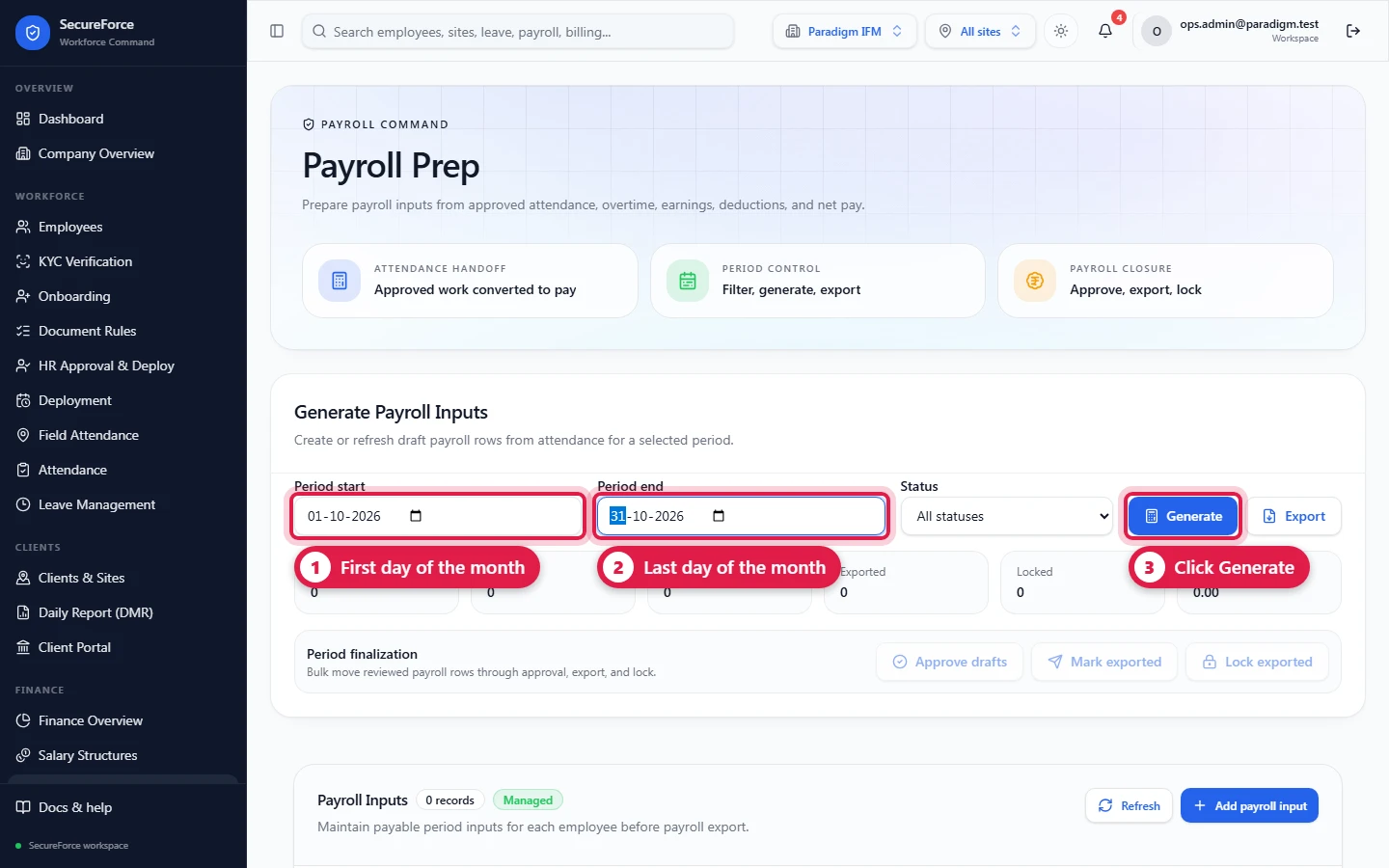
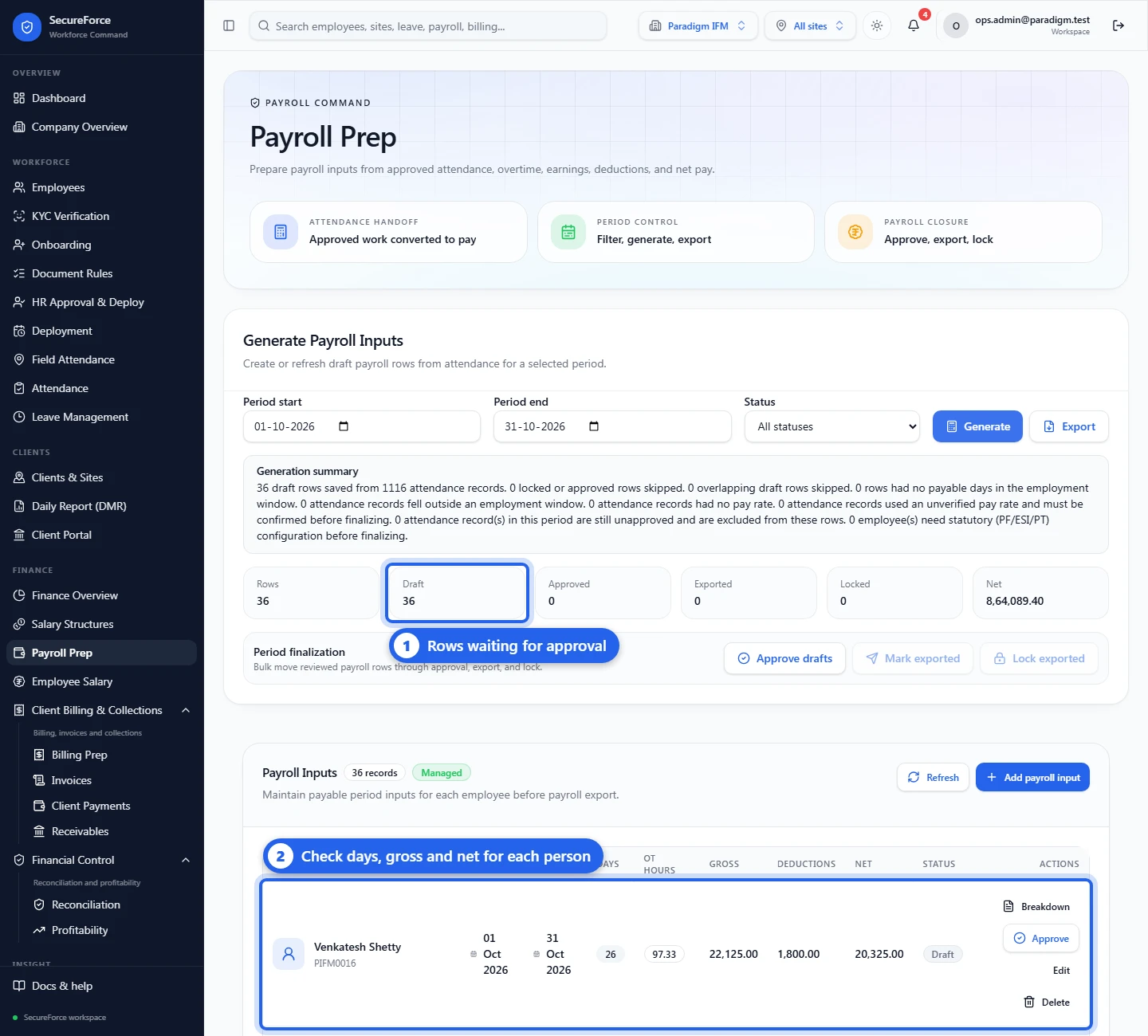
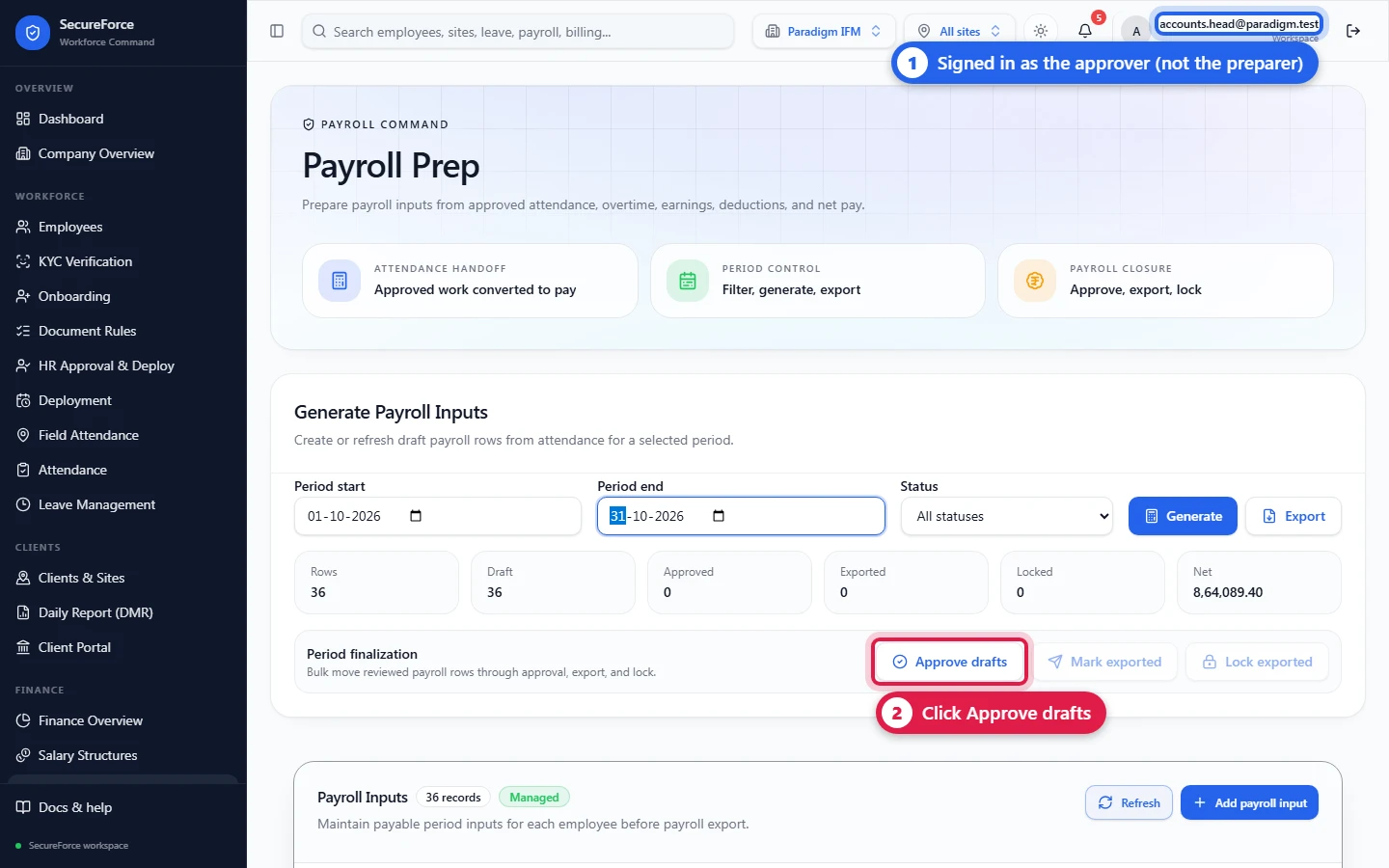
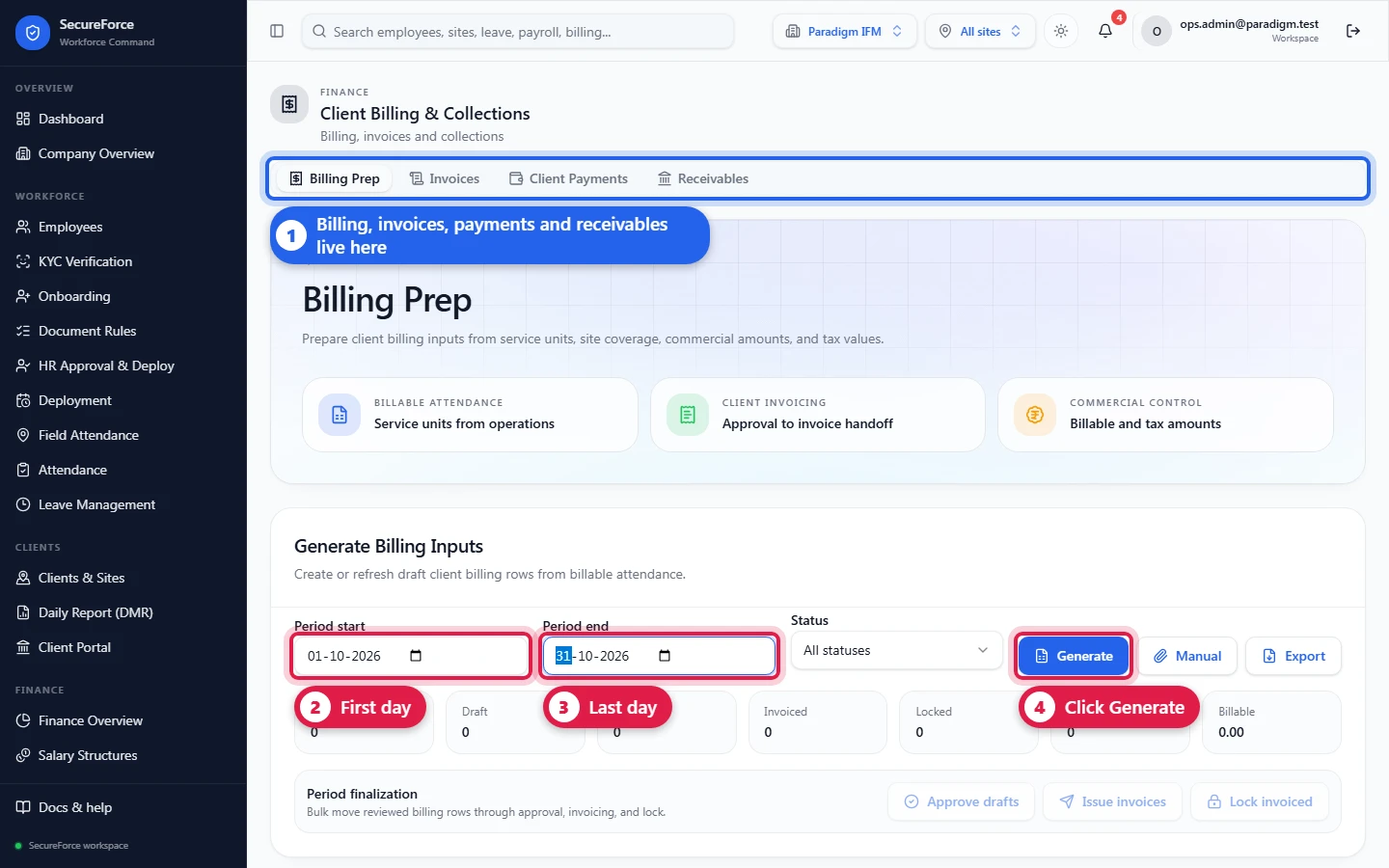
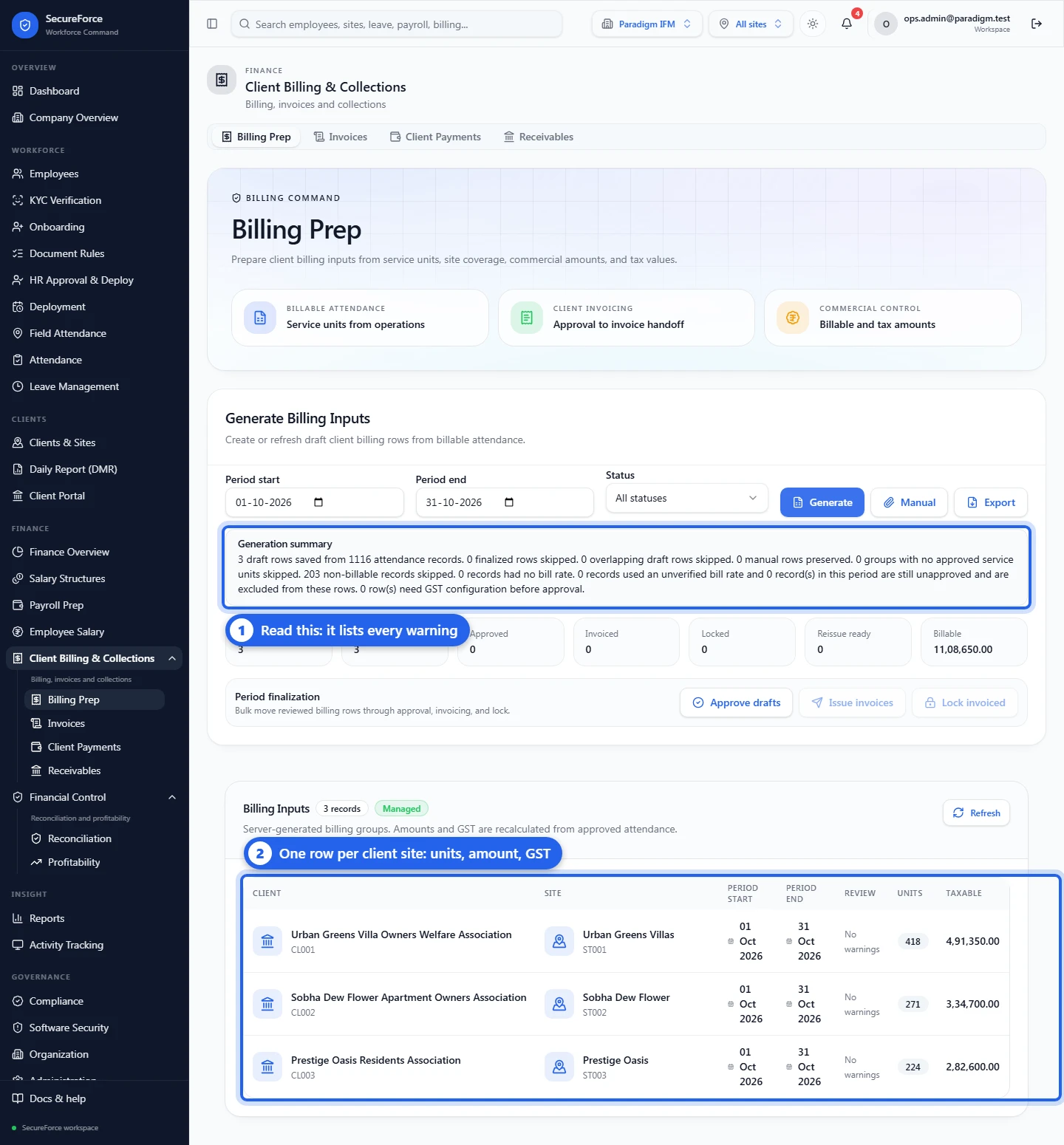
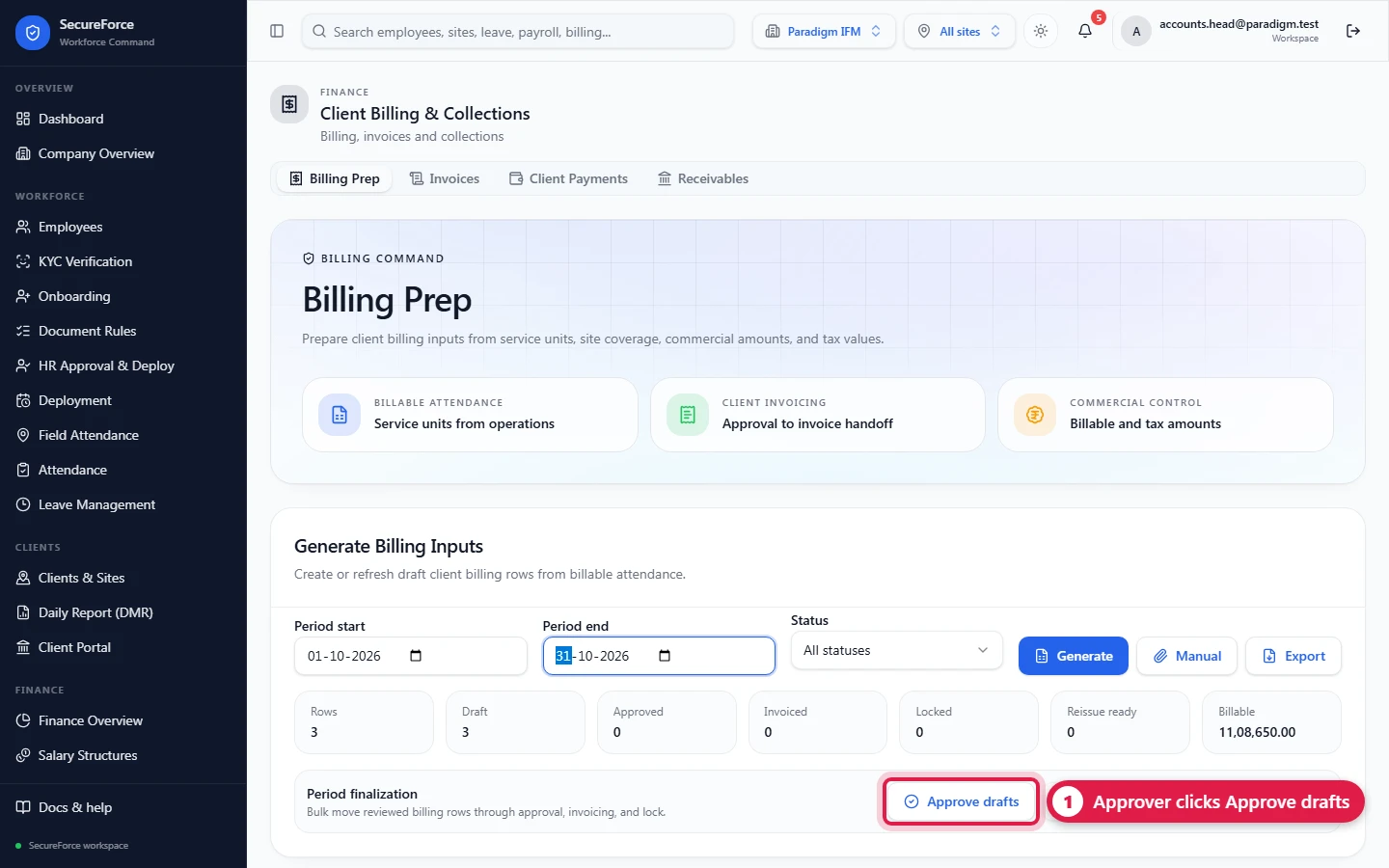
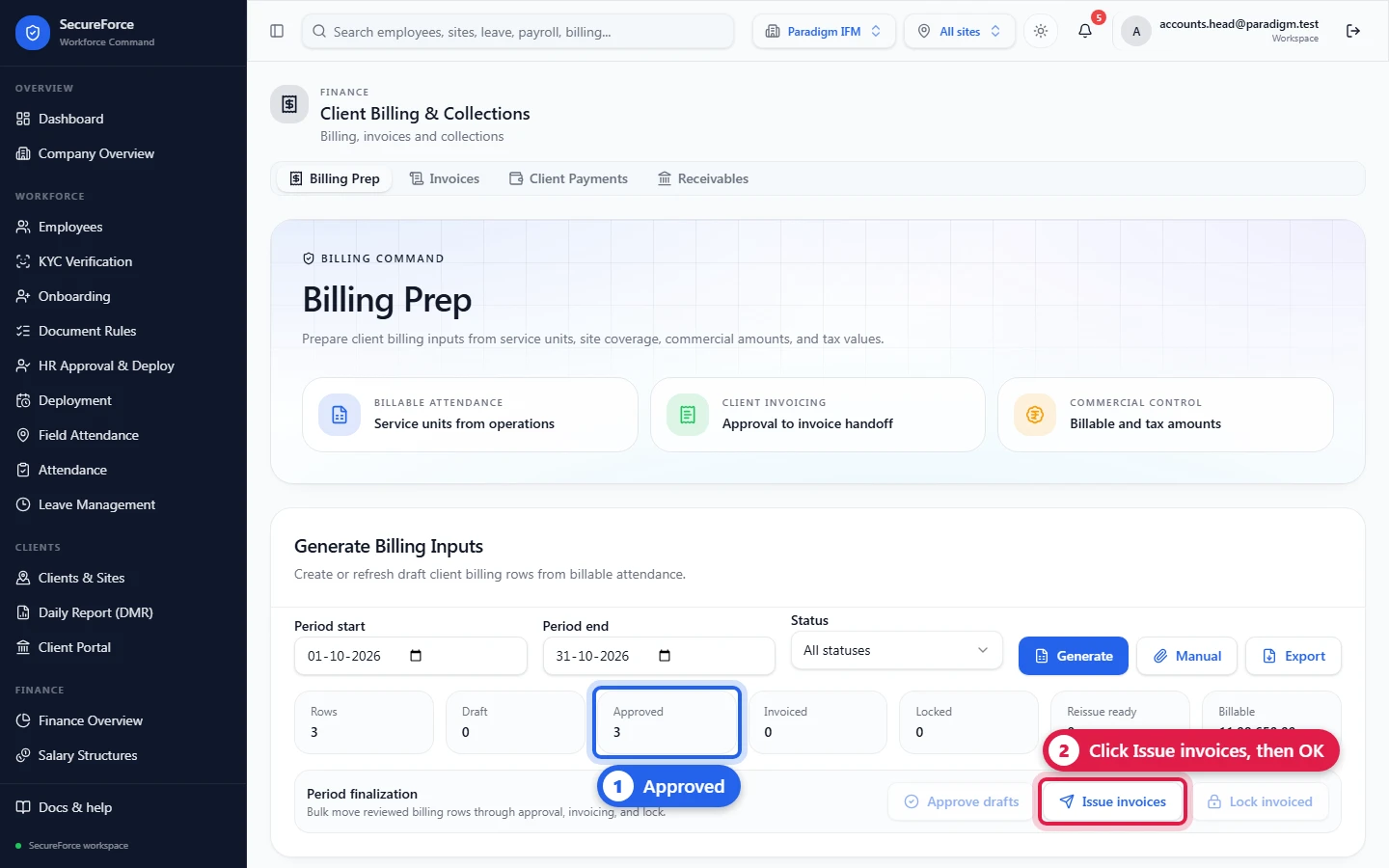
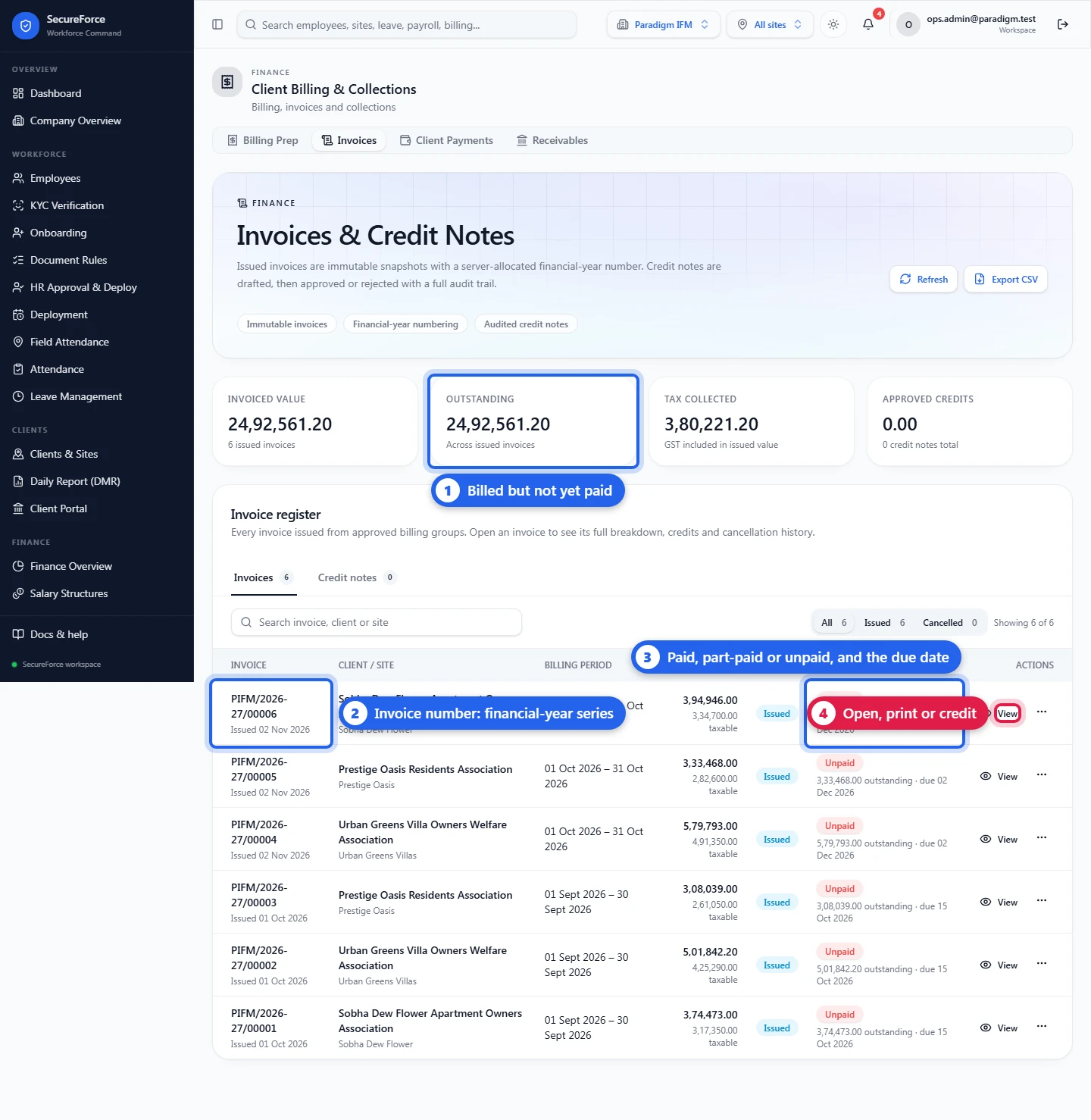
In the pictures, a red box is something to click or fill in, and a blue box is something to read. The numbers give the order.
Before the first month
Set these up once:
- A verified pay rate and bill rate on every deployment.
- GST (CGST, SGST, IGST rates) and PF / ESI / PT in Administration › Billing & statutory. While GST is off, invoices carry no tax.
- Each worker's statutory profile (wage base, PF/ESI applicable).
- Your billing profile with payment terms: they set each invoice's due date.
- Each client's GSTIN, GST treatment and place of supply (Clients and sites).
- Two people who can approve. Whoever generates payroll or billing cannot approve it (maker-checker).
Who can do this: Payroll: Admin, HR Manager. Billing, invoices and client payments: Admin, Ops Manager. Running reconciliation: Admin, Ops Manager; reviewing findings: Admin. Viewing receivables, reconciliation, profitability and the overview: Admin, Ops Manager, Viewer.
1. Payroll
In Finance › Payroll Prep, set the first and last day of the month and click Generate.
Read the Generation summary: it lists days with no or unverified pay rate, unapproved attendance, and workers without a statutory profile. Fix them and generate again; regenerating replaces the drafts. Check each person's days, overtime, gross, deductions and net (Breakdown shows the day-by-day calculation).
A different person then opens the same month and clicks Approve drafts. If the preparer tries, SecureForce refuses: "Payroll must be approved by a different person from the preparer."
2. Billing and invoices
Finance › Client Billing & Collections has four tabs: Billing Prep, Invoices, Client Payments and Receivables. On Billing Prep, set the month and click Generate. There is one row per client site; amounts and GST are calculated by the server from approved attendance and the bill rate on each day.
A second person clicks Approve drafts, then Issue invoices and confirms. Each client site gets one invoice numbered in your financial-year series. Issued invoices can't be edited: correct one with a credit note, or cancel it with a reason and reissue.
The Invoices tab shows every invoice with its payment position (unpaid, part-paid or paid), the amount outstanding and the due date (issue date + payment terms).
3. Client payments
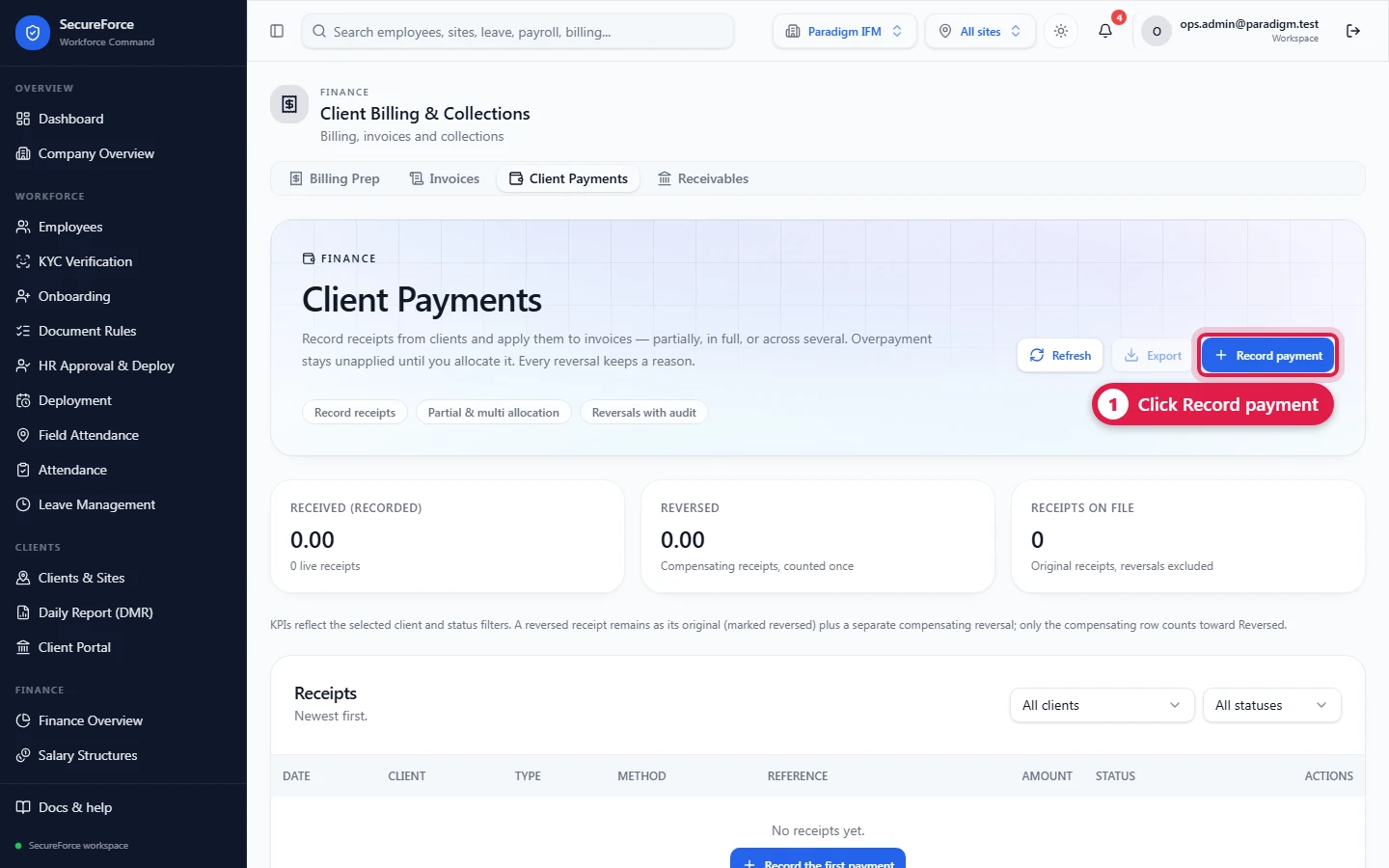
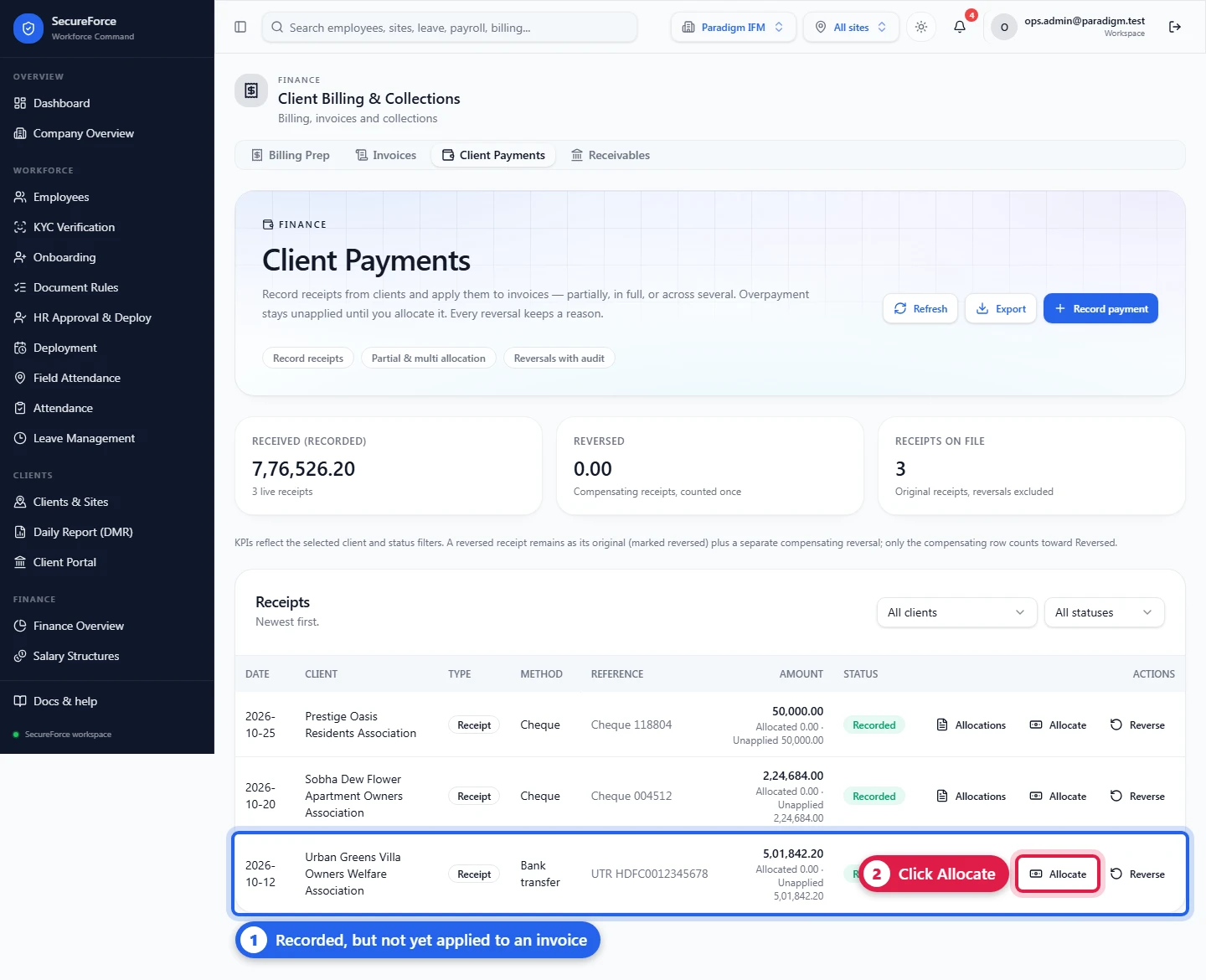
Recording a payment has two steps: the receipt (money arrived), then its allocation (which invoices it pays). One receipt can pay part of an invoice, a whole invoice, or several. Anything not applied stays unapplied on the receipt.
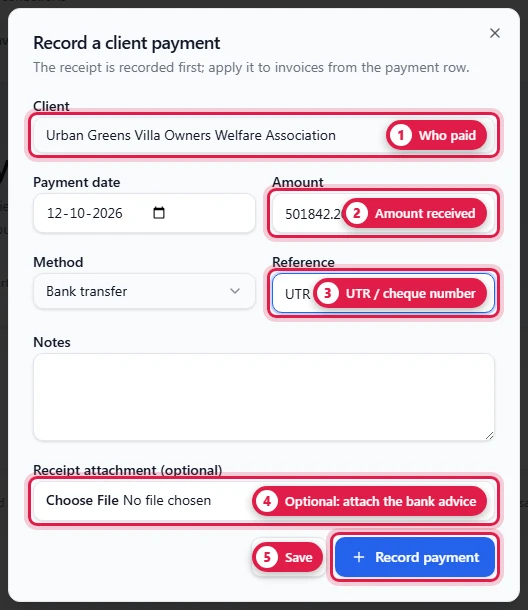
On Client Payments, click Record payment, then fill in the client, date, amount, method and UTR or cheque number. You can attach the bank advice. A double click or a dropped connection never records the money twice.
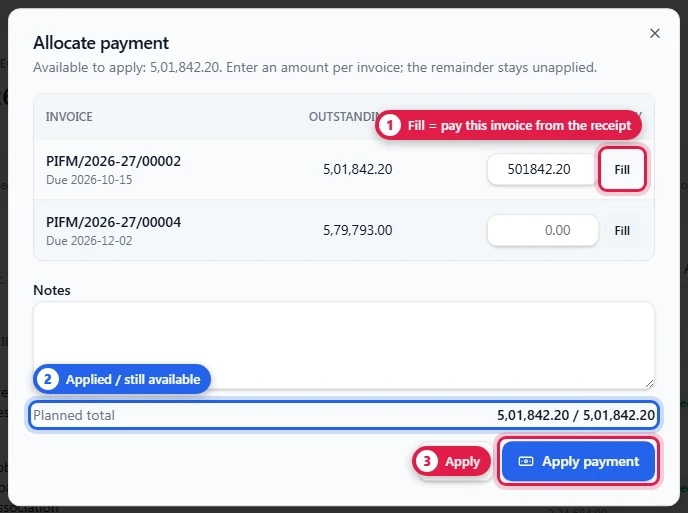
Click Allocate on the receipt. Click Fill next to an invoice to pay it from the receipt, or type a smaller amount for a part payment, then Apply payment. You can't apply more than the receipt holds or the invoice owes.
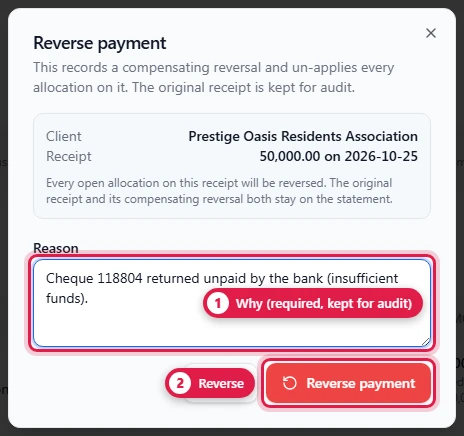
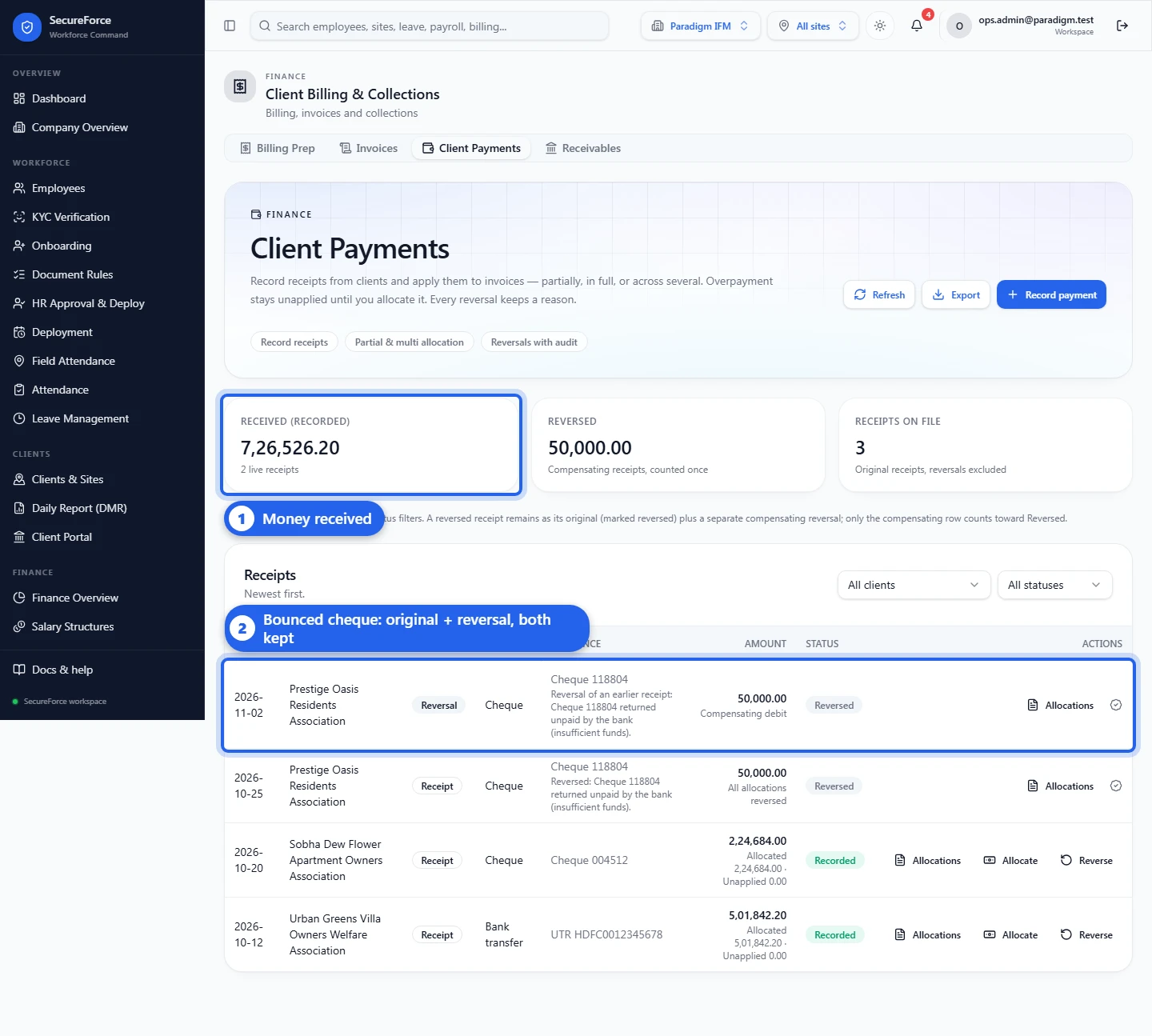
A cheque bounced? Click Reverse on the receipt and give the reason. Every allocation on it is undone, so its invoices are owed again. The original receipt and the reversal both stay on record. To move money applied to the wrong invoice, open Allocations and reverse just that line.
4. Receivables
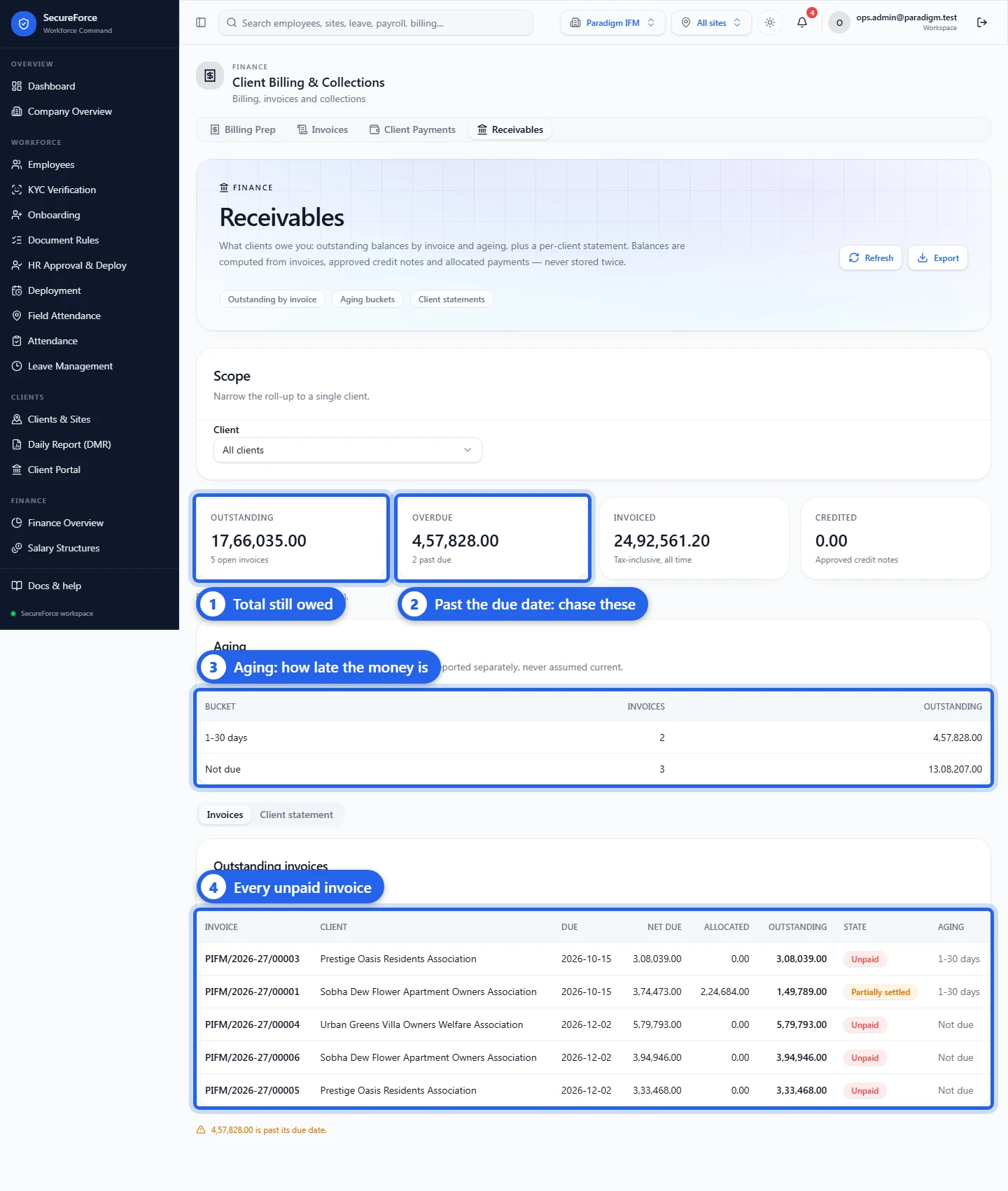
Receivables shows what clients owe today. Outstanding is billed but unpaid; Overdue is outstanding and past its due date. The Aging table splits it by lateness (Not due, 1–30, 31–60, 61–90, 90+ days, and No due date).
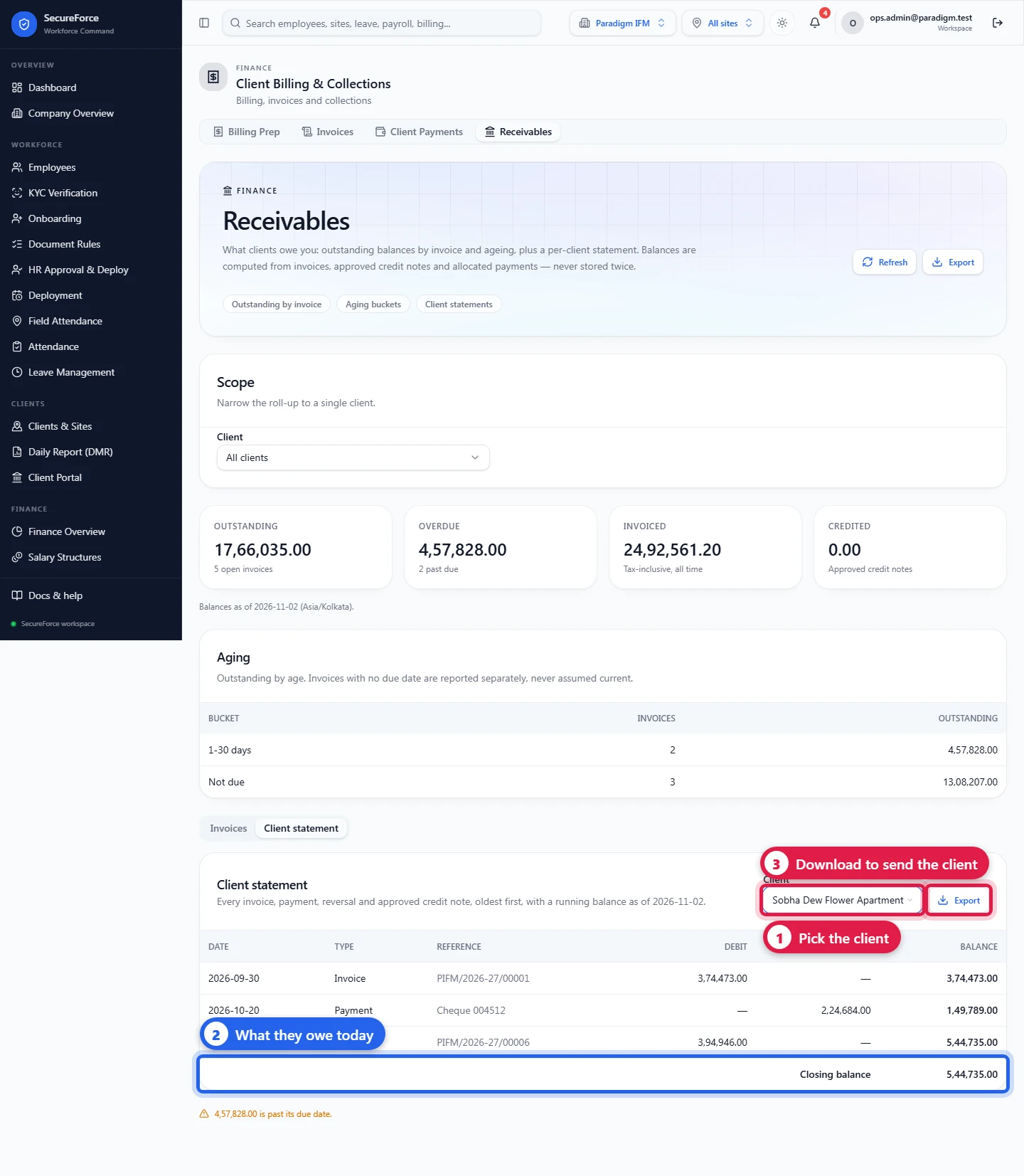
On Client statement, pick a client to see every invoice, payment, reversal and credit note with a running balance, and Export it to send to them.
5. Reconciliation
In Finance › Financial Control › Reconciliation, pick the month and click Run checks. It compares billing, invoices, credit notes and payroll and lists what does not add up. It reports; it never changes your data. Here, October's billing was approved but not yet invoiced:
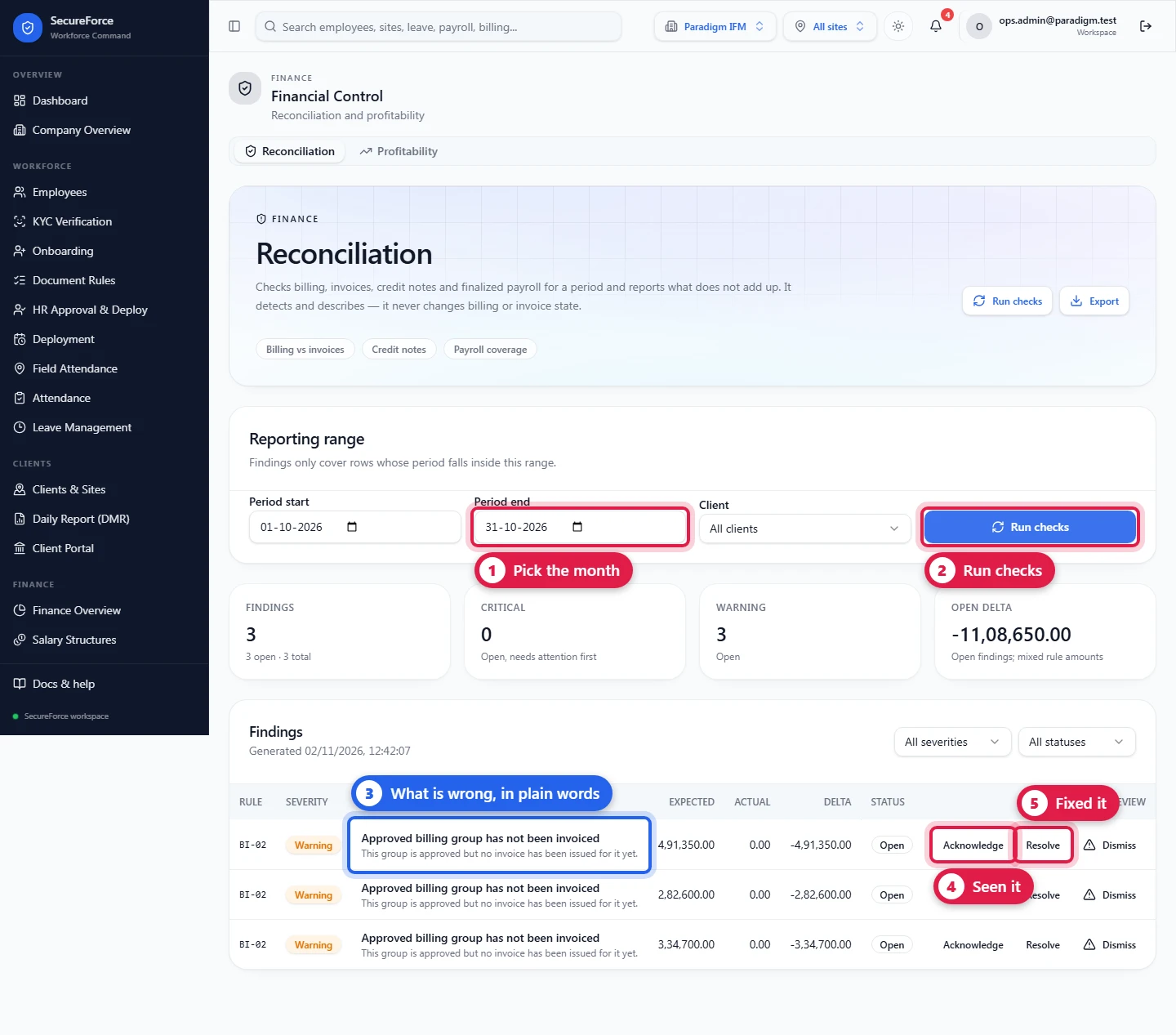
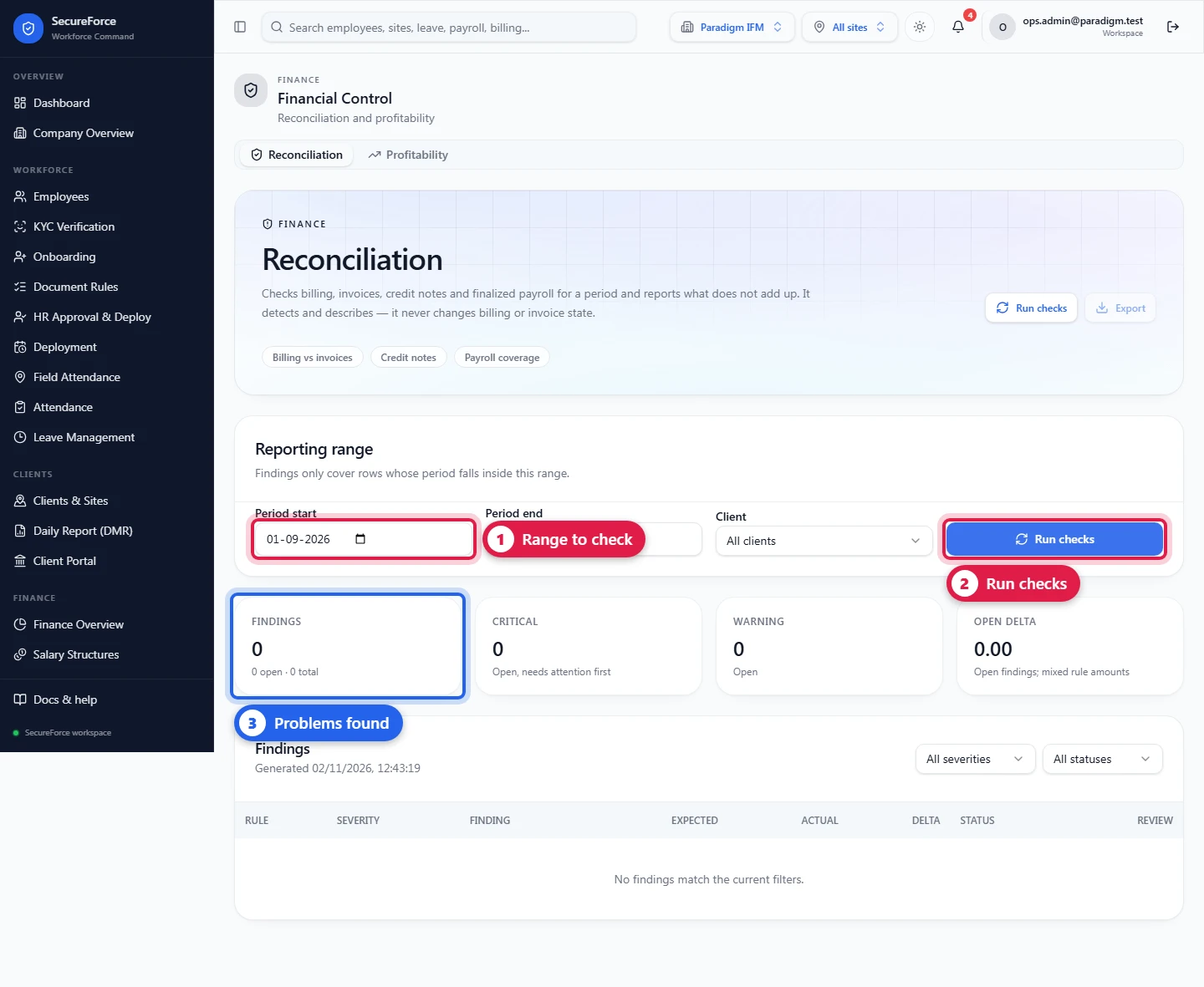
Fix the cause, then an Admin marks the finding Acknowledged, Resolved or Dismissed (with a note). After the invoices were issued, the check comes back clean. Aim for zero open findings before closing a month.
6. Profitability
In Financial Control › Profitability, set the range, choose By site or By client, and click Run report. Gross profit = net revenue (invoiced, without GST, less credit notes) − direct cost (payroll gross + employer PF/ESI).
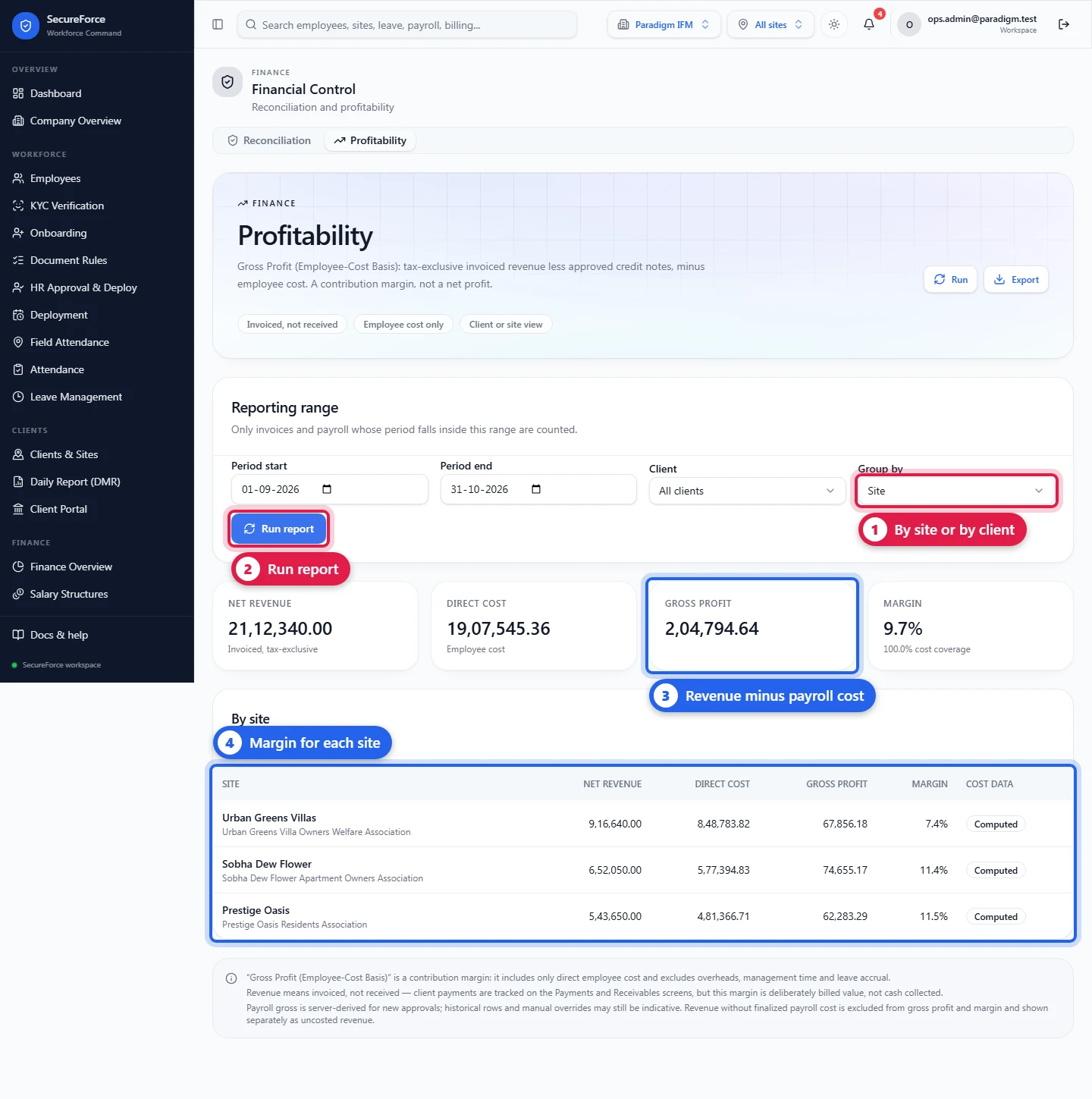
It is a contribution margin, not net profit: overheads are not included, and revenue is billed, not collected. Revenue whose payroll is not finalized yet is shown as uncosted and left out of the margin; cost coverage says how much revenue has its cost in.
7. Finance overview
Finance › Finance Overview puts it together. The Period, Client and Site filters at the top drive every card.
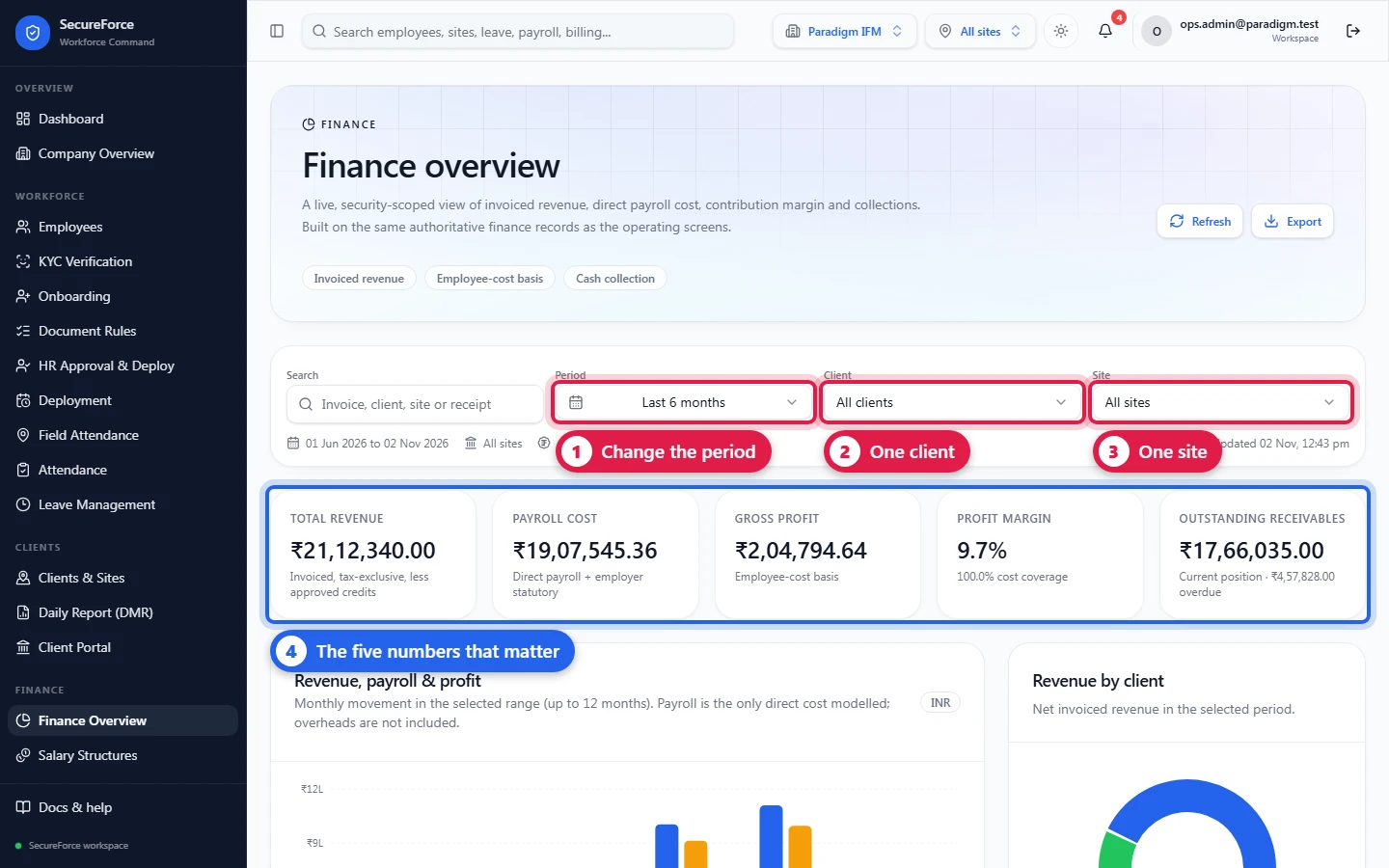
- Total revenue, Payroll cost, Gross profit and Profit margin cover the selected period.
- Outstanding receivables is what clients owe today, with the overdue part.
- Further down: the month-by-month chart, revenue by client, profitability, receivables aging, payroll summary, pending approvals, financial control, Finance alerts (what needs action now), quick actions, recent invoices and receipts, and the oldest overdue invoices.
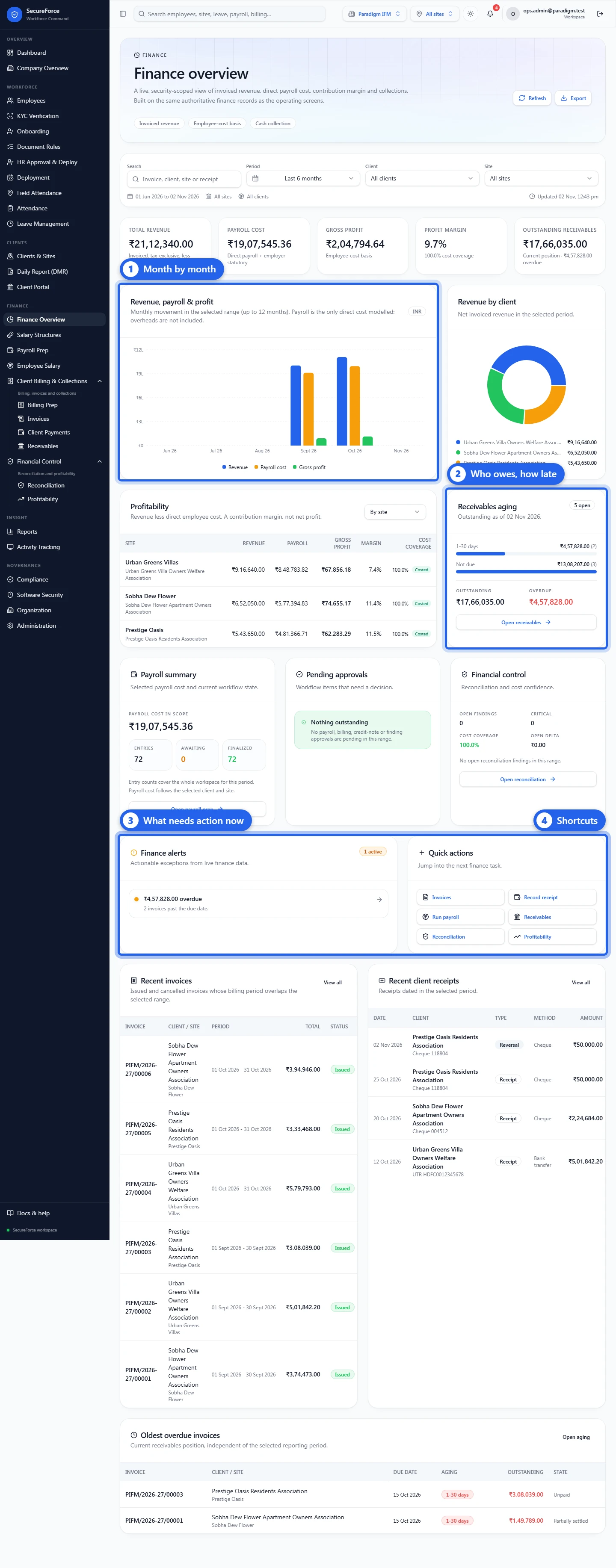
Payroll counts on the overview cover the whole workspace, because a payroll row belongs to a worker, not a site. If one card can't load, only that card shows an error with Retry. A card your role can't see says "access required" instead of showing a zero.
Good to know
- Every record is counted. Lists, totals and exports read all rows, however large the workspace.
- Nothing is deleted. Reversals, cancellations and reviewed findings stay on record with who, when and why.
- "No GST on my invoice": GST is off for the workspace. Turn it on in Administration; already issued invoices keep their amounts.
- "Approved by a different person": the maker-checker control. Ask a colleague to approve.
- The full printable guide, with the same screenshots, is in the repository at
docs/finance-guide/(Markdown and PDF).