Employees
Add employees one by one or in bulk from a CSV, set up the document types you collect, and use the employee profile that ties every module together.
Sidebar → Employees (route /employees). Every person you manage has one employee record, whether guard, supervisor or office staff. Onboarding, KYC, deployment, attendance, leave and payroll all hang off this record.
Who can do this: Admin, Ops Manager, HR Manager (permission employees.manage).
Add an employee
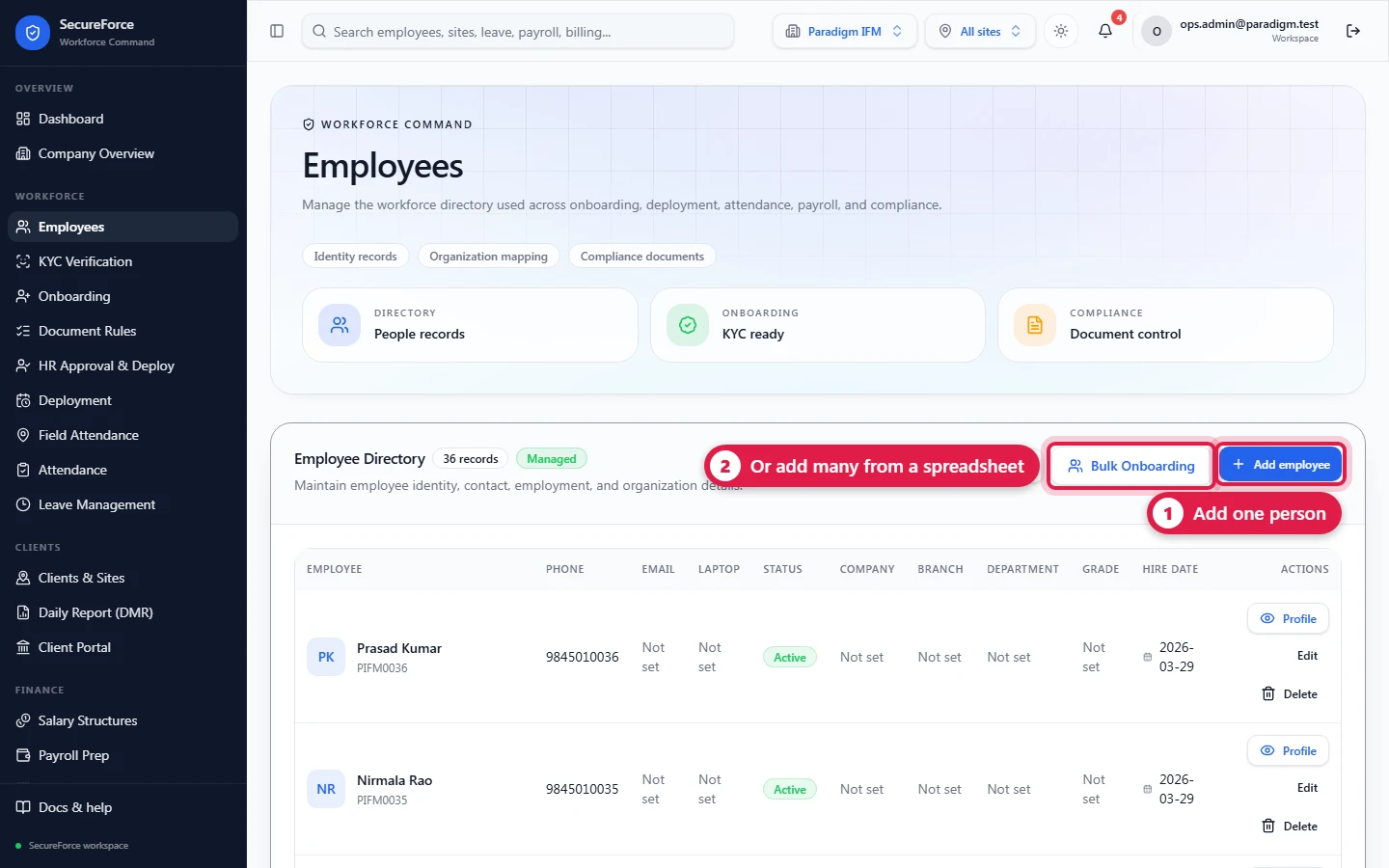
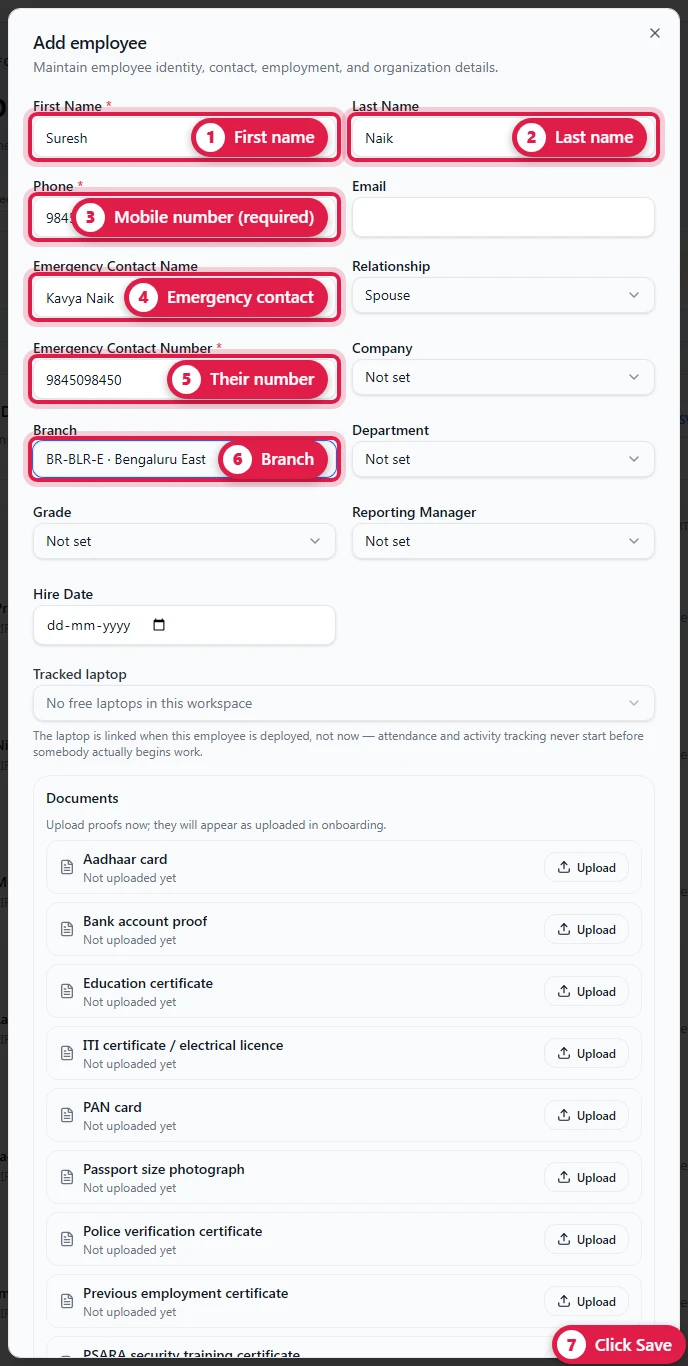
Employee Directory → Add employee:
| Field | Required | Notes |
|---|---|---|
| First name | Yes | |
| Last name | ||
| Phone | Yes | Mobile number, 10 to 15 digits. Spaces and dashes are removed. |
| Optional, since many guards have none. If the person will sign in with an email, enter it here: it links their login to this record. Must be unique in the workspace. | ||
| Emergency Contact Name | ||
| Relationship | Spouse, Parent, Sibling or Friend | |
| Emergency Contact Number | Yes | 10 to 15 digits |
| Company, Branch, Department, Grade | From Organization | |
| Reporting Manager | Only people ticked as reporting managers in Administration | |
| Hire Date |
The employee code (EMP-0001…) is generated. New employees start with status Pending onboarding (added, but onboarding not started yet), then move to Onboarding and Active. Hover a status in the directory to see what it means.
Document types
Lower on the same page: Document Types → Add document type. This is the list of documents you collect from staff.
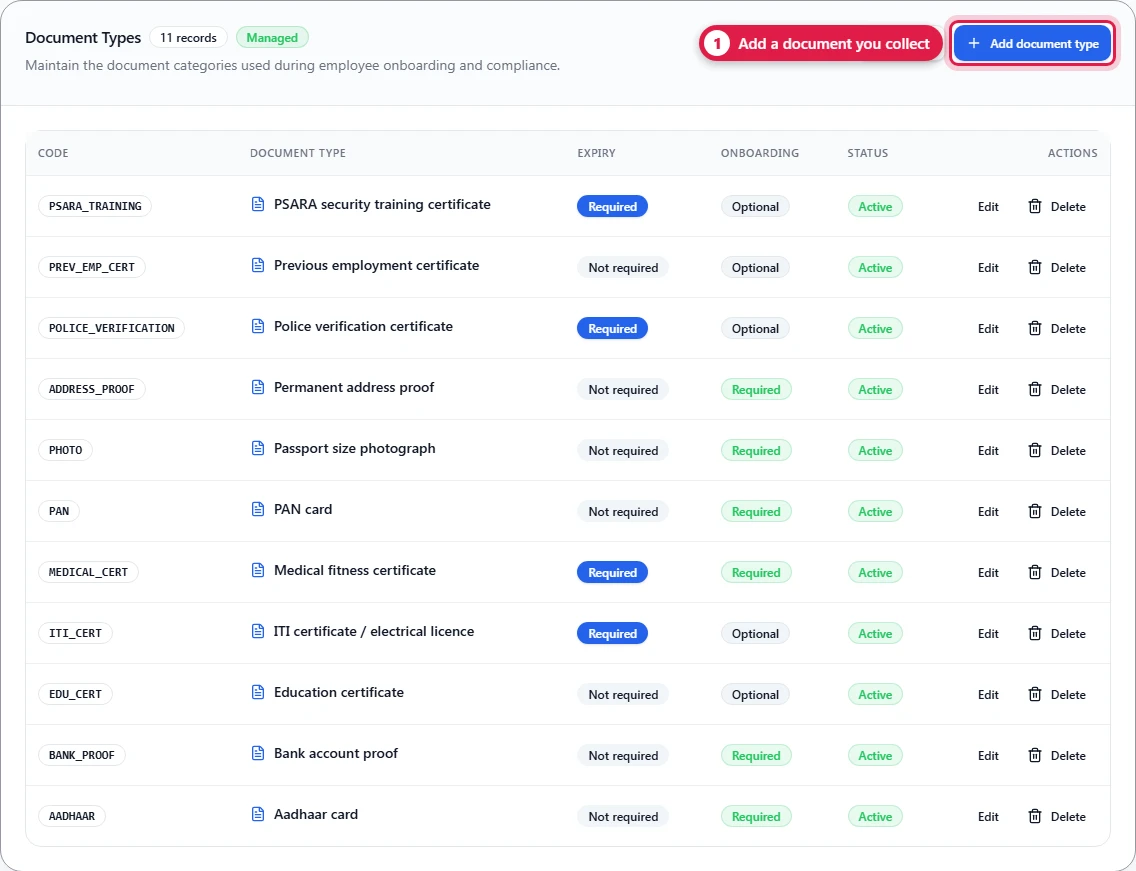
| Field | Notes |
|---|---|
| Code | Short and unique, e.g. AADHAAR, PAN, POLICE_VERIFICATION |
| Name | e.g. Aadhaar card, Police verification certificate |
| Requires Expiry | Yes for documents that lapse (police verification, licences) |
| Required for Onboarding | Yes means every worker must submit it before onboarding can be completed |
Documents that only some workers need — a PSARA certificate for guards, an ITI certificate for electricians — are not marked required here. Add them as rules per staff category or designation in Document rules.
Starting a KYC case adds the ten standard document types automatically (Aadhaar, PAN, photograph, address proof, previous employment certificates, police verification, medical certificate, PSARA training, bank proof, education certificate) if they aren't there yet.
The employee profile
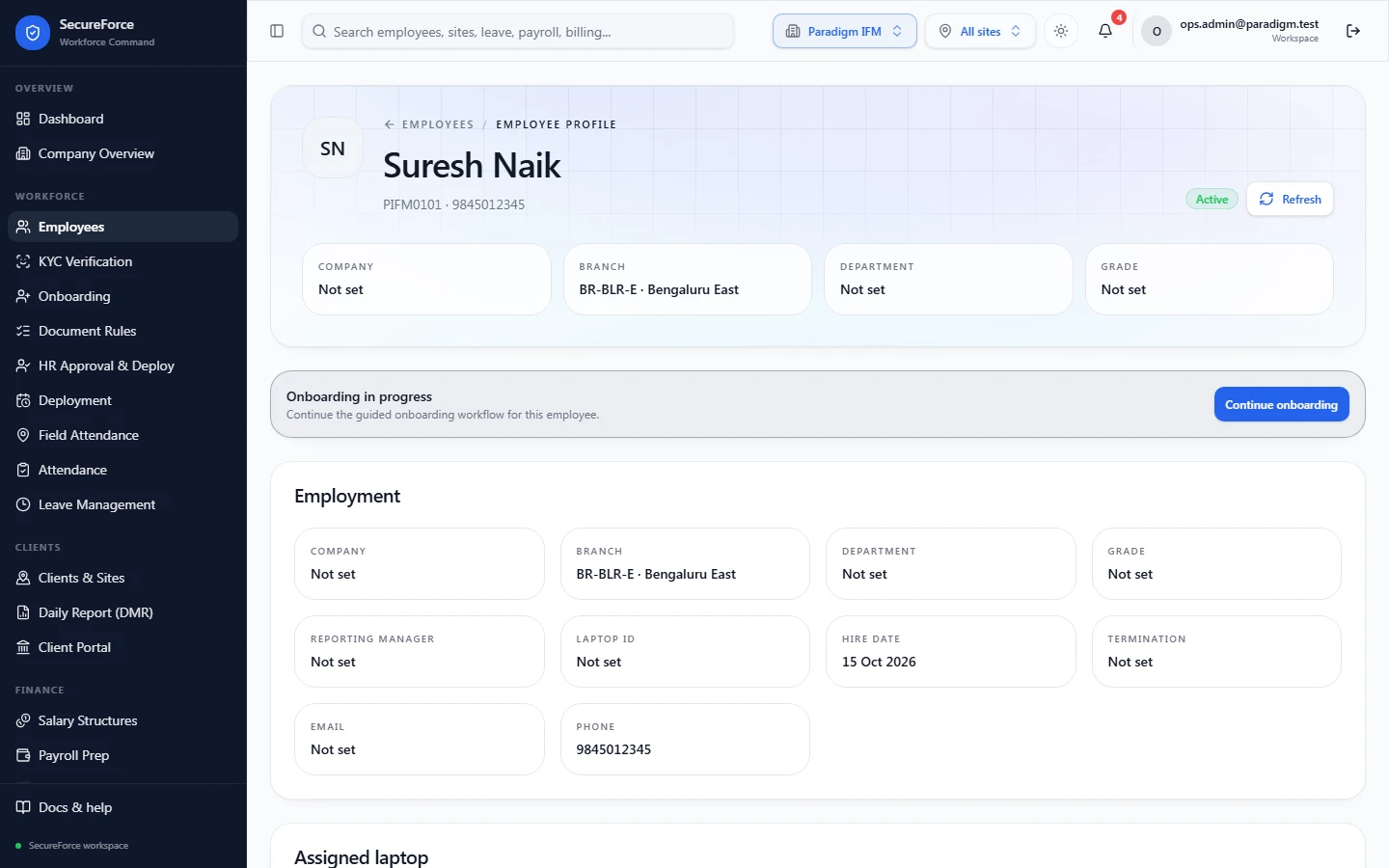
Each row in the directory has a Profile button (route /employees/<id>). The profile is where every module meets:
- Header: name, code, email, phone, status, company, branch, department and grade.
- Onboarding banner: Start onboarding, or the current progress.
- Employment: reporting manager, laptop ID, hire date, termination.
- Documents, Deployments, Roster Assignments, Attendance, Checks (consents and verifications), Payroll, Billing and Compliance: everything recorded for this person in the other modules.
- Activity Timeline: every change to the record, from the audit log.
Import many people at once (bulk onboarding)
Employee Directory → Bulk Onboarding (route /employees/bulk-onboarding) is for batch hiring, or for moving staff over from another system.
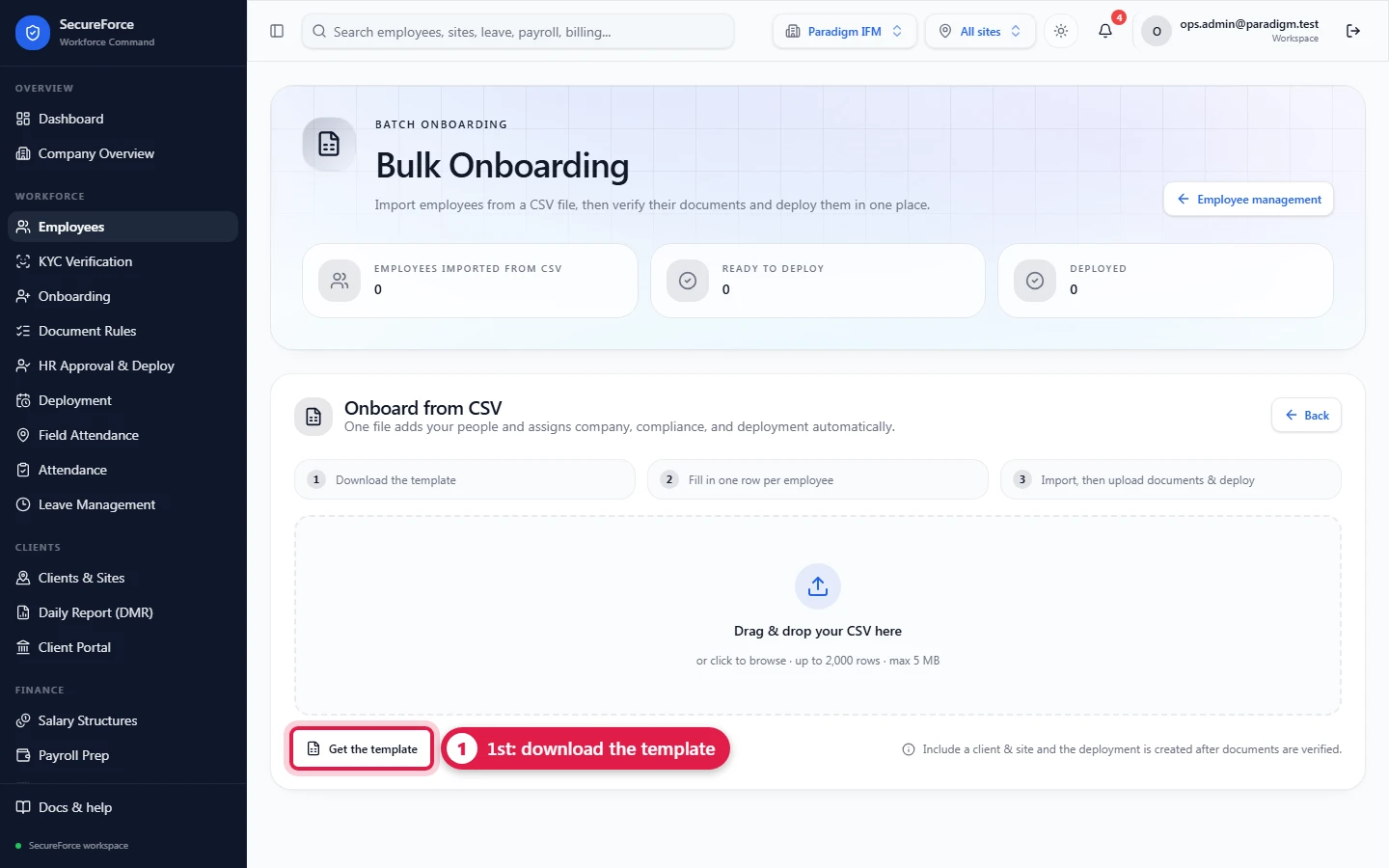
- Press Get the template to download the CSV with the right columns.
- Fill one row per person. Columns:
| Column | Required | Notes |
|---|---|---|
| first_name | Yes | |
| last_name | ||
| phone | ||
| Unique; also used to link a login later | ||
| laptop_id | For office staff with a company laptop | |
| reporting_manager | The manager's employee code, email or full name | |
| company_name, branch_name, department_name, grade_name | Must match names in Organization | |
| hire_date, date_of_birth | YYYY-MM-DD | |
| address, emergency_contact | ||
| bank_account_holder, bank_name, account_number, bank_ifsc, bank_branch | If any bank field is given, all must be | |
| client_name, site_name | Give both or neither; the site must belong to the client | |
| service_line_name, role_title | e.g. Manned guarding, Security Guard | |
| pay_rate, bill_rate | Per day; not negative |
- Upload it. Every row is checked before anything is saved. The preview shows what will be imported and the assignment (client · site · role) for each person.
- Press Import & onboard. Employees are created; rows with problems are listed under Not imported with the reason, so you can fix just those and upload them again.
- In Documents & deployment, pick each imported person, upload and verify their documents, then press Deploy employee, or Deploy all verified for everyone ready. If the CSV named a client, site and rates, that deployment is created.
Import CSV on the directory is a simpler import of employee details only.
How it connects
- Administration → Add member links a login to the employee with the same email, or with the same mobile number for a mobile login.
- Onboarding and KYC work on this record.
- Deployment, roster, attendance, leave and payroll all point at it.