Document rules
Decide which documents are mandatory for each staff category and designation, and how HR approval is refused until every one is in.
Sidebar → Document Rules (route /document-rules). Every worker owes a set of documents before HR can approve them. That set is built from three layers:
| Layer | Set where | Example |
|---|---|---|
| Every worker | Employees → Document Types → Required for Onboarding: Yes | Aadhaar, PAN, bank proof, photograph |
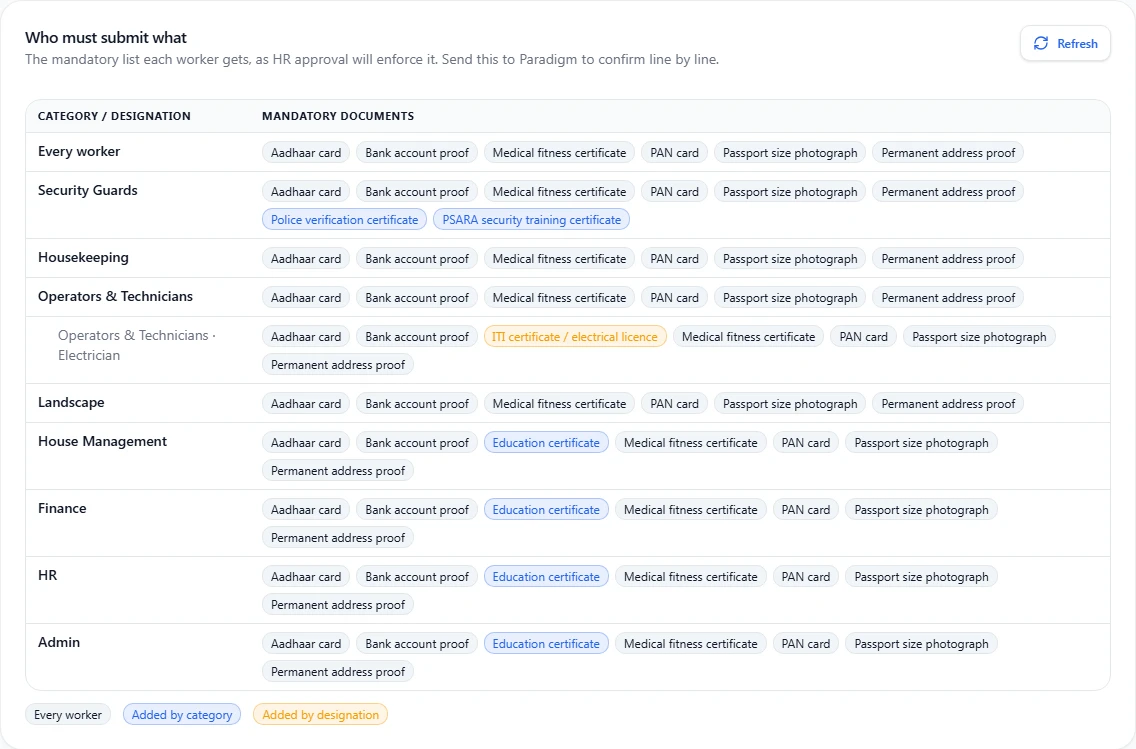
| Their category | Document Rules → a rule for the category | Security Guards: PSARA training certificate, police verification |
| Their designation | Document Rules → a rule for one designation | Electrician: ITI certificate or electrical licence |
A worker owes the union of all three: the common set, plus whatever their category adds, plus whatever their designation adds.
Who can do this: HR Manager and Admin (documents.manage) for rules; HR, Ops Manager and Admin for categories and designations.
Set up categories and designations
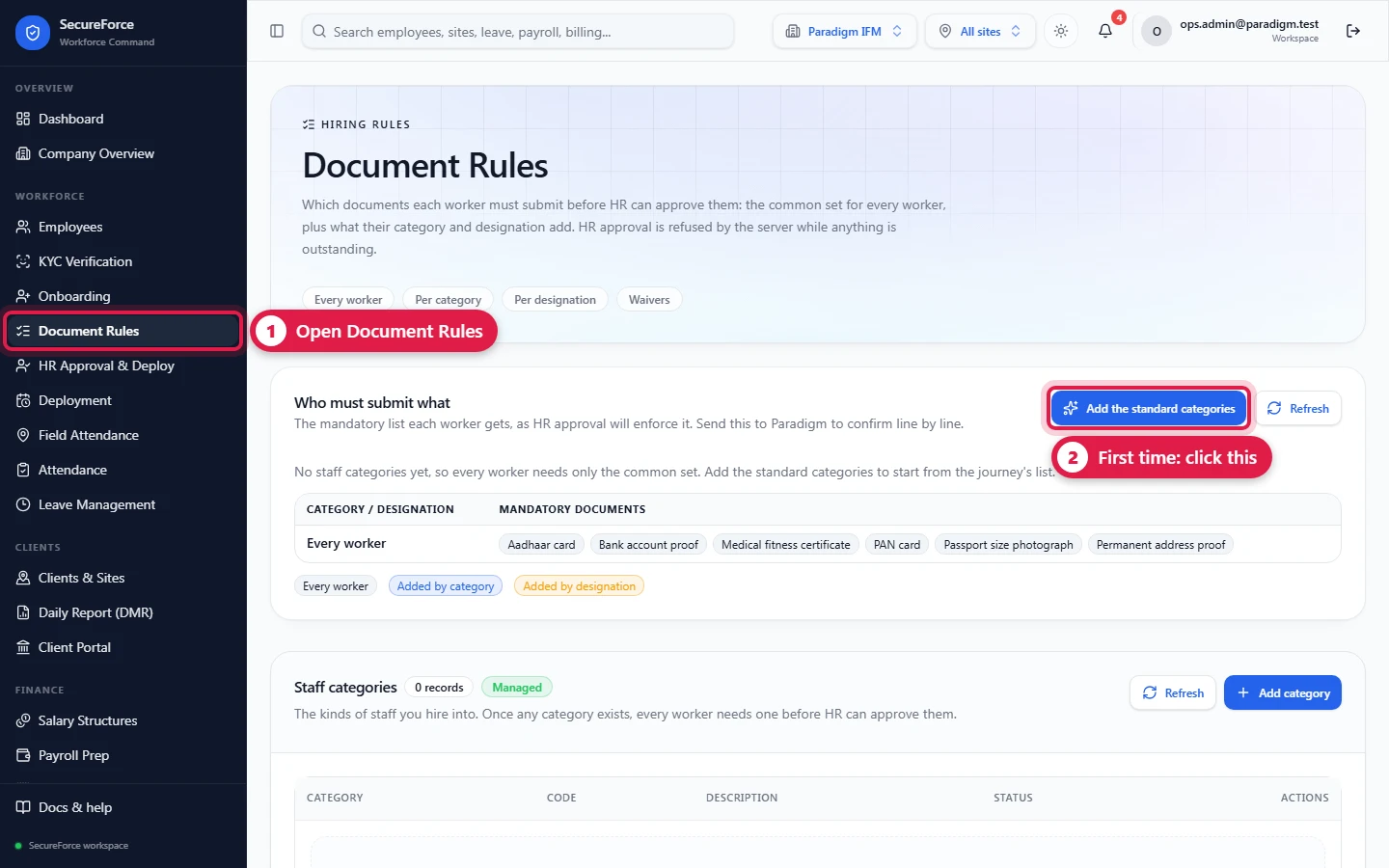
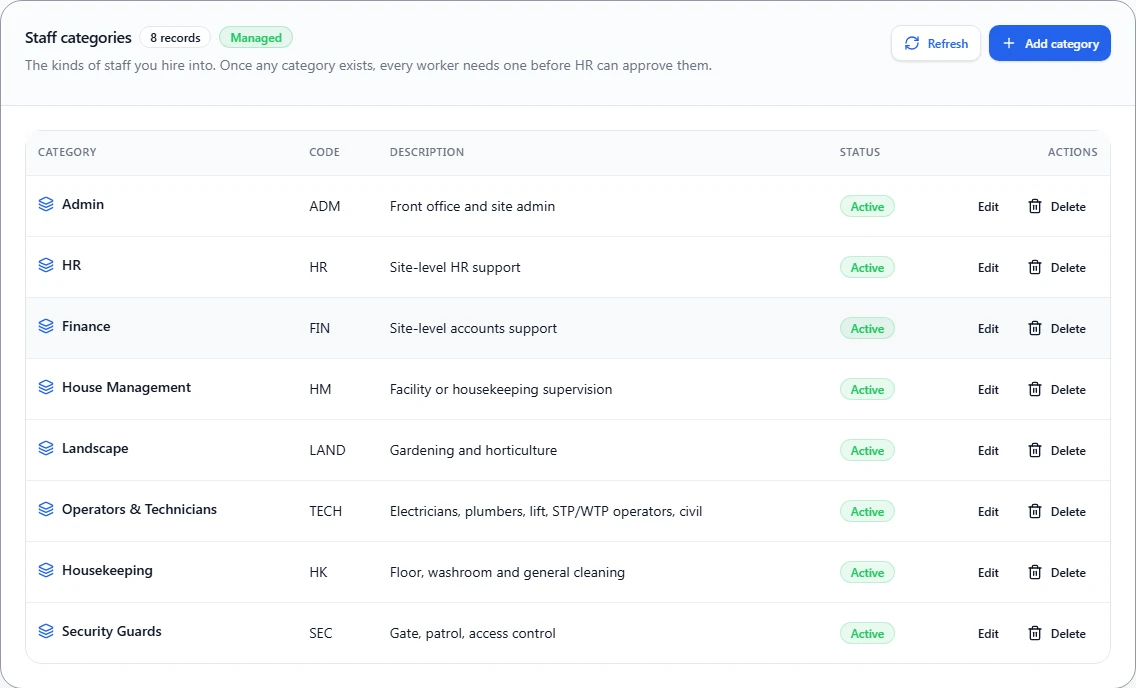
On a new workspace, Add the standard categories in the Who must submit what panel adds the journey's list: Security Guards, Housekeeping, Operators & Technicians, Landscape, House Management, Finance, HR and Admin, with the designations Security Guard, Electrician, Plumber, Lift Operator, STP Operator, WTP Operator and Gardener. Pressing it again adds nothing twice. Rename, add or archive any of them in the Staff categories and Designations lists below.
- A designation belongs to one category. Use the same spelling as in the approved headcount and deployments (e.g. Security Guard), because the daily report matches designations by name.
- To retire a category or designation, set Status → Archived. One that workers or rules still use can't be deleted.
- A designation already used by workers or rules can't move to another category; create a new one instead.
Add a rule
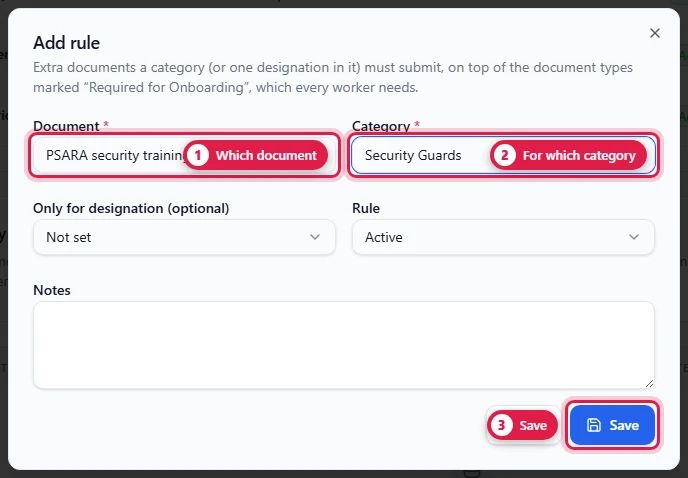
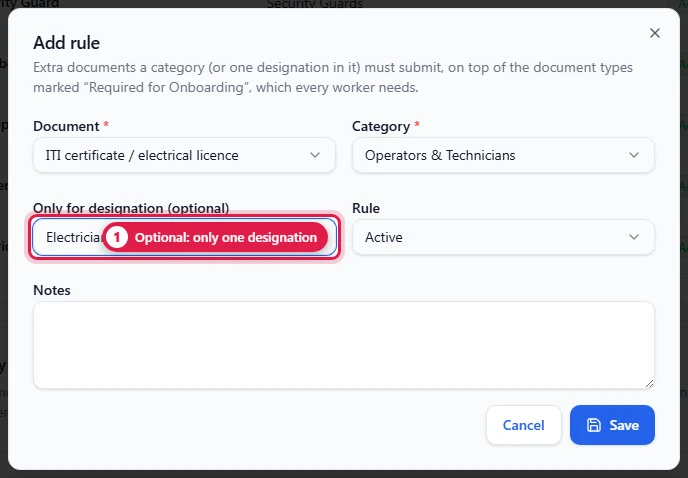
Mandatory document rules → Add rule:
| Field | Notes |
|---|---|
| Document | Any active document type |
| Category | The category the rule applies to |
| Only for designation | Optional. Leave empty for every worker in the category; pick one to apply it to that designation only |
| Rule | Active, or Switched off to stop applying it without deleting it |
Who must submit what
The panel at the top shows the resulting list for Every worker, each category, and each designation that has its own rules, colour-coded by where each document comes from. It is the table to send to the client to confirm, line by line.
What it changes for HR approval
Onboarding can't be completed — HR can't approve — while anything is outstanding. This is checked by the server, not just the screen, so it holds however the case is updated. The refusal names exactly what is missing, e.g. "Onboarding cannot be approved yet. Still outstanding: PAN card, ITI certificate."
A mandatory document counts once it is Verified and not past its expiry date. A verified document whose expiry date has passed counts as Expired again.
Once a workspace has at least one active category, every worker needs a category before approval, so category rules can't be skipped by leaving it blank. If the worker's category has designation-specific rules, they need a designation too.
Approval already given is never undone by a later rule change; the new rule applies the next time a case is approved.
Where people see it
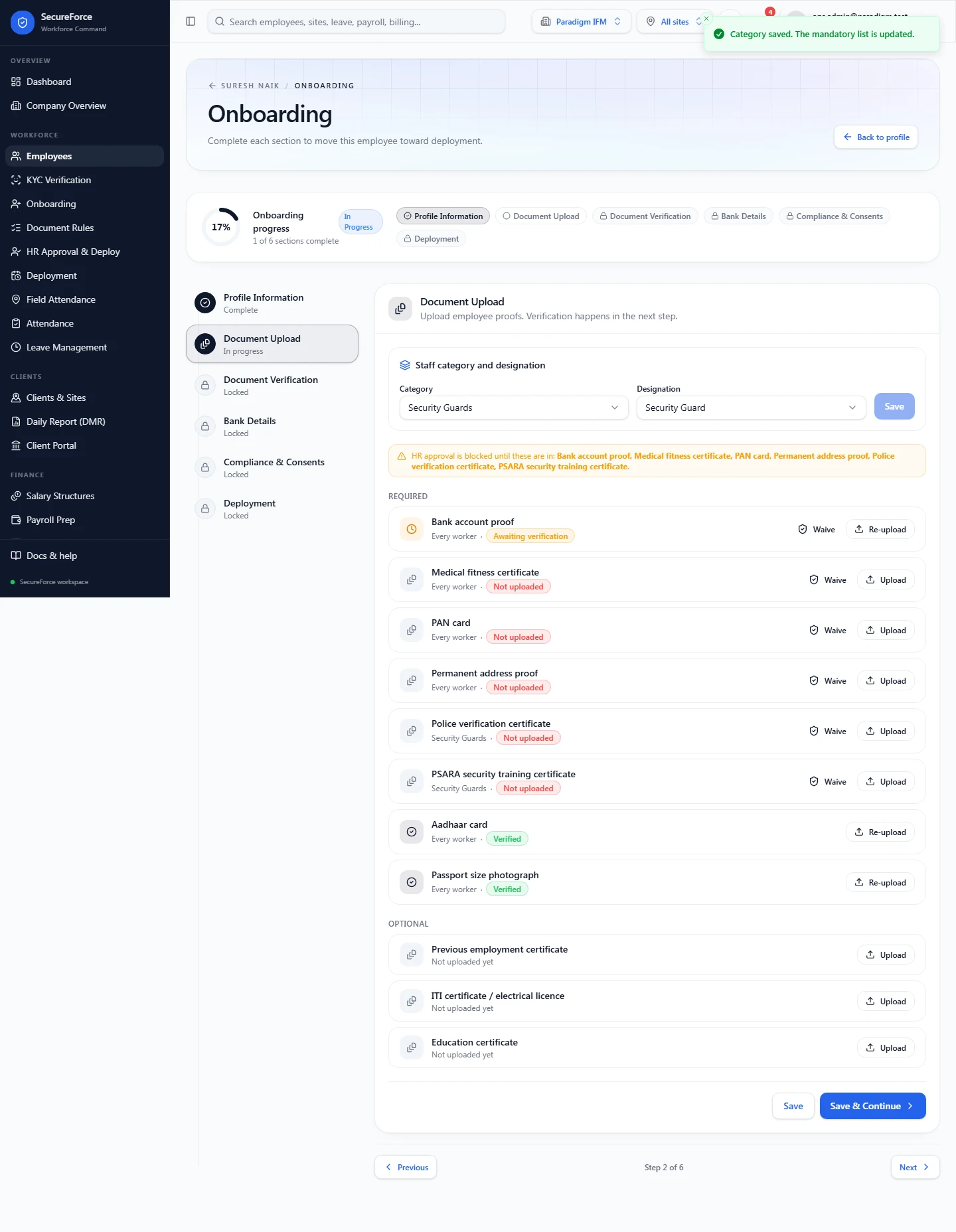
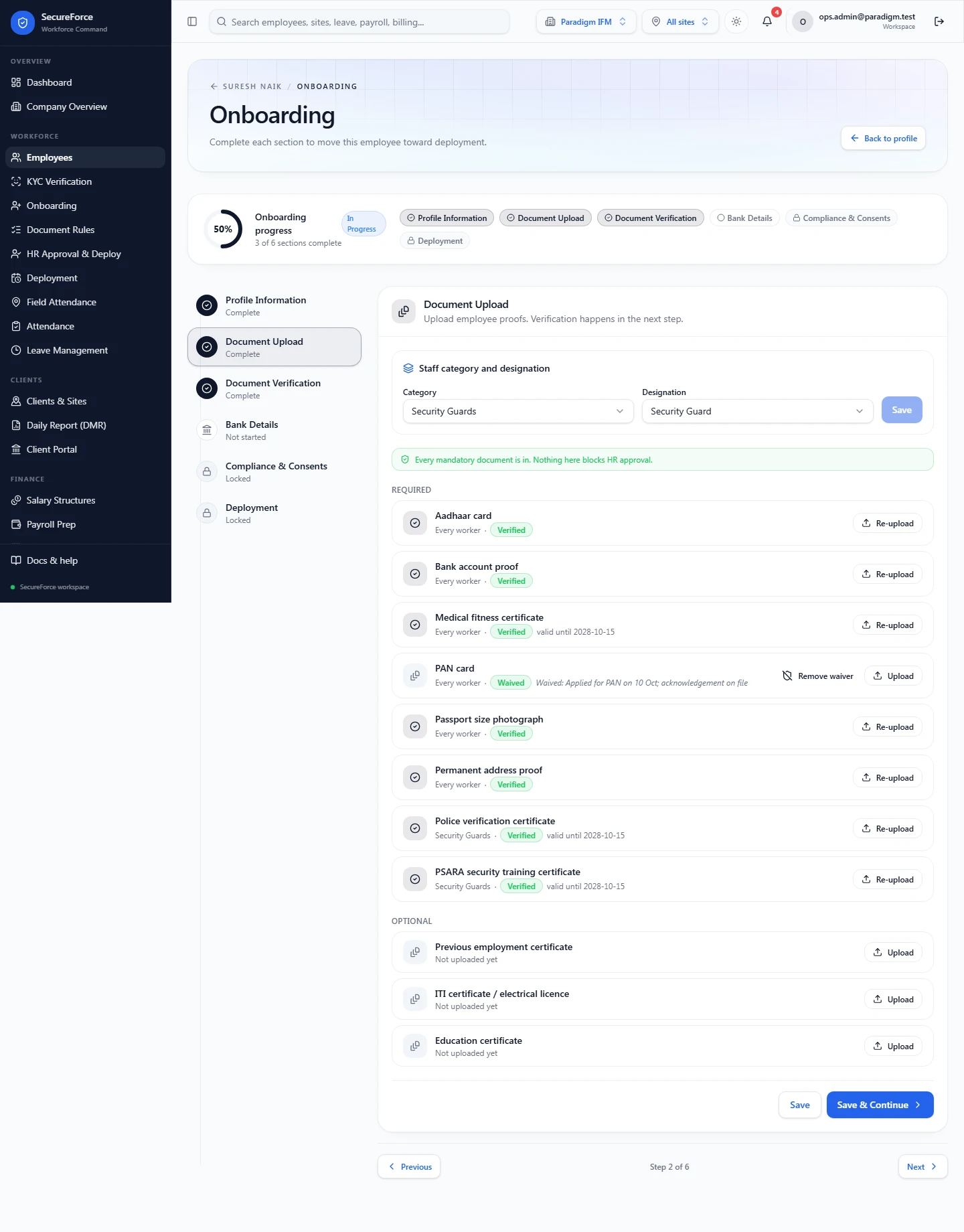
On the employee's onboarding Document Upload step:
- Staff category and designation at the top, which decide the list.
- Required lists this worker's mandatory documents, each with where it comes from (Every worker, Security Guards, Electrician) and its state: Not uploaded, Awaiting verification, Verified, Rejected, Expired or Waived.
- A line underneath says either that nothing blocks approval, or exactly what still does.
Waive a document for one worker
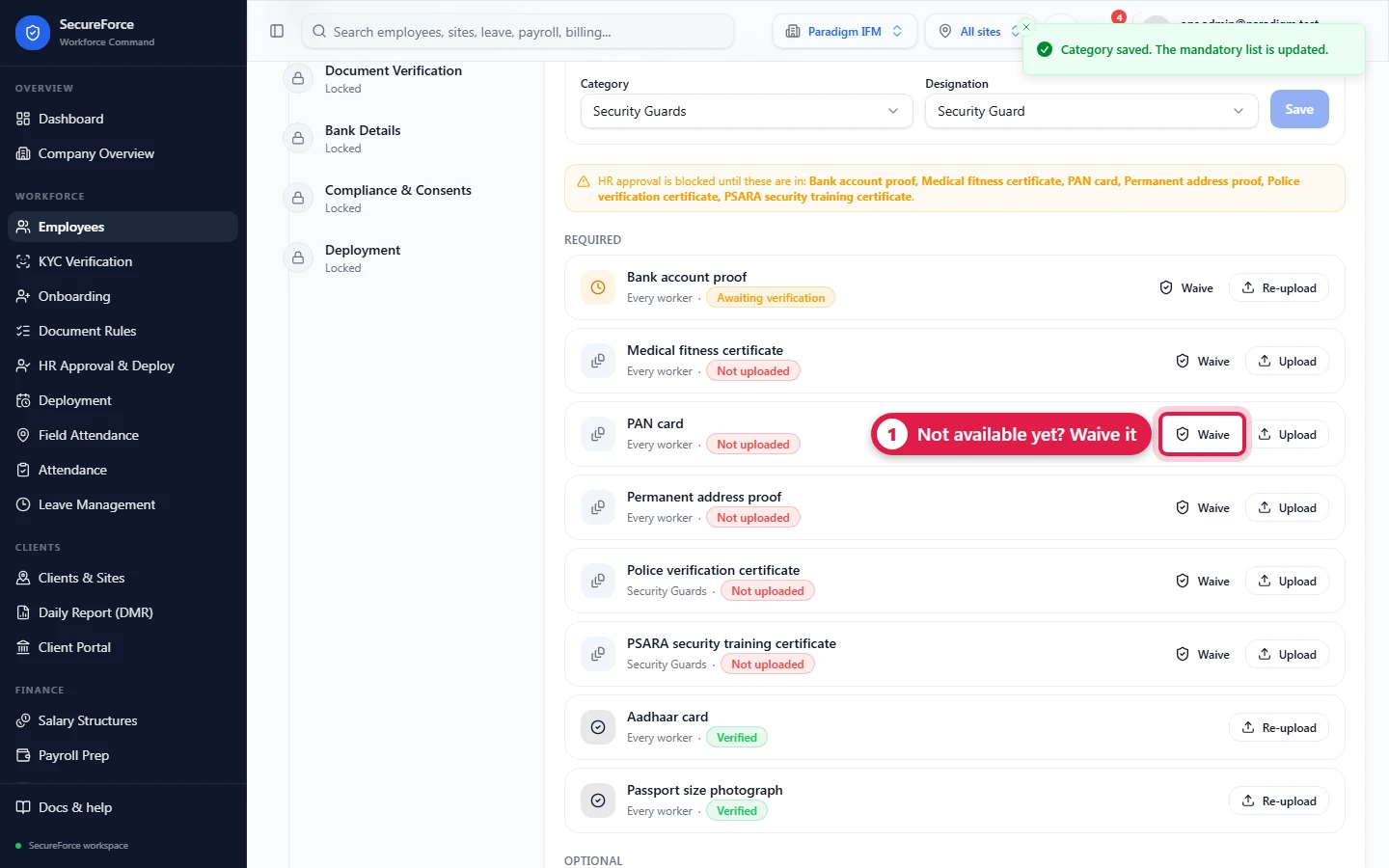
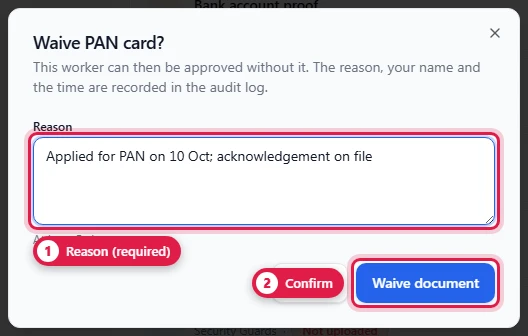
Sometimes a mandatory document genuinely doesn't apply — a first-time worker has no previous employer certificate. On the Document Upload step, HR presses Waive next to it and gives a reason (at least 5 characters). The document then counts as satisfied for that one worker. The reason, who waived it and when are kept in the audit log. Remove waiver makes it mandatory again.
Only HR (documents.manage) can waive. Ops Managers see the status but can't waive.
Before any rules exist
A workspace with no categories and no rules behaves exactly as before: the documents marked Required for Onboarding are the whole list.
How it connects
- Onboarding step 2 and step 3 use this list.
- The list of documents comes from Employees → Document Types.
- KYC keeps its own checklist; this rule is about HR approval.