Customer setup
Set up a whole customer in one go — customer group, sister companies, contracts, sites and approved headcount — saved together or not at all.
Clients & Sites → Set up a customer (route /customer-setup). A five-step wizard that creates everything a new customer needs, in the order the business is organised:
Customer group › Sister companies › Contracts › Sites › Approved headcount per designation
For example: ABC Group › ABC Tech Pvt Ltd › FM Contract 2026 › Whitefield Campus › Security Guard 6, Electrician 2. A residents' association is the same path without a group: Urban Greens Villa Owners Welfare Association › FM Contract 2026 › Urban Greens Villas.
Who can do this: Admin, Ops Manager (master_data.manage). Approved headcount also needs deployments.manage; without it the sites are created and the headcount is left for an Ops Manager.
How the pieces fit
| Level | What it is | Where it lives afterwards |
|---|---|---|
| Customer group | The customer organisation. Optional. | Clients & Sites → Customer groups |
| Company | A billed entity with its own GSTIN — a sister company when it is in a group. Each one is a client. | Clients & Sites → Clients |
| Contract | An agreement held by one company. One contract can cover several sites. Optional. | Clients & Sites → Contracts |
| Site | A building, gate or campus of one company, optionally under one of that company's contracts | Clients & Sites → Client sites |
| Approved headcount | The contract number per designation at a site — the daily report's Total approved | Field Attendance → Setup, and the daily report |
The steps
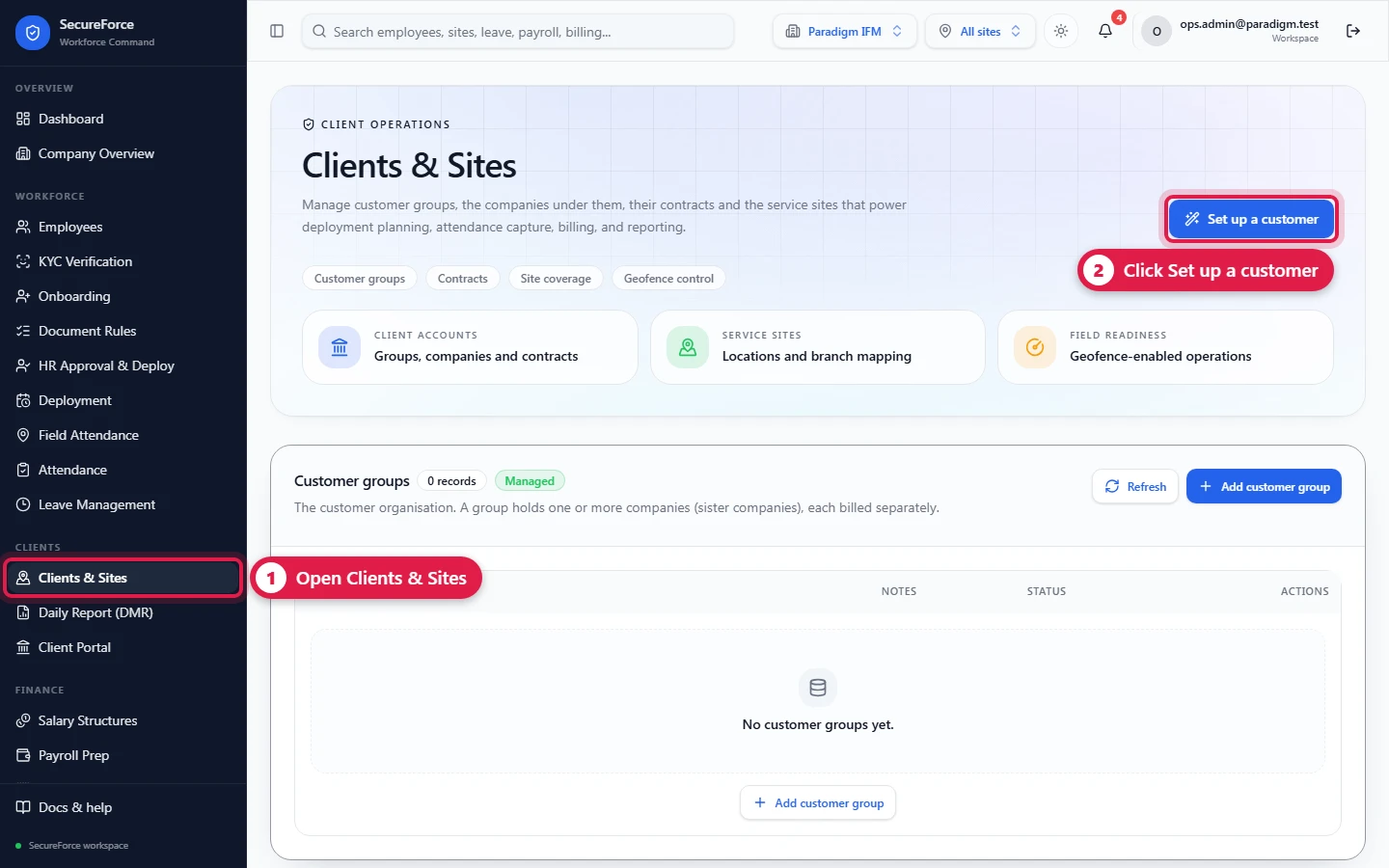
The five steps are listed on the left; click any of them to go back. Nothing is saved until the last step.
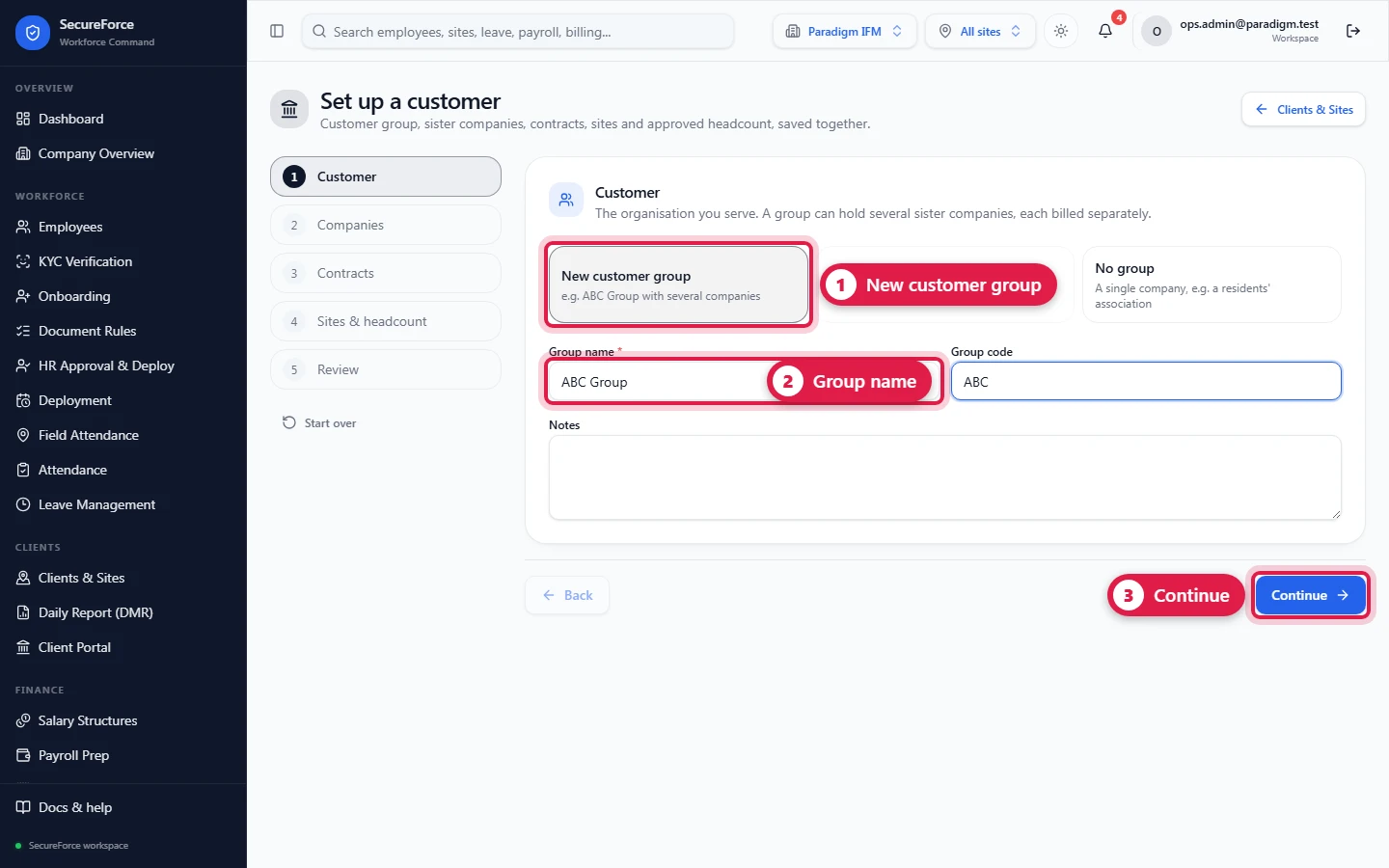
1. Customer
New customer group, an Existing group (to add more companies, contracts or sites to it), or No group for a single company.
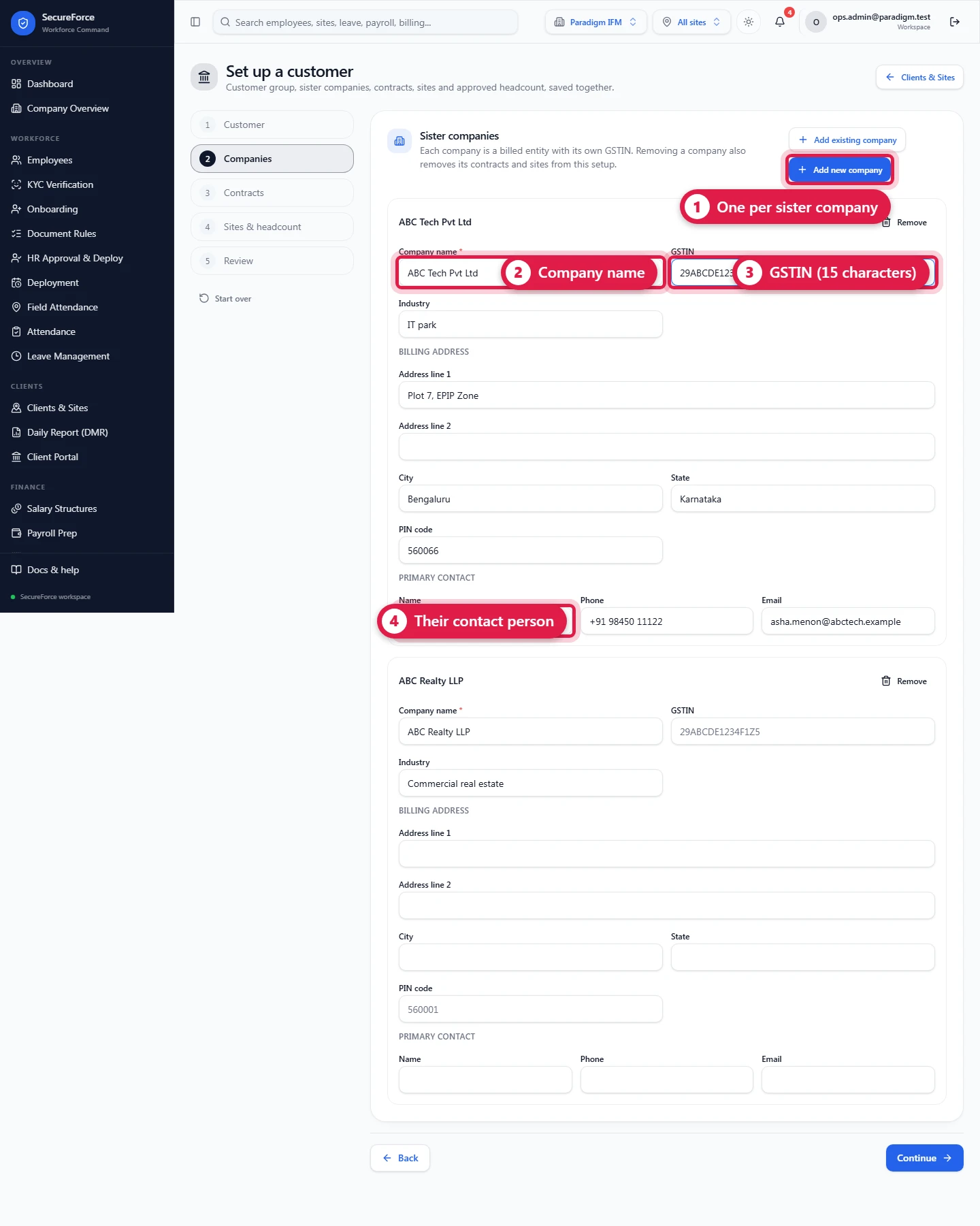
2. Companies
Add new company (name, GSTIN, industry, billing address, primary contact) or Add existing company. Removing a company also removes its contracts and sites from this setup.
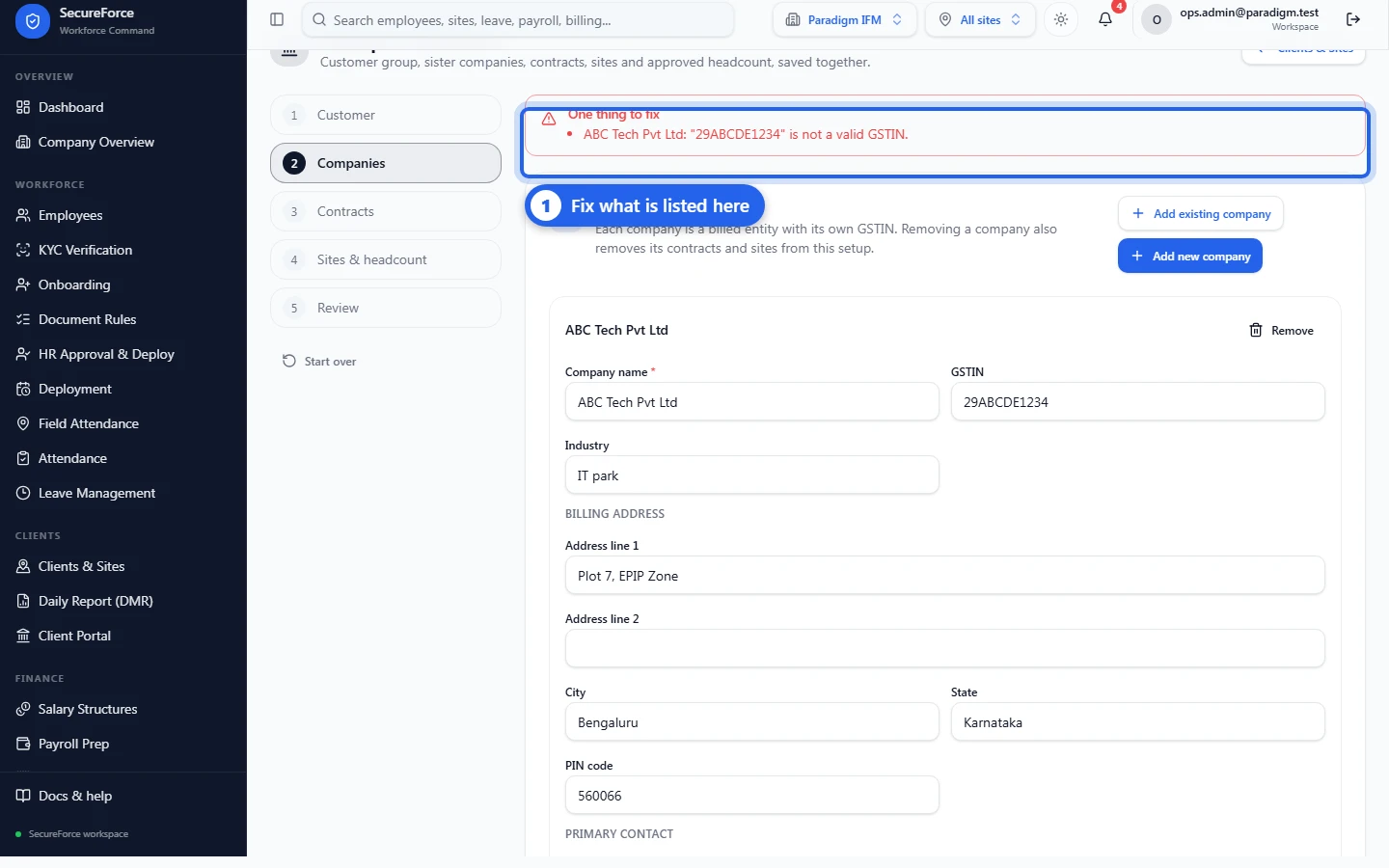
Every step is checked as you go: Continue shows what needs fixing before moving on. Here the GSTIN was too short:
3. Contracts
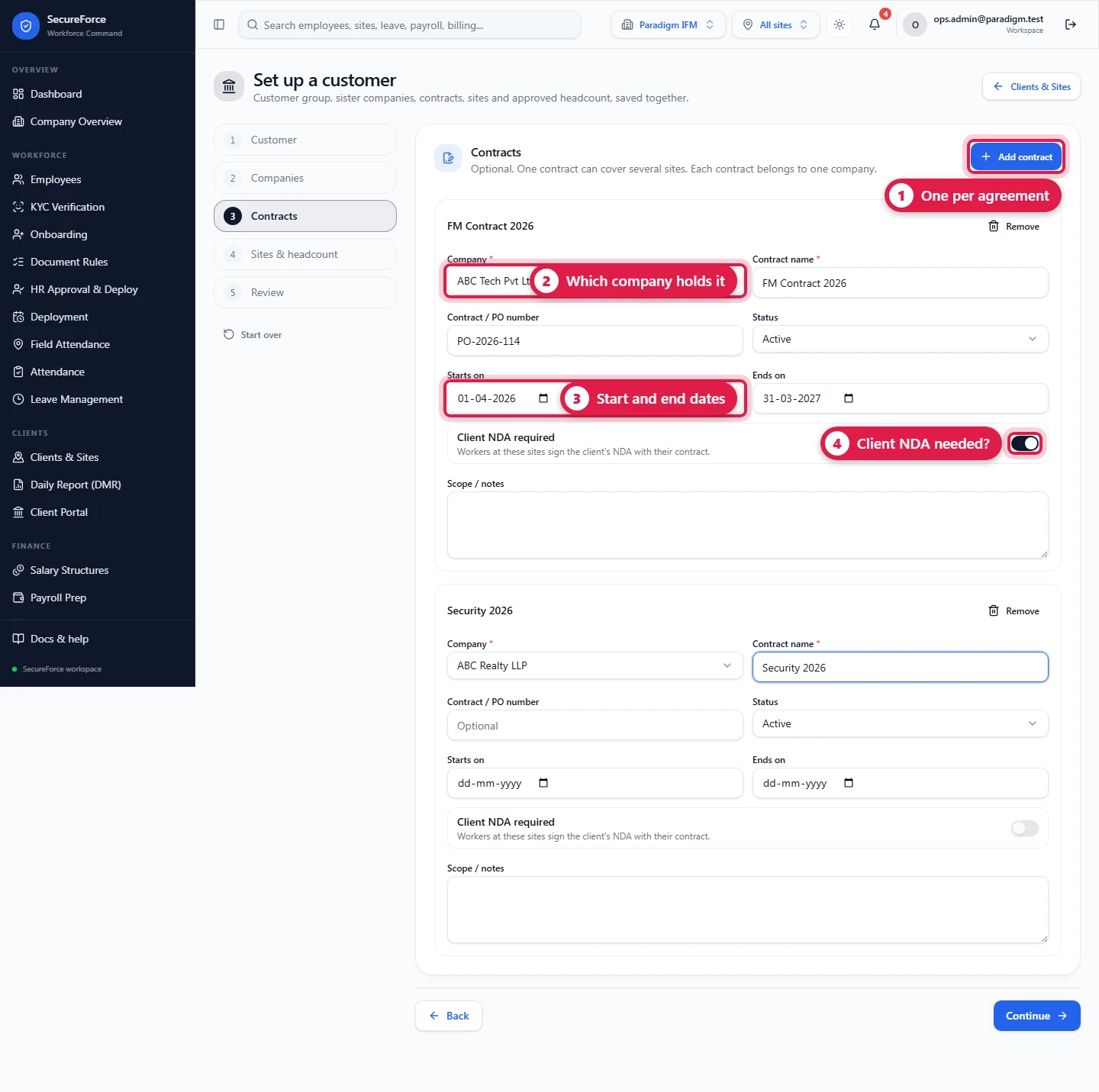
Optional. Name (e.g. FM Contract 2026), contract or PO number, status, start and end dates, and whether the client NDA is required. Moving a contract to another company takes its sites with it.
4. Sites & headcount
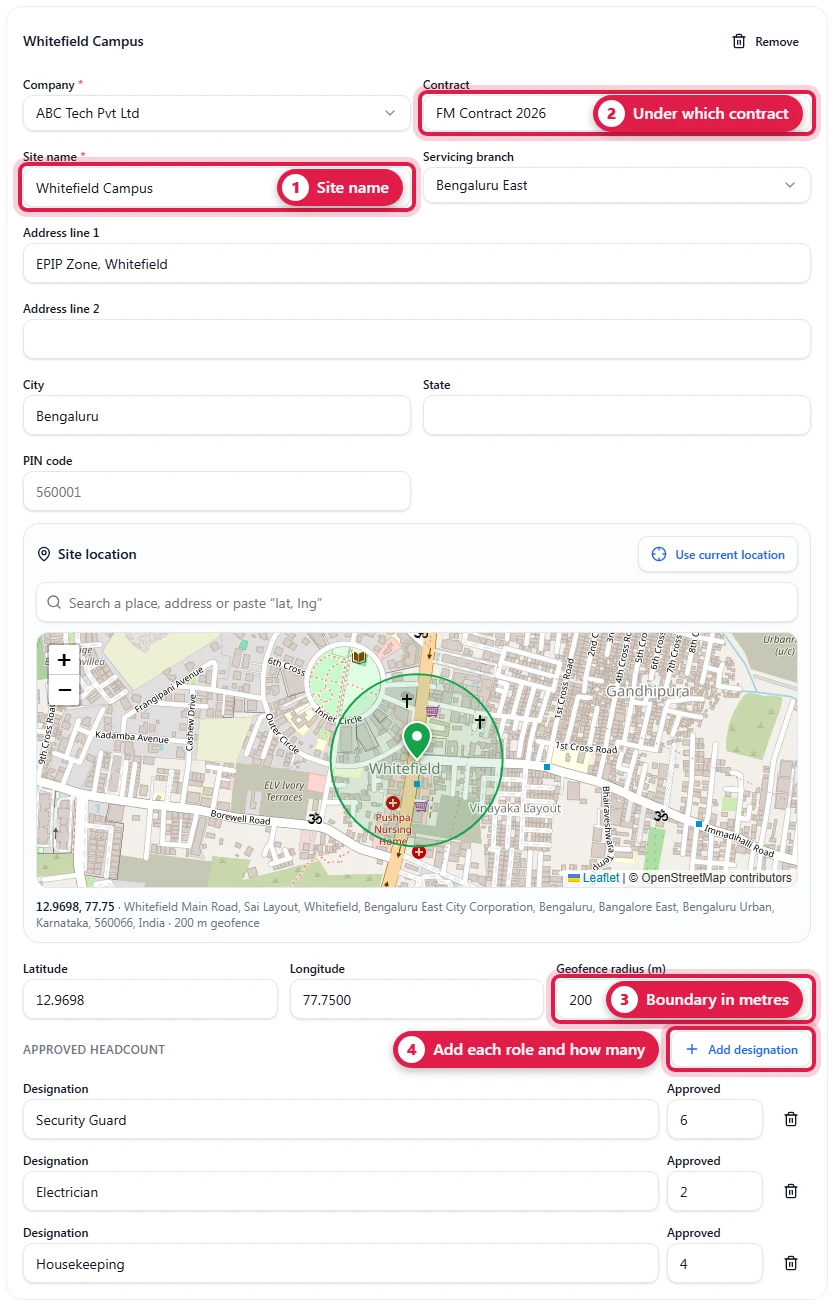
Company, contract (only that company's contracts are offered), site name, servicing branch, address, gate location and geofence radius (the same map as Clients and sites), and the approved headcount per designation. Designations already used in the workspace are suggested as you type; spell them the same way every time, because the daily report matches them by name.
5. Review
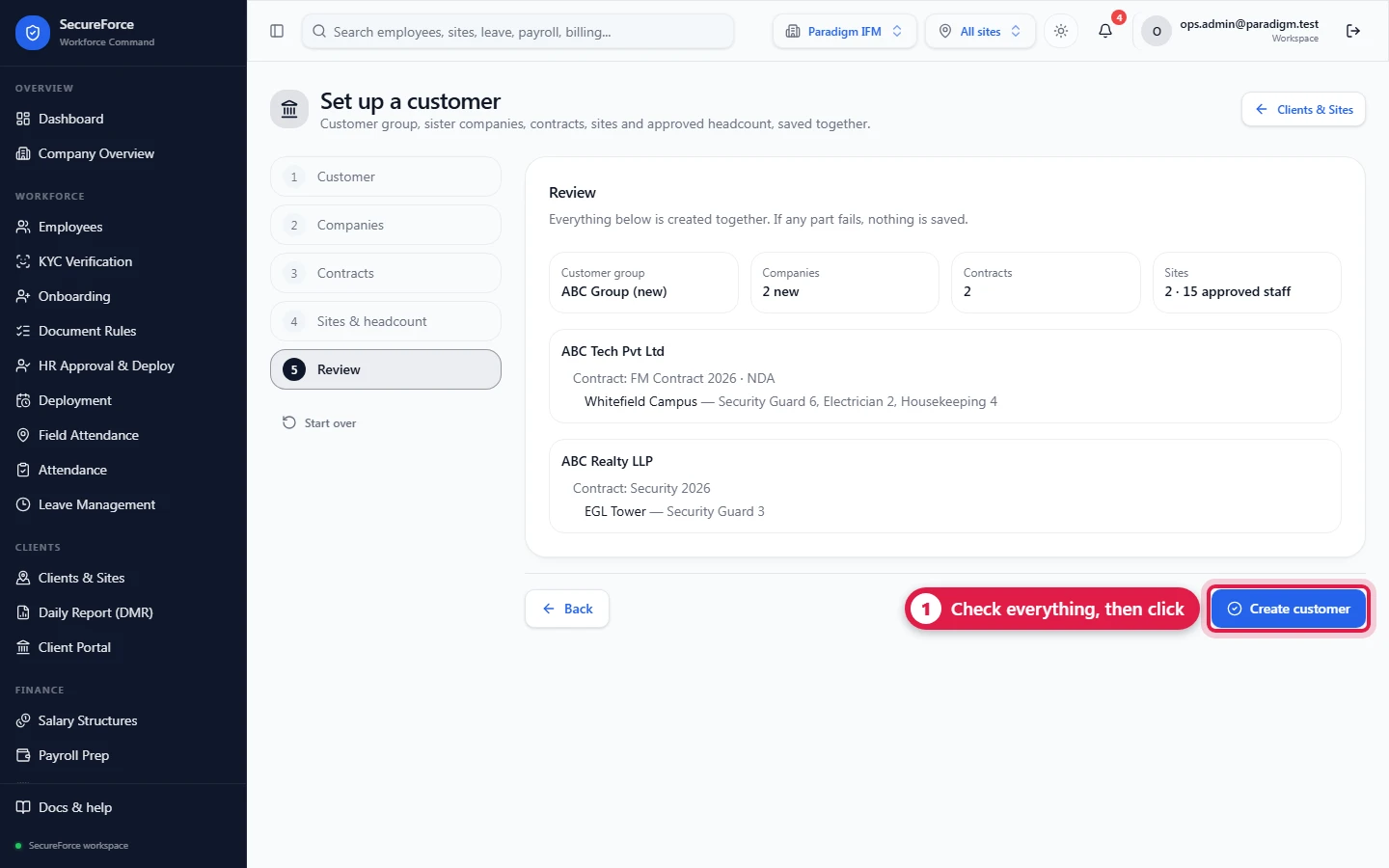
Everything that will be created, grouped by company and contract, with any problems listed. Click a problem to jump to it. Create customer saves it all.
Saved together, or not at all
Create customer writes the group, companies, contracts, sites and headcount in a single transaction. If anything fails — a name already taken, a contract number in use — nothing is created, the page says what went wrong, and your entries stay as they are so you can fix them and try again.
If the connection drops while saving, the wizard retries by itself. Each setup carries its own reference, so a retry, a double click or a second tab can never create the customer twice: the second attempt gets back the first result.
Your entries are kept in this browser while you work, so a reload or a closed tab does not lose them. Start over clears them.
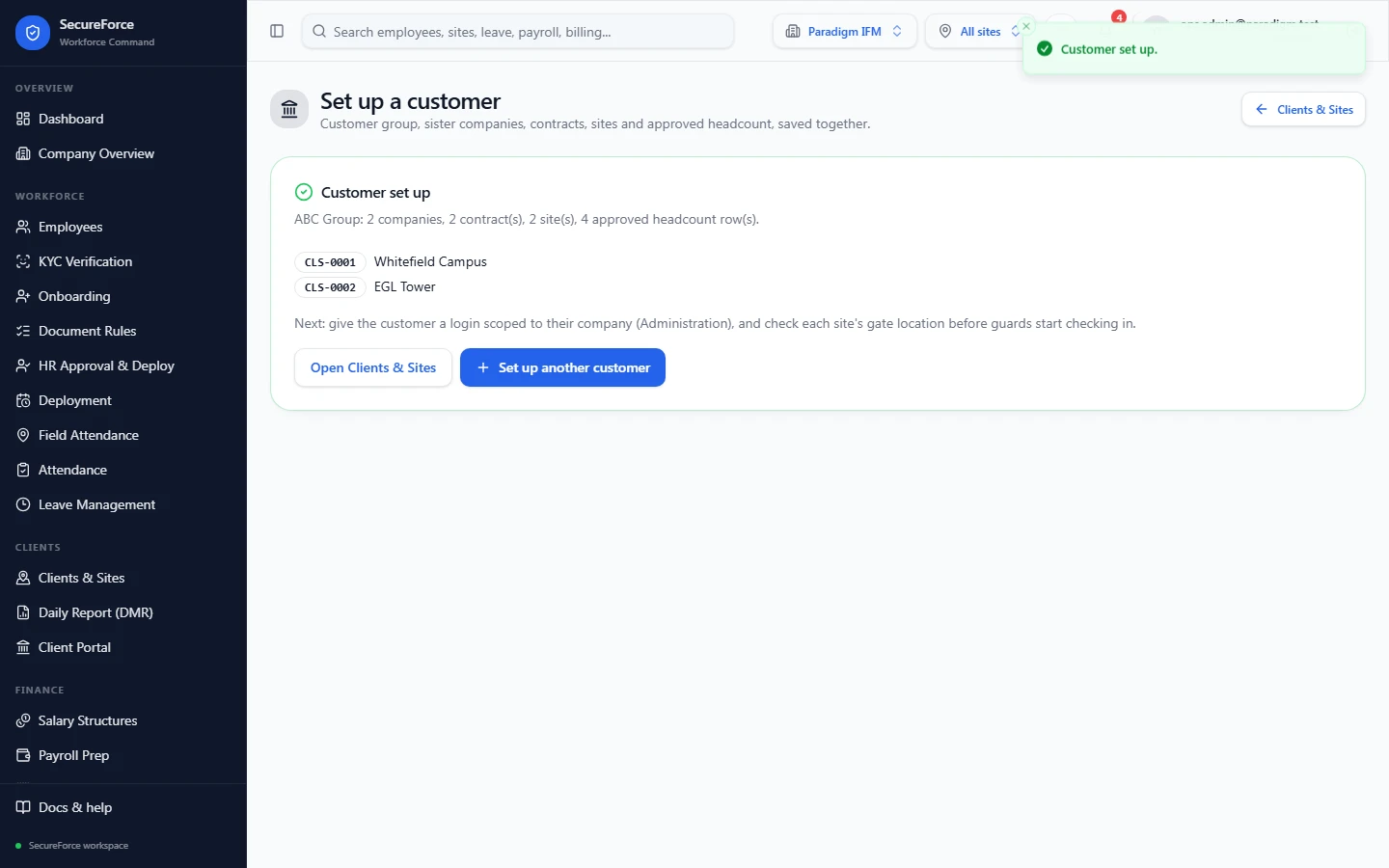
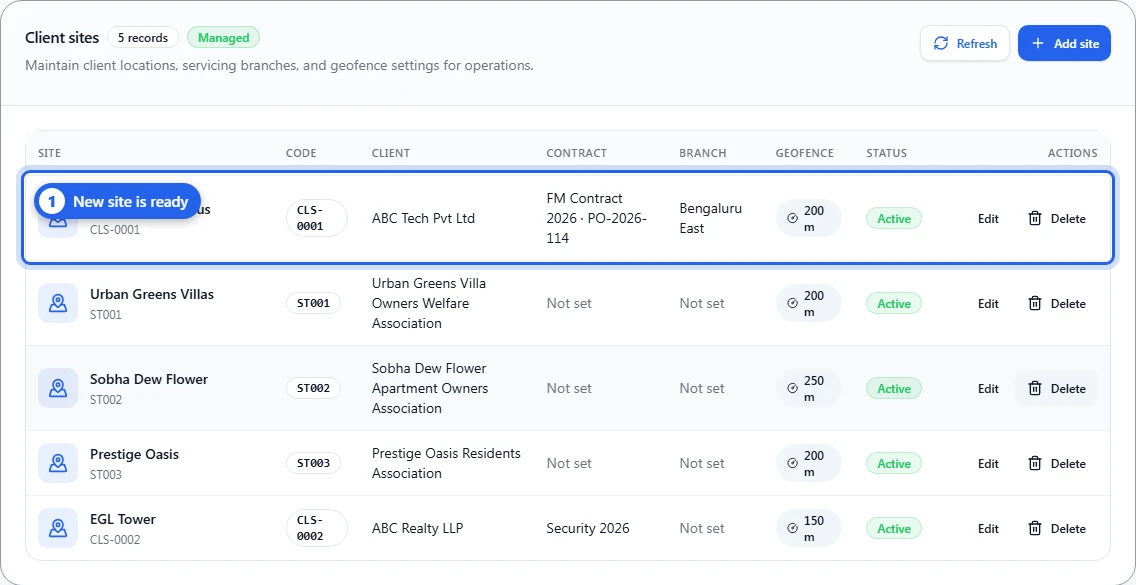
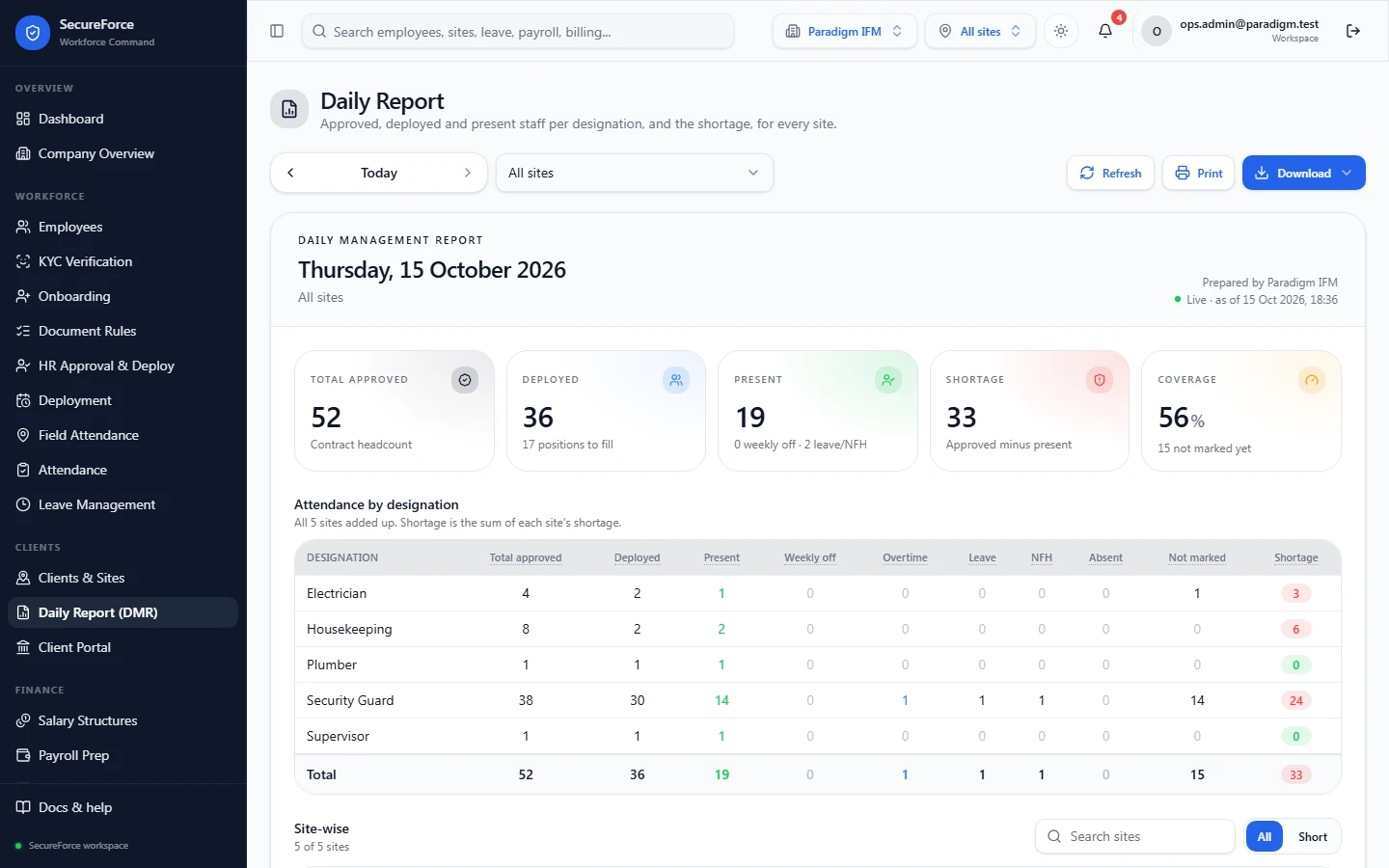
The new sites appear under Clients & Sites, and the daily report shows their approved headcount straight away:
Rules the wizard enforces
- A company name that already exists in the workspace can't be created again — add the existing one instead. Group names are unique too.
- A company already in one customer group can't be added to a different new group.
- GSTIN must be a valid 15-character GSTIN. Contact email and phone must be valid if given.
- A contract can't end before it starts. Contract numbers are unique in the workspace.
- A site must belong to the same company as its contract.
- Latitude and longitude come together, within range. Geofence radius is whole metres, 10 to 20,000.
- A designation appears once per site; the approved number is a whole number from 0 to 10,000.
- At most 50 companies, 100 contracts and 200 sites per setup.
The server checks every one of these again, whatever the browser sends.
After setup
- Give the customer a login scoped to their company (Administration). A customer login sees its own group and its own contracts, never anyone else's.
- Check each site's gate location before guards start checking in.
- Everything can be edited later in Clients and sites.
How it connects
- The approved headcount is the Total approved column of the daily report.
- Deployments, attendance and billing work per client and site exactly as before; groups and contracts add the levels above them.