Field Attendance
Guards check in and out on their phone with a photo and a location check against the site boundary; supervisors check in guards without a smartphone by mobile number, run the muster, correct and approve days; Today and Performance show the numbers.
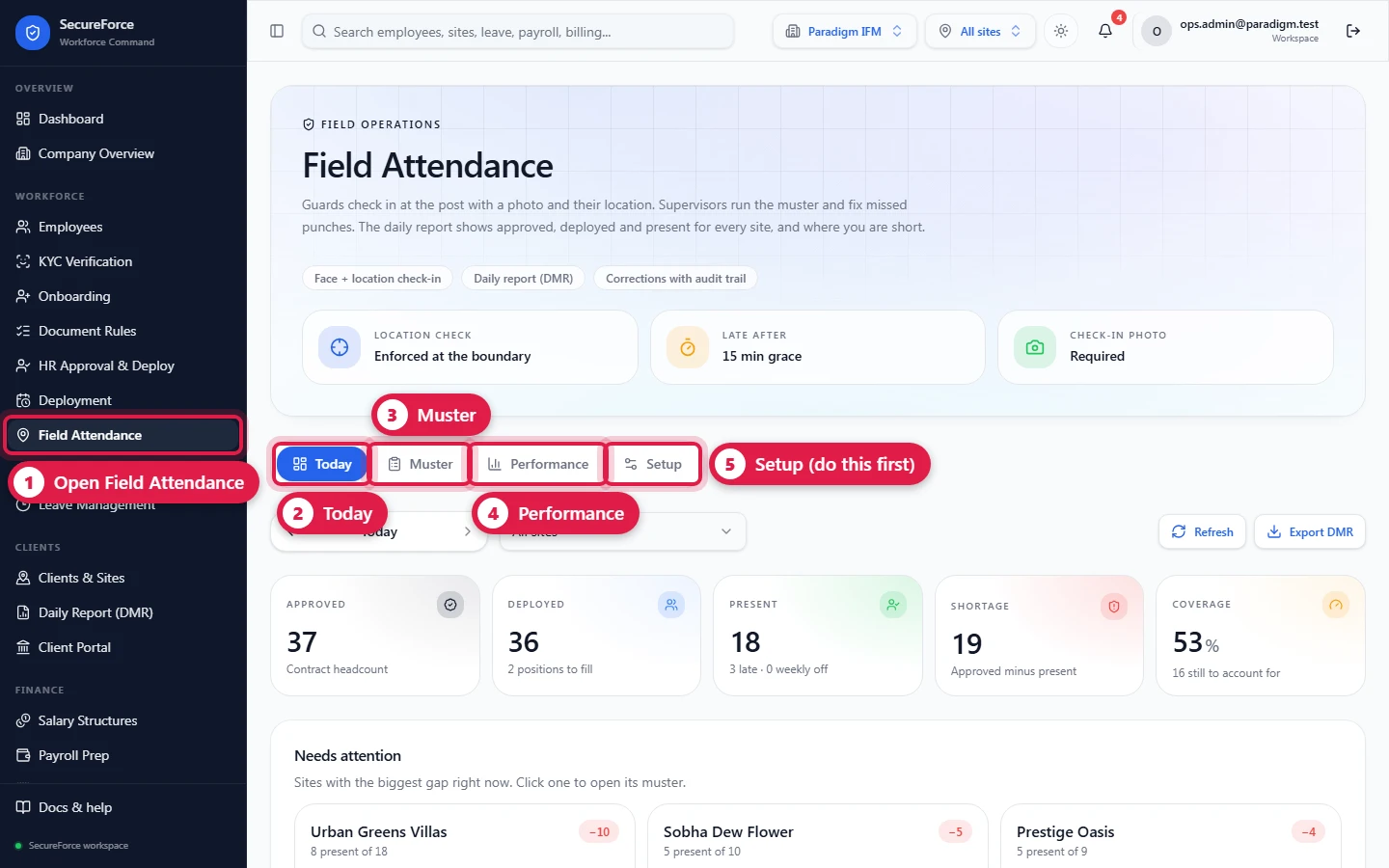
Sidebar → Field Attendance (route /field-attendance). Guards check in at their post with a photo and their location. Supervisors run the muster and fix missed punches. The numbers flow straight into the daily report, payroll and billing.
The page has up to five tabs, depending on your role:
| Tab | Who sees it | What it's for |
|---|---|---|
| My shift | Anyone linked to an employee record | Your own check-in and check-out |
| Today | Staff (not Field Employee or Client) | Every site at a glance |
| Muster | Staff | Everyone rostered for a day; mark, correct, approve |
| Performance | Staff | Attendance % and on-time % over a month |
| Setup | Attendance managers, and anyone with deployments.manage (approved headcount) | Rules and approved headcount |
Before guards can check in
All of these must be in place. Quickstart covers them in order.
- The site has a latitude, longitude and radius (Clients and sites).
- The guard has an employee record with their email, and a login with role Field Employee that says Linked to their employee record (Administration).
- The guard has a roster assignment for today at that site (Shifts and roster).
- The phone allows Camera and Location for the SecureForce site, which needs HTTPS.
Attendance rules
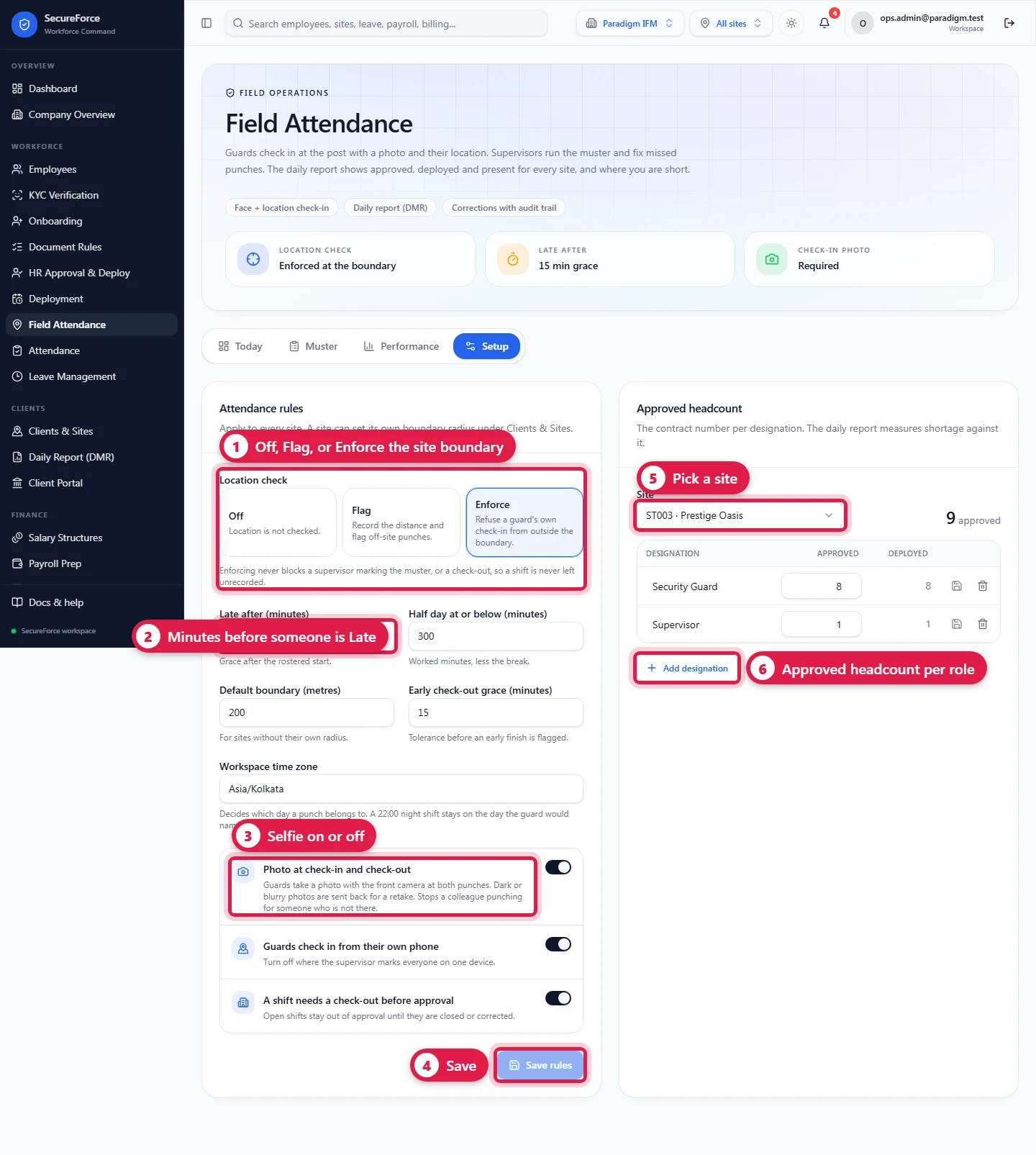
Setup → Attendance rules apply to every site. Press Save after changing them.
| Setting | Default | Meaning |
|---|---|---|
| Location check | Enforce | Off: location isn't checked. Flag: record the distance and flag off-site punches. Enforce: refuse a guard's own check-in from outside the boundary, or with a GPS fix too rough to place them there (worse than the boundary radius, minimum 100 m). Enforce never blocks a supervisor marking the muster, or a check-out, so a shift is never left unrecorded. A supervisor who checks someone in away from the site must type a reason, which is kept on the record. |
| Late after (minutes) | 15 | Grace after the rostered start before a check-in counts as late |
| Half day at or below (minutes) | 300 | Worked minutes (less the break) at or below which the day is a half day |
| Default boundary (metres) | 200 | For sites without their own radius |
| Early check-out grace (minutes) | 15 | Tolerance before an early finish is flagged |
| Workspace time zone | Asia/Kolkata | Used for "today", shift times and lateness |
| Photo at check-in and check-out | Off | Guards take a photo with the front camera at both punches. Dark or blurry photos are sent back for a retake. Stops a colleague punching for someone who isn't there. |
| Photo of the site at check-in | On | Guards also photograph their post (gate, signboard or entrance) with the back camera when they check in. A check-in without it is refused. Not asked of a supervisor checking someone else in. |
| Guards check in from their own phone | On | Turn off where the supervisor checks everyone in on one device (Check in a guard) |
| A shift needs a check-out before approval | On | Open shifts stay out of approval until they are closed or corrected |
Approved headcount
Setup → Approved headcount holds the number of people the contract allows, per site and designation. The daily report's Total approved and Shortage come from it.
- Pick the Site. It defaults to the first site in the list, so check it.
- Add designation: type the designation exactly as the deployments' Role Title (e.g. Security Guard), or tap one of the suggestions.
- Enter the approved headcount and press the save icon. The trash icon removes a row.
The Deployed column next to it shows how many active deployments match.
The guard's check-in (My shift)
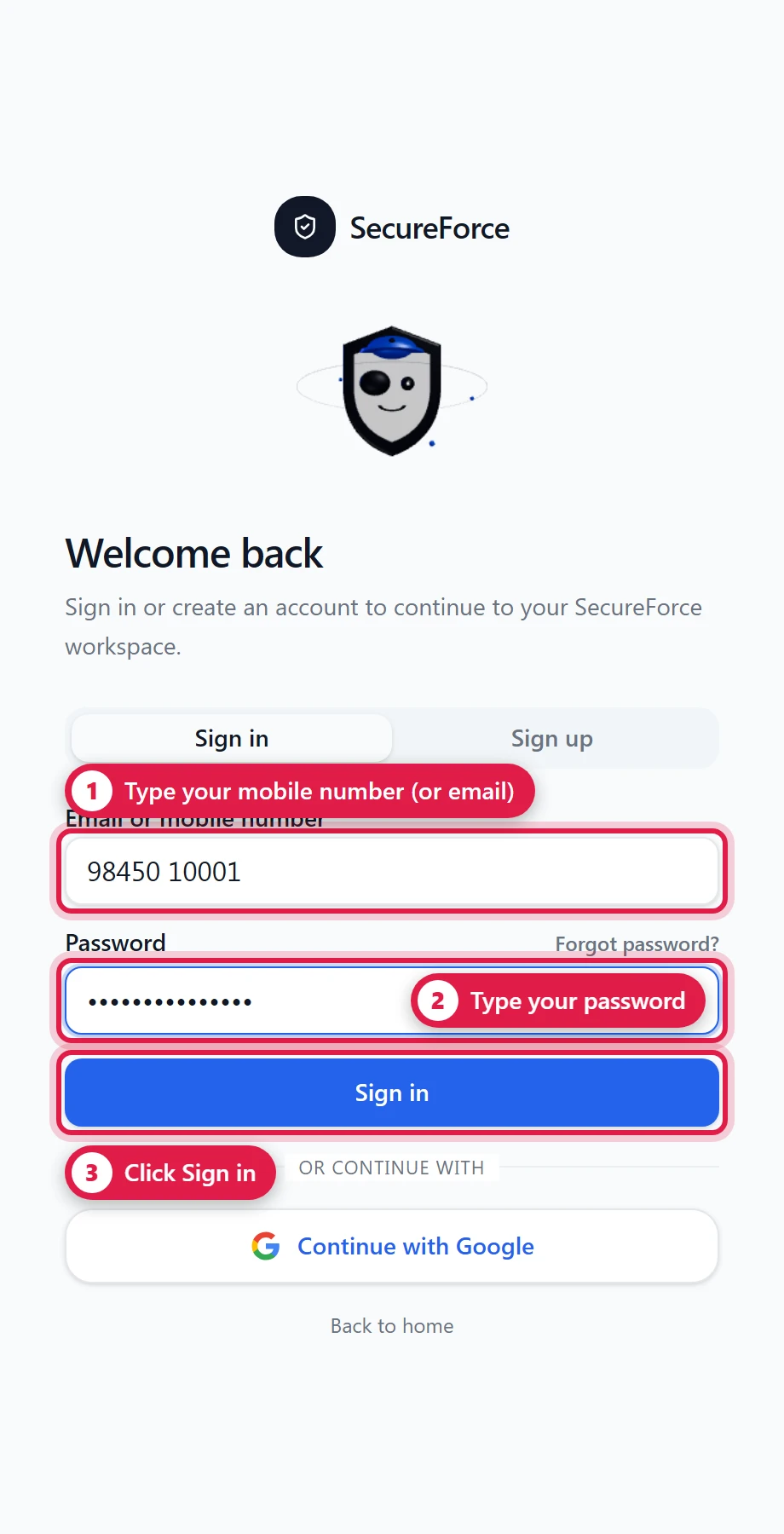
The guard signs in on their phone with their mobile number and password.
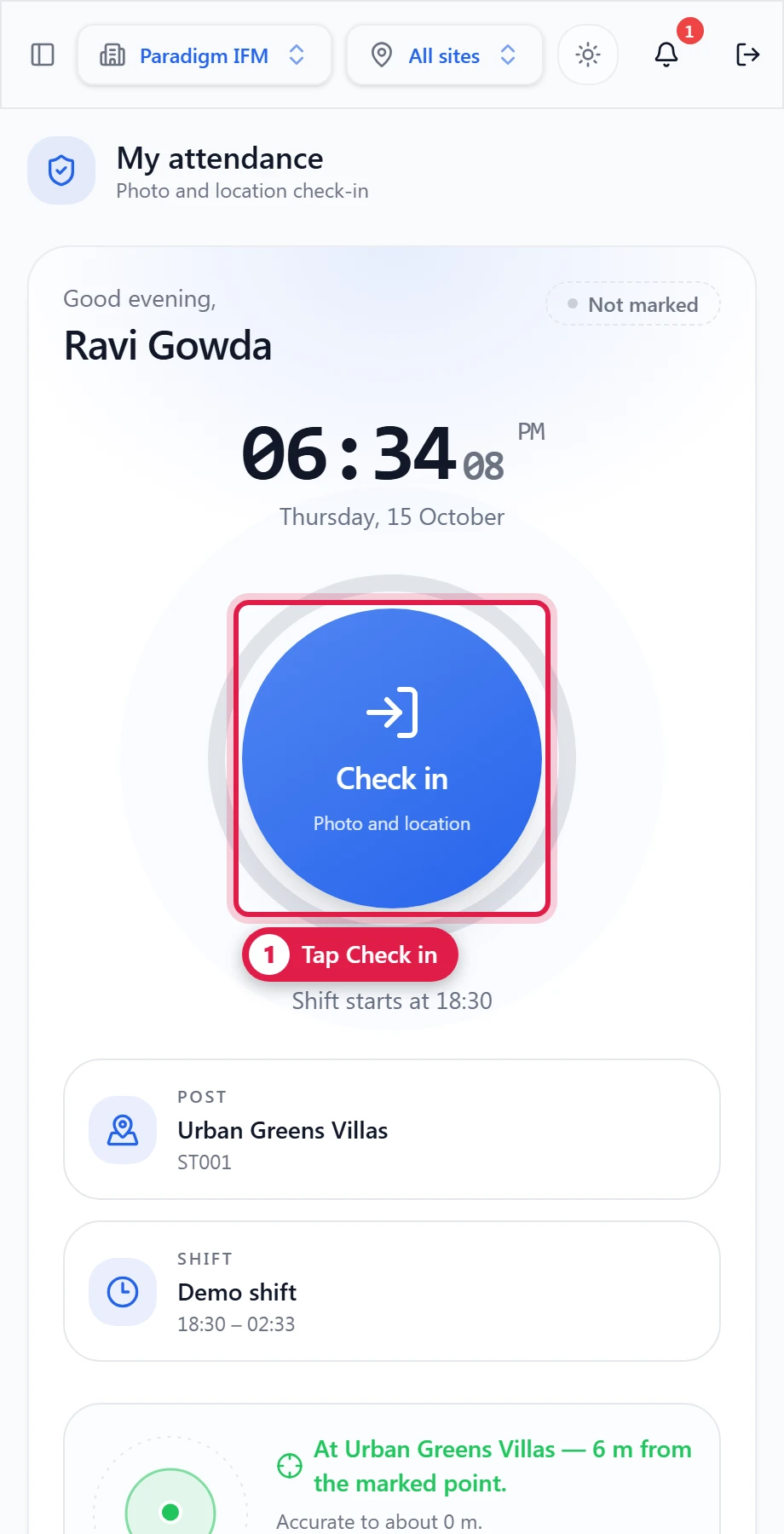
After signing in, the guard lands on My attendance:
- A greeting, the clock, today's status (Not marked, Present, Late…).
- A large Check in button with a ring.
- Post (the site) and Shift (name and times), from today's roster.
- A location card: the distance from the site and its accuracy, with Refresh location.
- Today: what has been recorded so far (check-in time with photo, check-out).
To check in:
At the site, press Refresh location if needed. It should say At
— N m from the marked point . If it says outside the N m boundary and the rule is Enforce, the button stays disabled.Press Check in.
The camera opens with a face guide. Press Take photo. If the in-app camera doesn't work, Use camera app takes the photo with the phone's own camera.
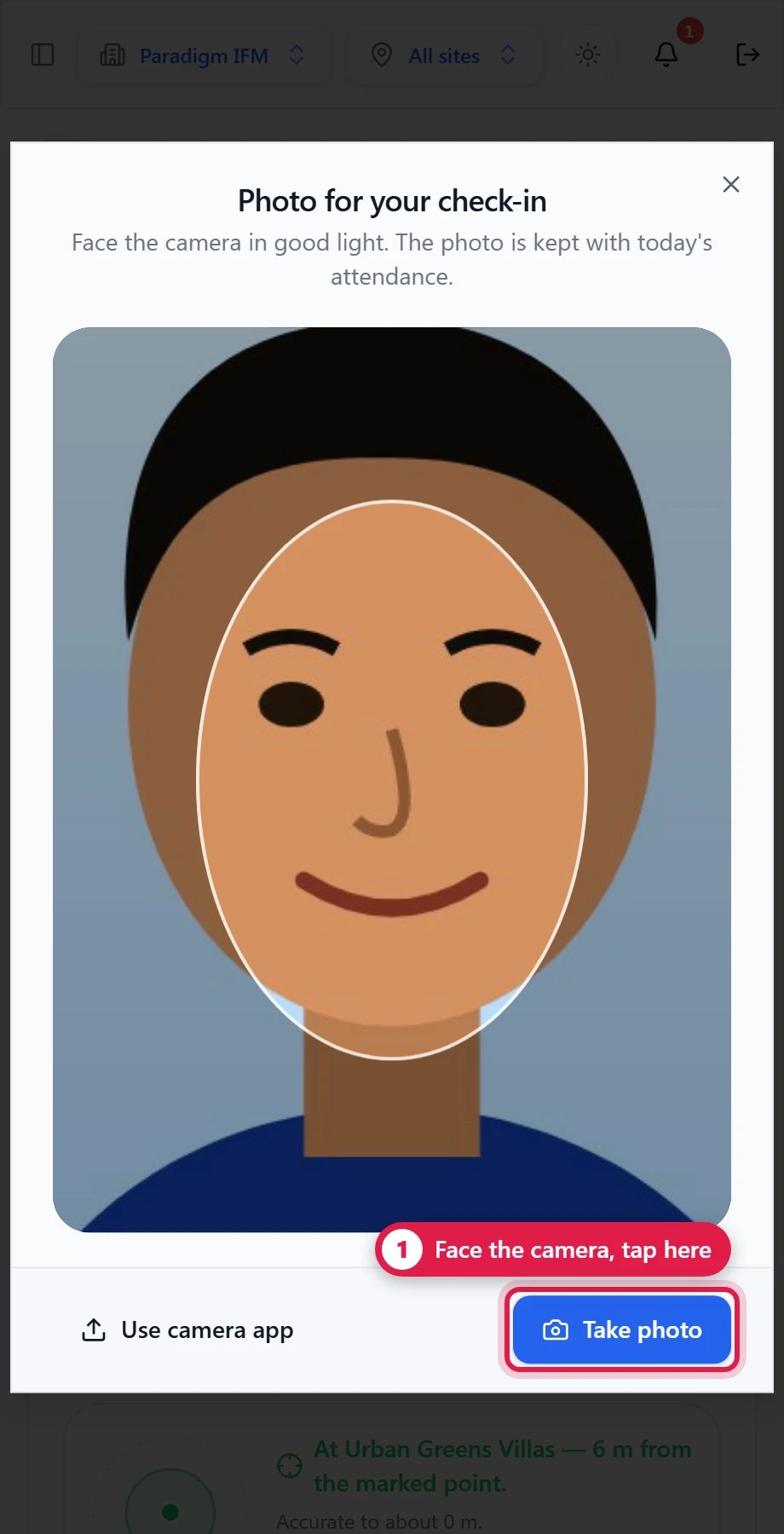
If the photo passes the light and sharpness check, press Use photo. If not, Take again, or Use anyway, which marks it for the supervisor to check.
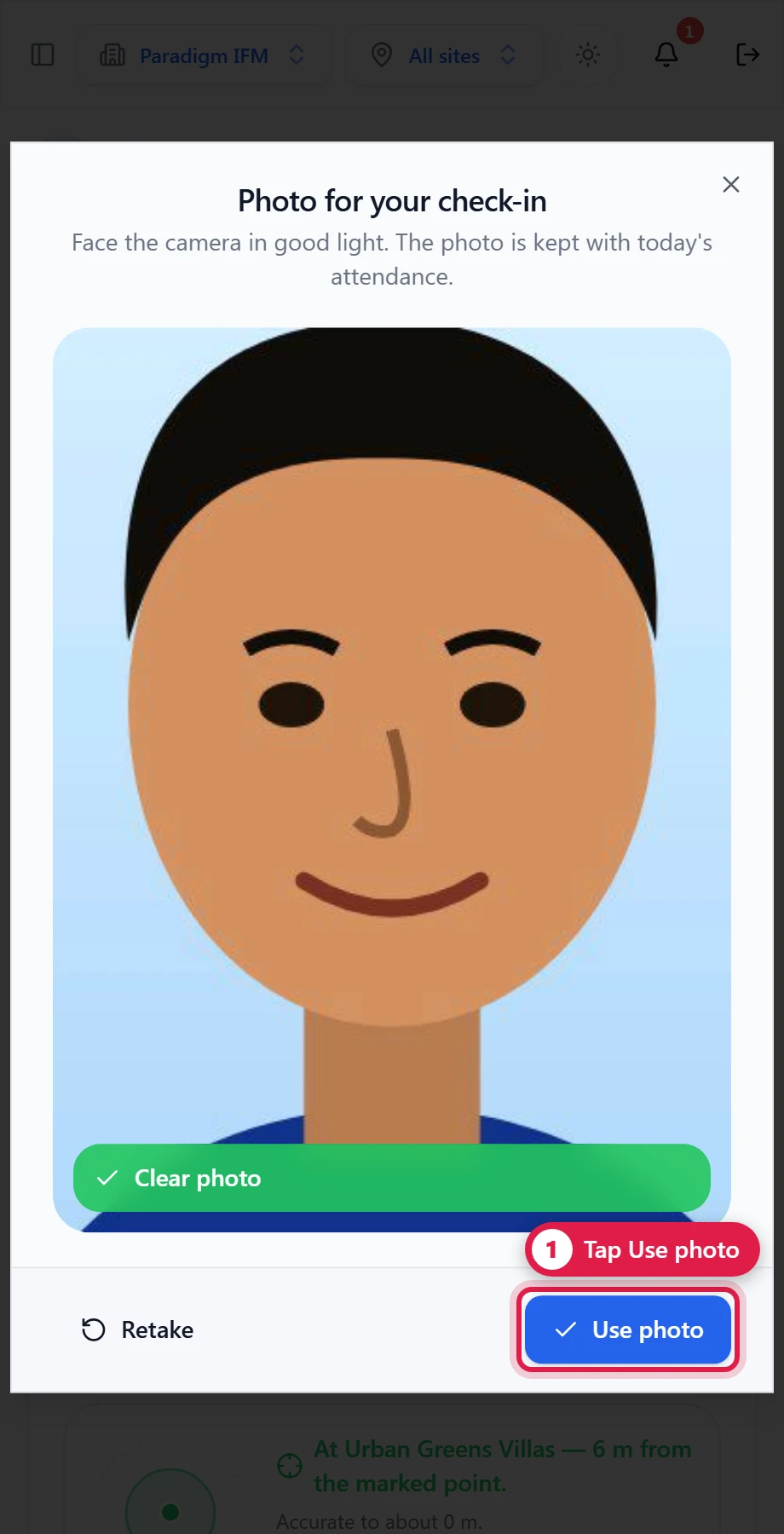
With Photo of the site at check-in on, the back camera opens next: fit the gate, signboard or entrance in the frame and press Take photo, then Use photo. Your location is checked again at this moment, so the check-in is placed where you are when you finish, not where you were when you started.
The button turns into Check out; Today shows the time, On time or Late, and the photos.
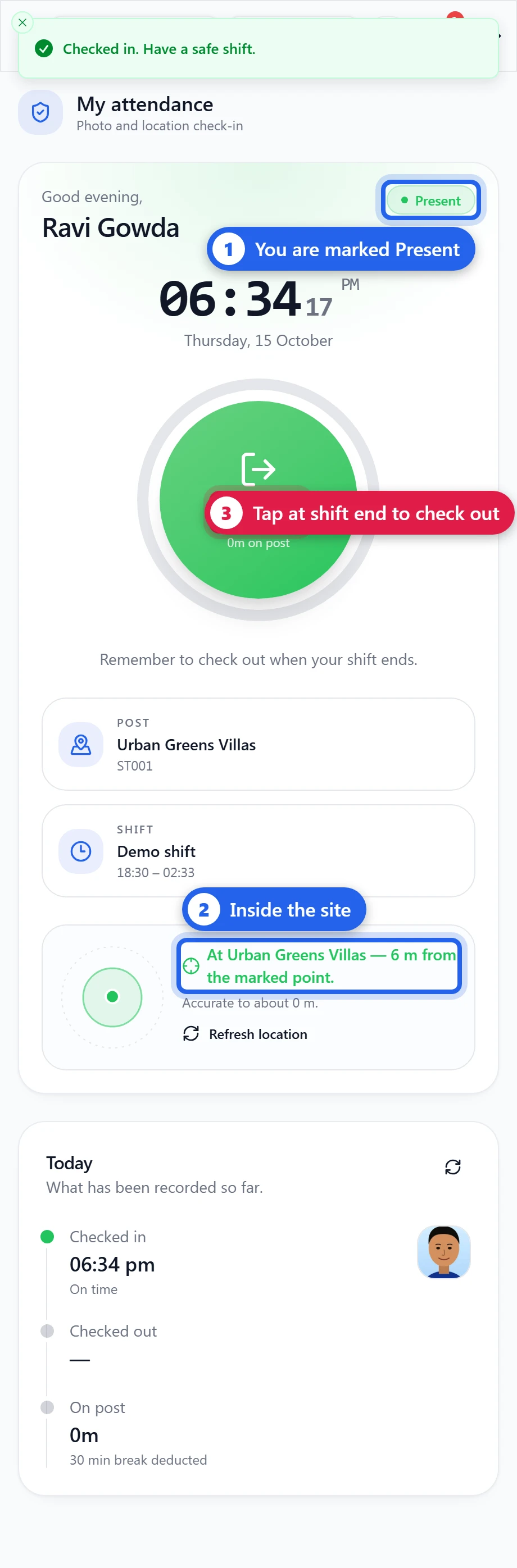
At the end of the shift, press Check out the same way. A night shift from yesterday that is still open shows a reminder to check out.
Checking in a guard who has no smartphone
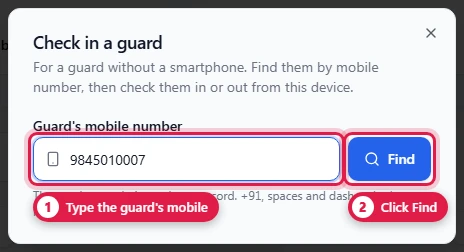
Some guards have no smartphone, or one that can't run SecureForce. A Supervisor, Operations Manager or Admin checks them in and out from their own phone or laptop instead. The guard doesn't need a login, only an employee record with their mobile number.
Field Attendance → Muster → Check in a guard.
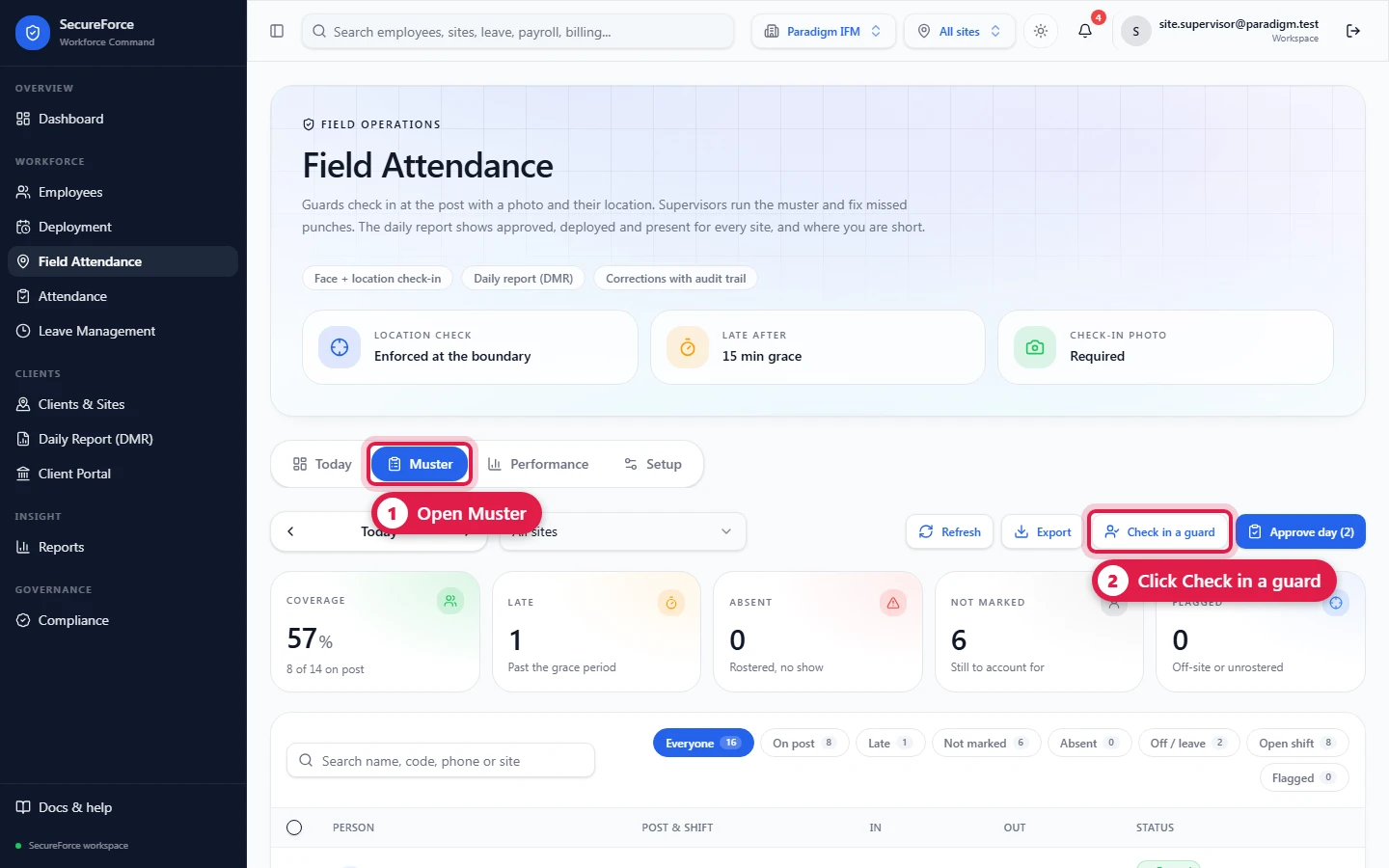
Type the guard's mobile number and press Find. Spaces, dashes, a leading 0 or +91 don't matter. Only people at your own sites are found. If two records share the number, pick the right one.
Check the name, post and shift, and today's status.
Optionally add a note (e.g. No smartphone, checked in at the gate).
Press Check in
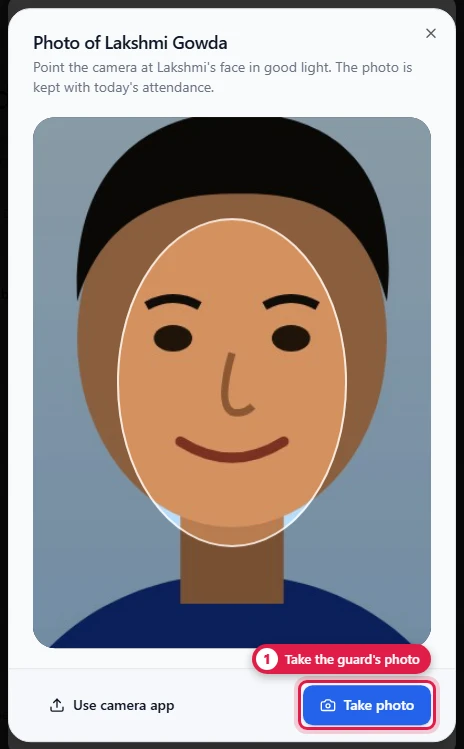
. If Photo at check-in and check-out is on, the back camera opens: take a photo of the guard's face. With the rule off, the Photo of the guard switch adds one anyway. 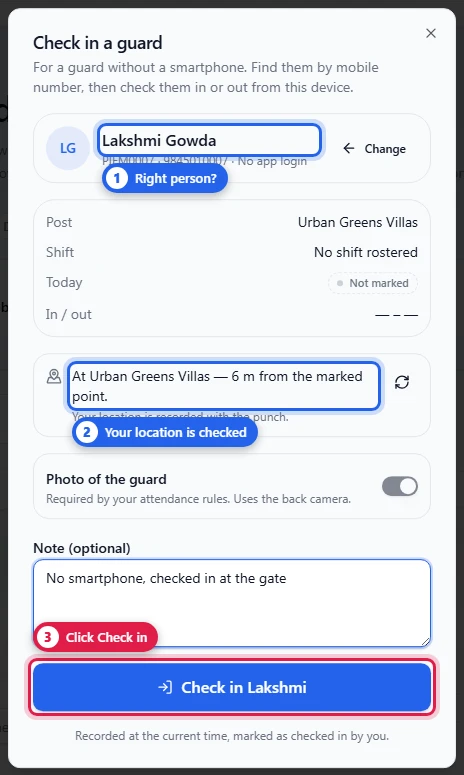
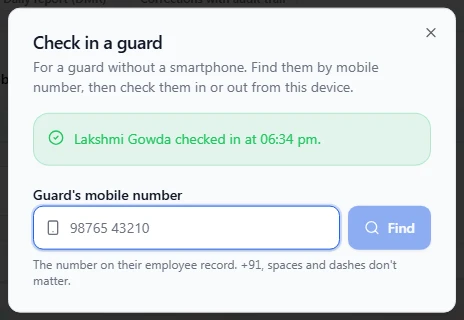
At the end of the shift, open it again with the same number. The button now reads Check out
.
You can also open a guard's row in the muster and press Check in or Check out under Check in for them. That skips the number.
What is recorded:
- The time is the moment you press the button, so On time, Late and Half day work as for the guard's own phone. For a missed punch on an earlier day, use Correct the times instead.
- The location is your location. A check-in from outside the boundary (or with no location) needs a reason; it is then saved, flagged Off-site, and the reason and your name show on the muster.
- The record shows a By supervisor tag. In the guard's day, each punch shows By
. - Not rostered today: the check-in is still saved, flagged Unrostered.
- Terminated or suspended employees can't be checked in.
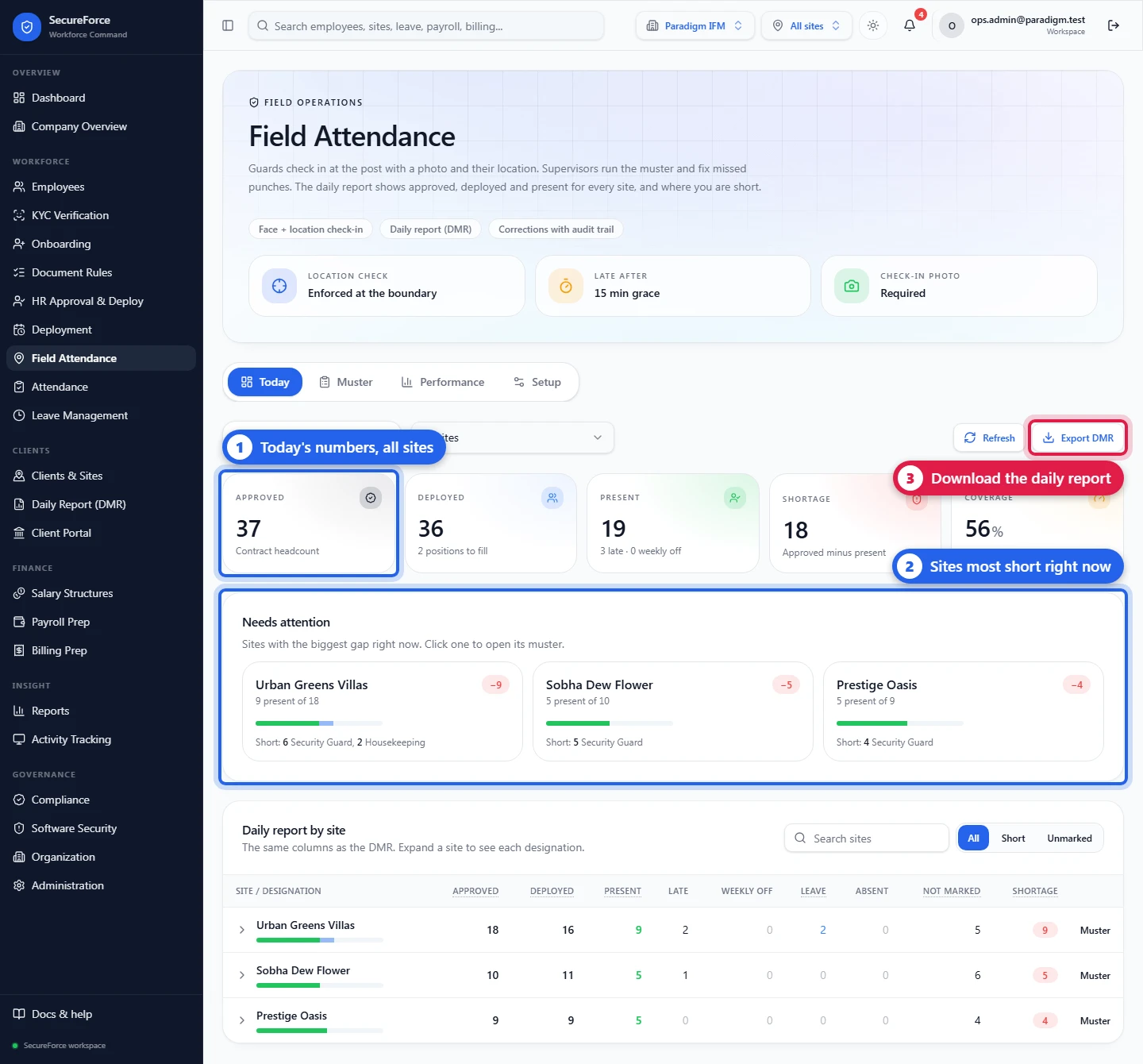
Today
Today shows, for All sites or one site and for any day (use the arrows):
- Approved (contract headcount), Deployed, Present, Shortage (approved minus present) and Coverage.
- Needs attention: the sites with the biggest gap right now. Click one to open its muster.
- Export DMR downloads the daily report.
Muster
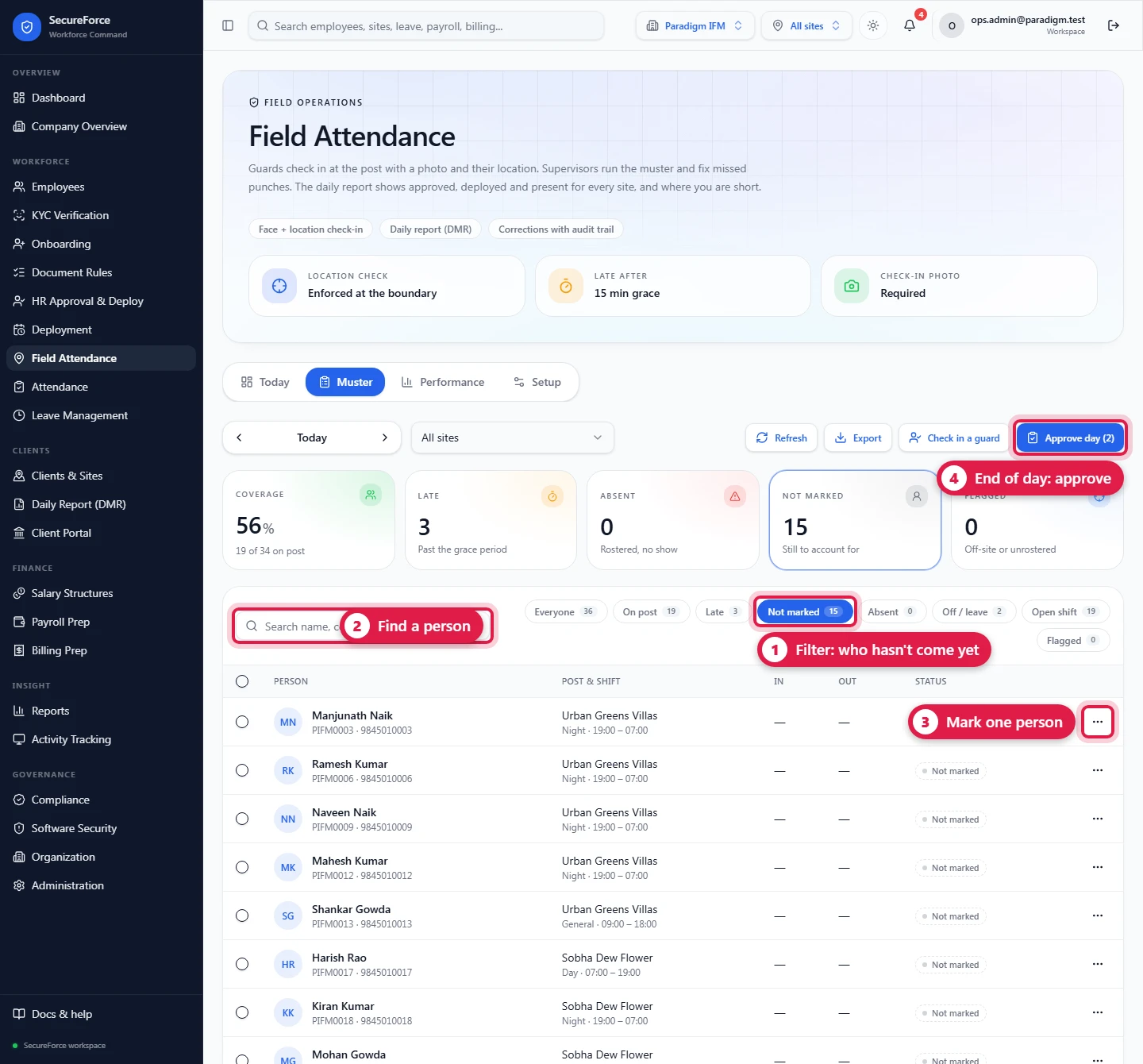
Muster lists everyone rostered for the chosen day and site:
- Totals: Coverage, Late, Absent, Not marked, Flagged (off-site or unrostered).
- Filters: Everyone, On post, Late, Not marked, Absent, Off / leave, Open shift, Flagged, plus search by name, code, phone or site.
- Columns: person, post and shift, in, out, status.
- Tick several people → Mark as… to record Absent, Leave, Weekly off or Holiday in one go.
- Check in a guard checks in or out a guard without a smartphone, found by mobile number (see above).
- Export downloads the list. Approve day approves every complete record for the day.
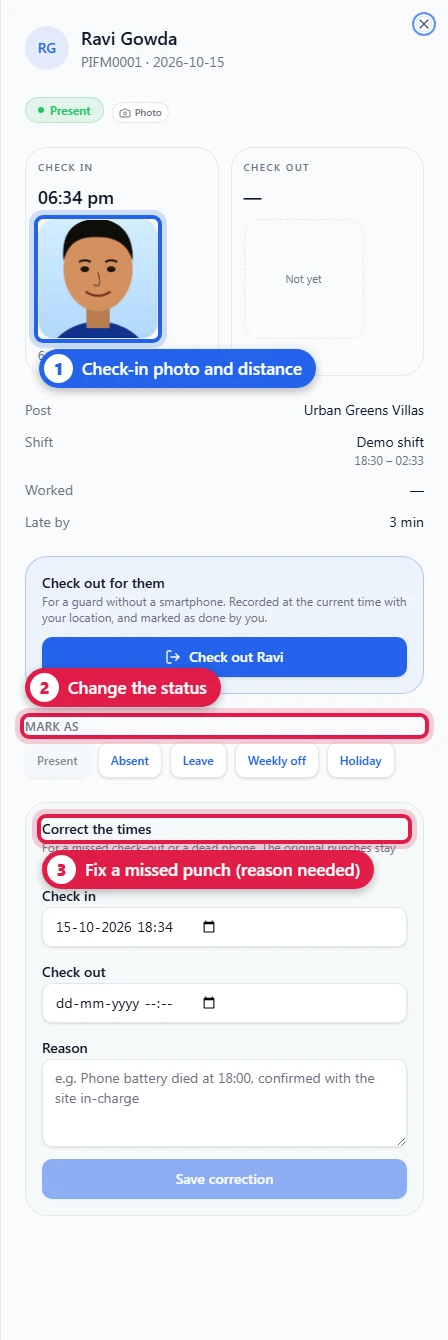
Click a person to open their day:
- The check-in and check-out photos, times and distance from the site, and By
when a supervisor did the punch. - The registered face taken at Approve & Deploy, to compare with the check-in photo.
- Check in for them / Check out for them (today, or last night's open shift), for a guard without a smartphone.
- Post, shift, worked time and Late by.
- Mark as: Present, Absent, Leave, Weekly off, Holiday.
- Correct the times: for a missed check-out or a dead phone. A reason is required, and the original punches stay on record.
- Approve the day. Approved days are locked for payroll.
Performance
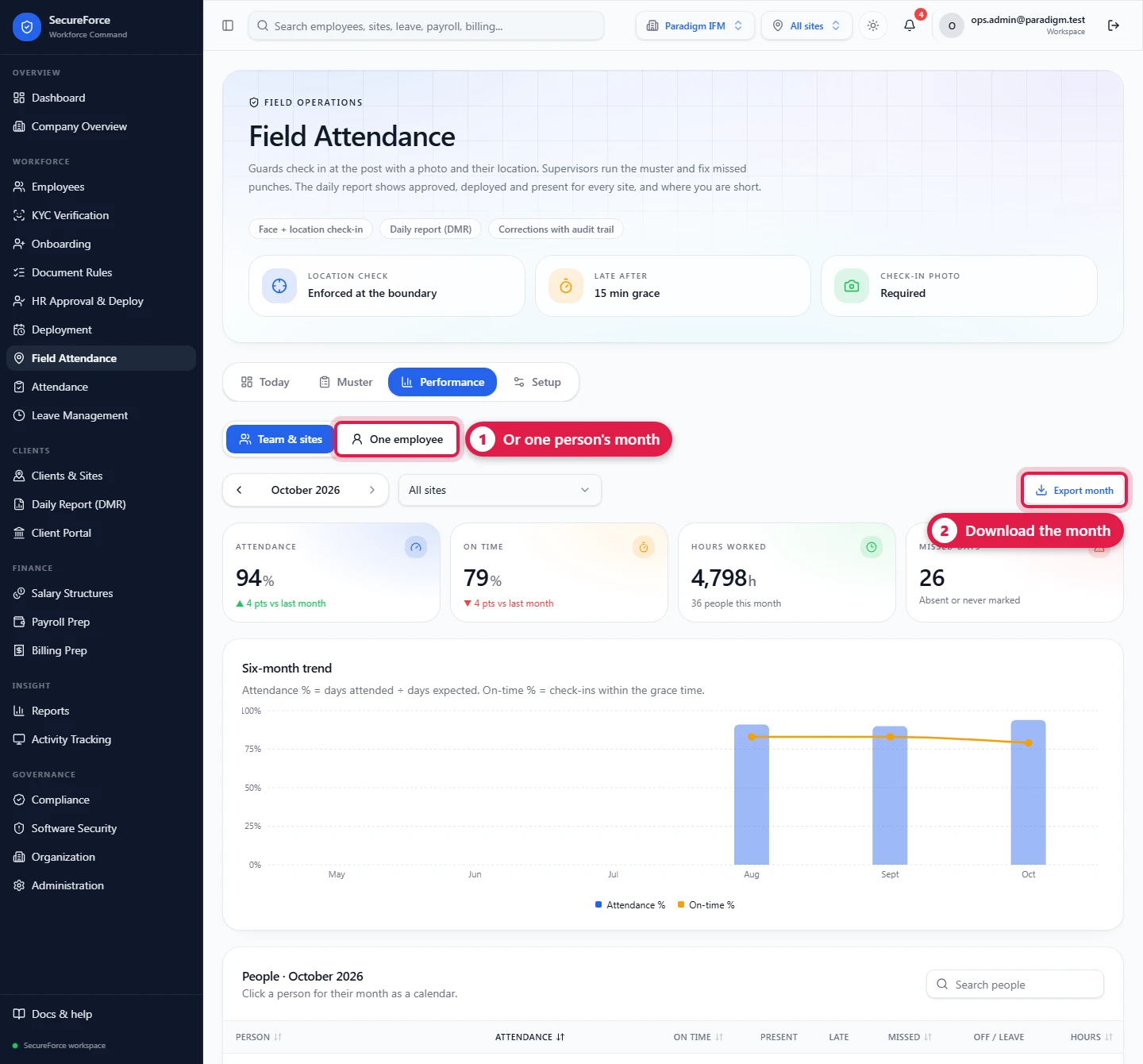
For a month: each person's attendance % (days attended ÷ days expected), on-time % (check-ins within the grace), late arrivals, hours and missed days. Sort the columns, step between months, and Export month. Click a person for their month as a calendar (Present, Late, Half Day, Absent, Missed, Leave, Weekly off) and a six-month trend.
Supervisors
A Supervisor scoped to one site sees only that site in Today and Muster, on their phone or a laptop. They can mark, correct and approve their team's days, and check in guards who have no smartphone. If they are also linked to an employee record, they get a My shift tab for their own attendance.
Troubleshooting
| What the guard sees | Cause and fix |
|---|---|
| "Your account is not linked to an employee record" | The login's email (or mobile number) doesn't match exactly one employee. Fix the employee's email, then Administration → Add member again with that email. |
| "No shift rostered" | No roster assignment for today. |
| "Turn on location" / button disabled | Location or camera permission blocked: tap the lock icon in the address bar and allow both. Or the guard is outside the boundary under Enforce. |
| Distance is always huge | The site has no latitude/longitude, or they are swapped. |
| Camera won't open | Use Use camera app. |
| Supervisor: "No employee at your sites has this number" | The number isn't on the guard's employee record, or the guard isn't deployed at one of your sites. Fix the number under Employees. |
| Supervisor: "That employee is outside your assigned sites" | The guard is deployed at a site you aren't assigned to. Ask an admin, or the supervisor of that site. |